





3 products
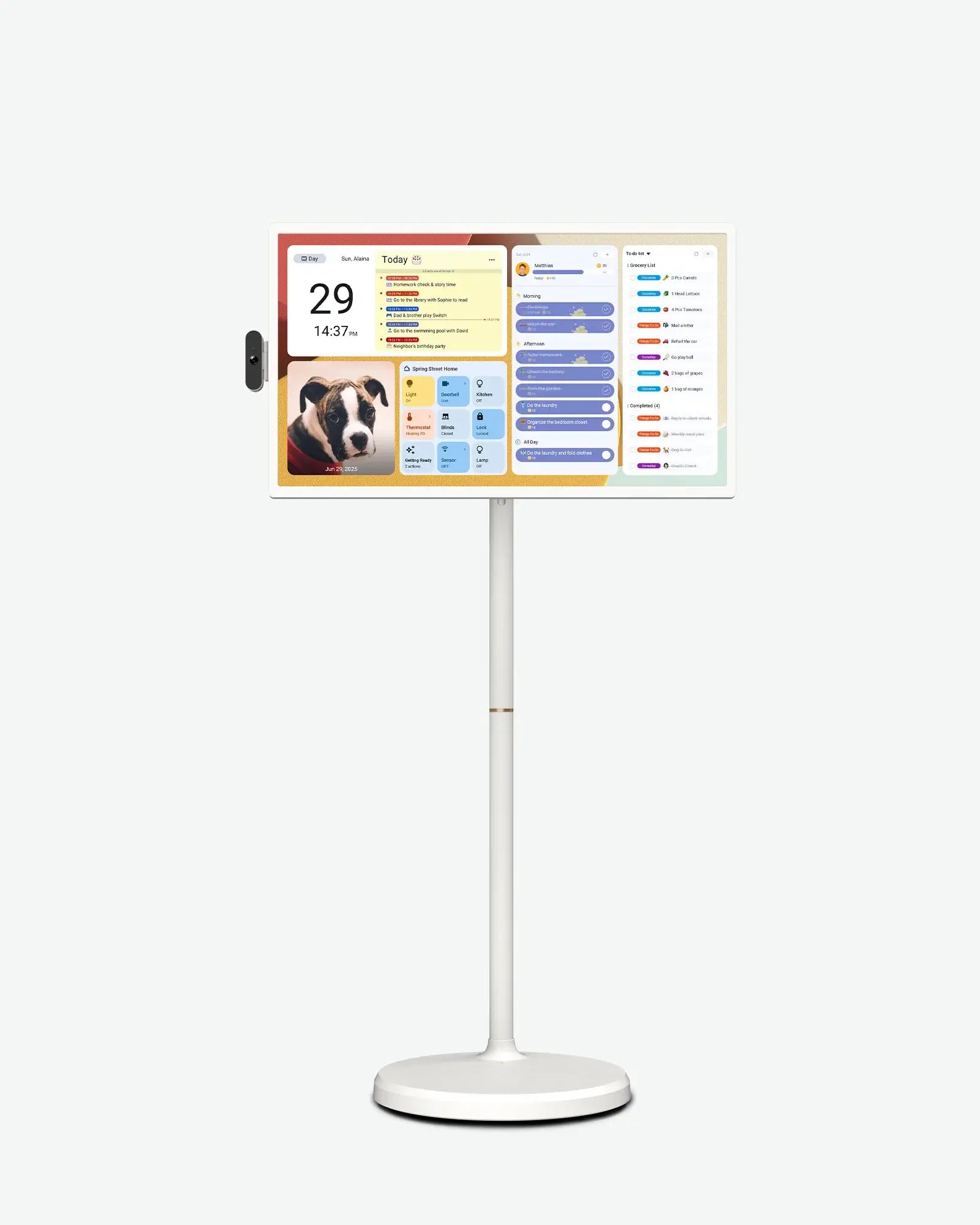

SMART TV, ANYWHERE
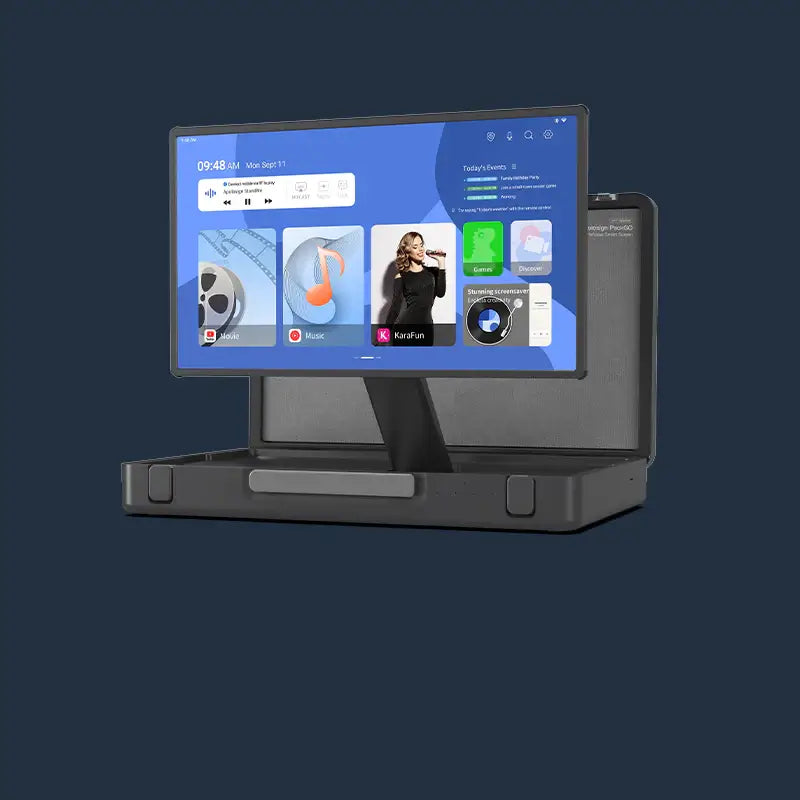
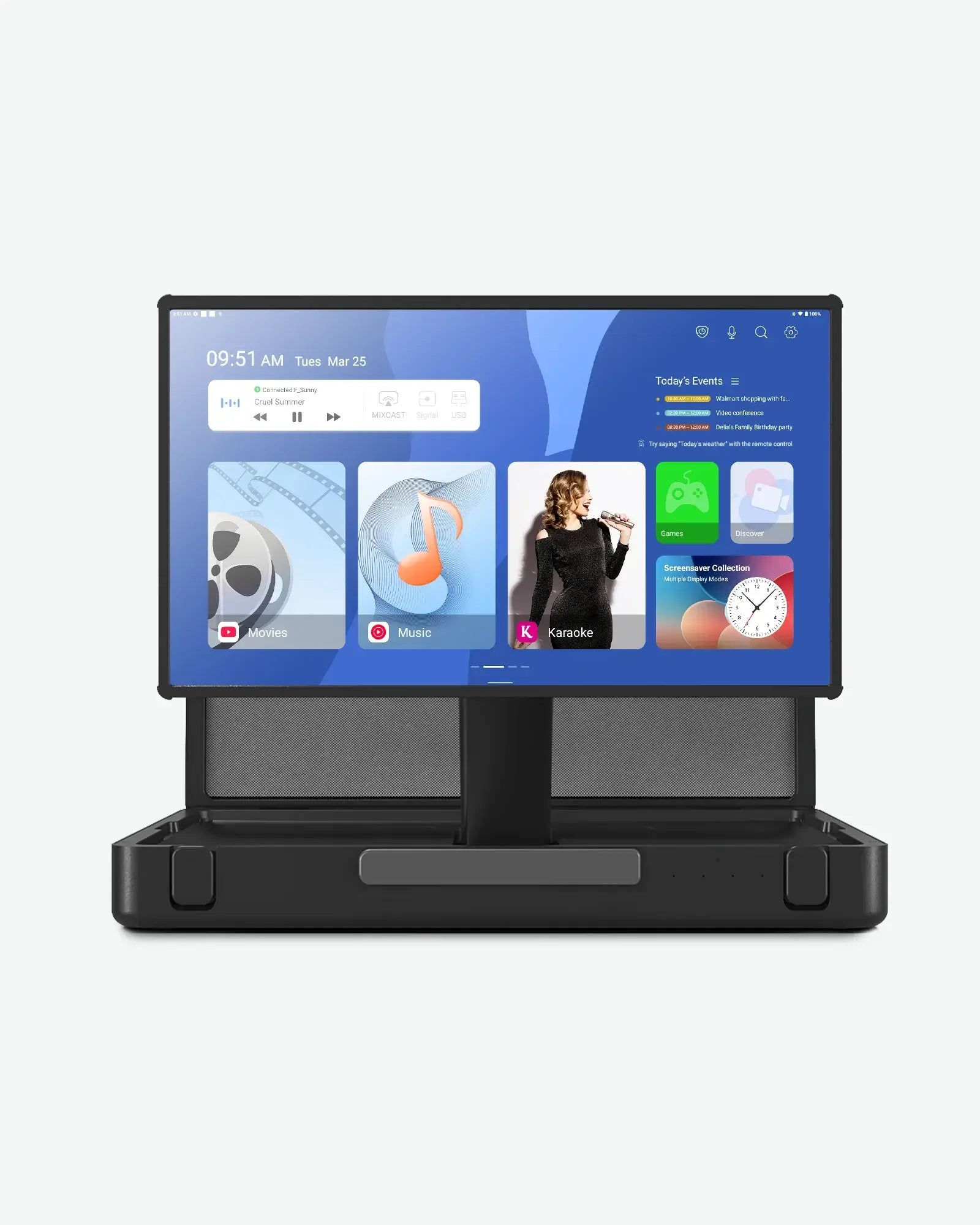
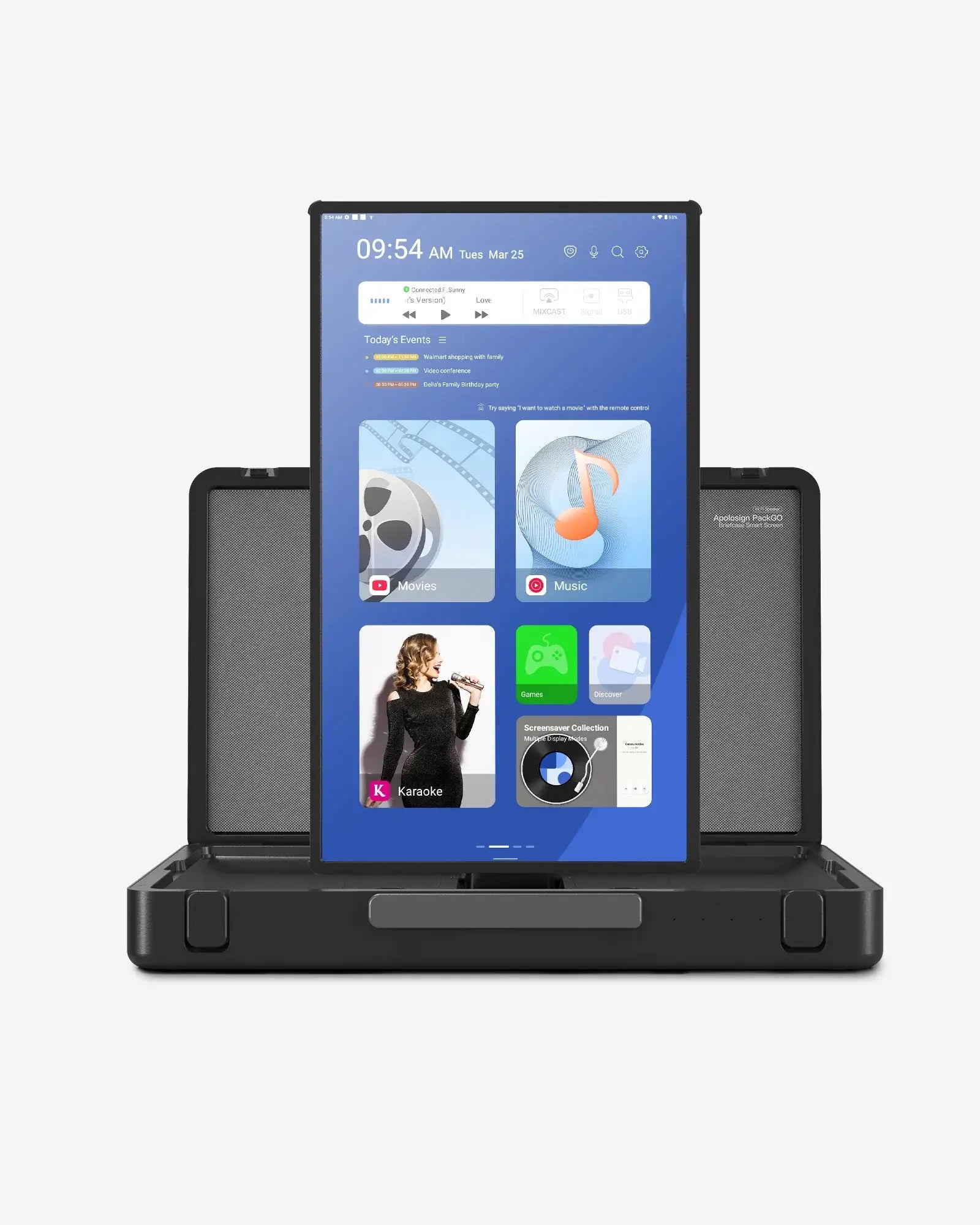
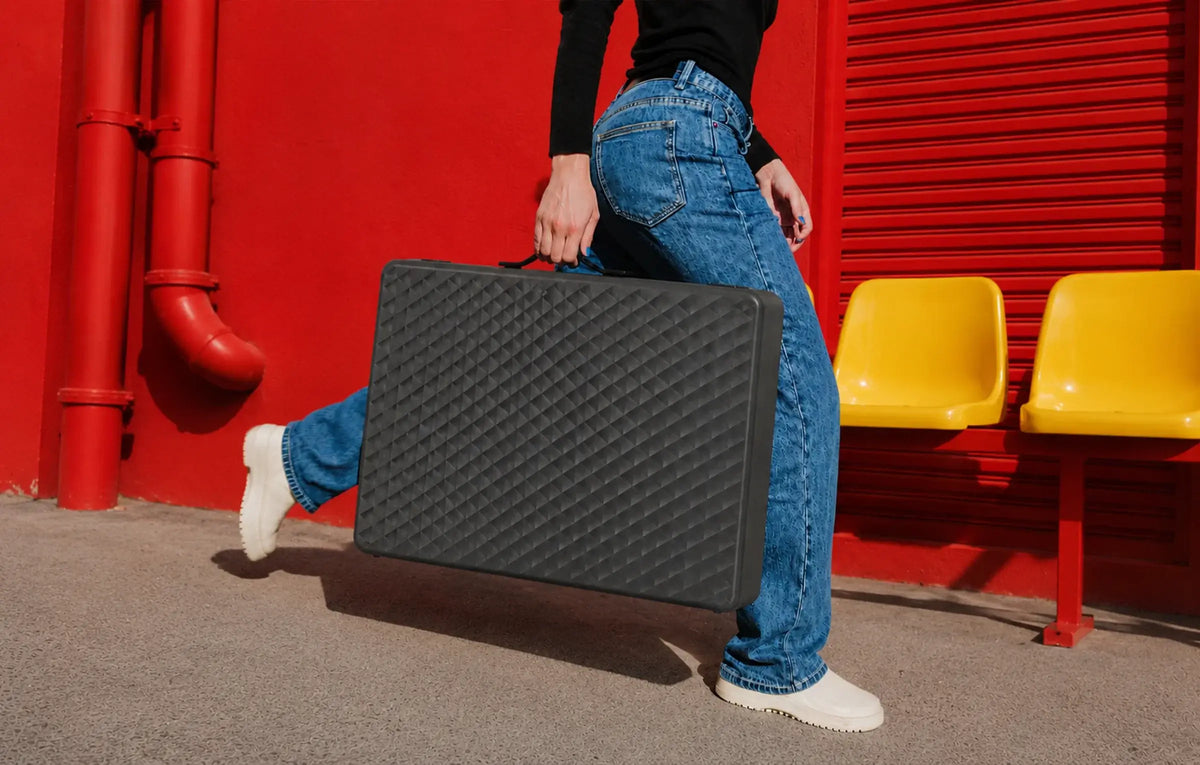
PACKGO, ON THE GO
Your Screen Should Move as Freely as You Do.
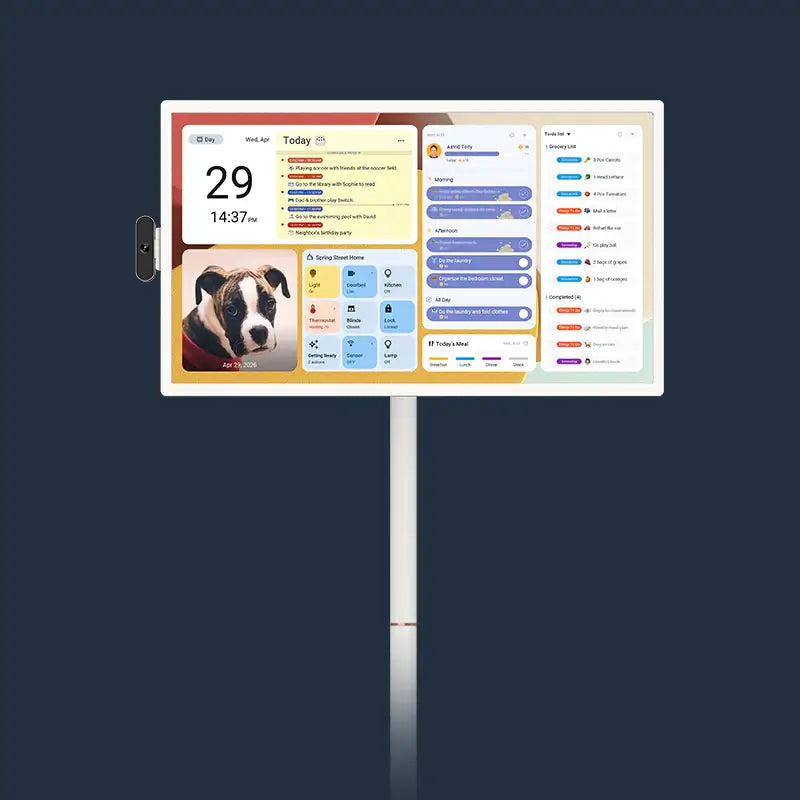
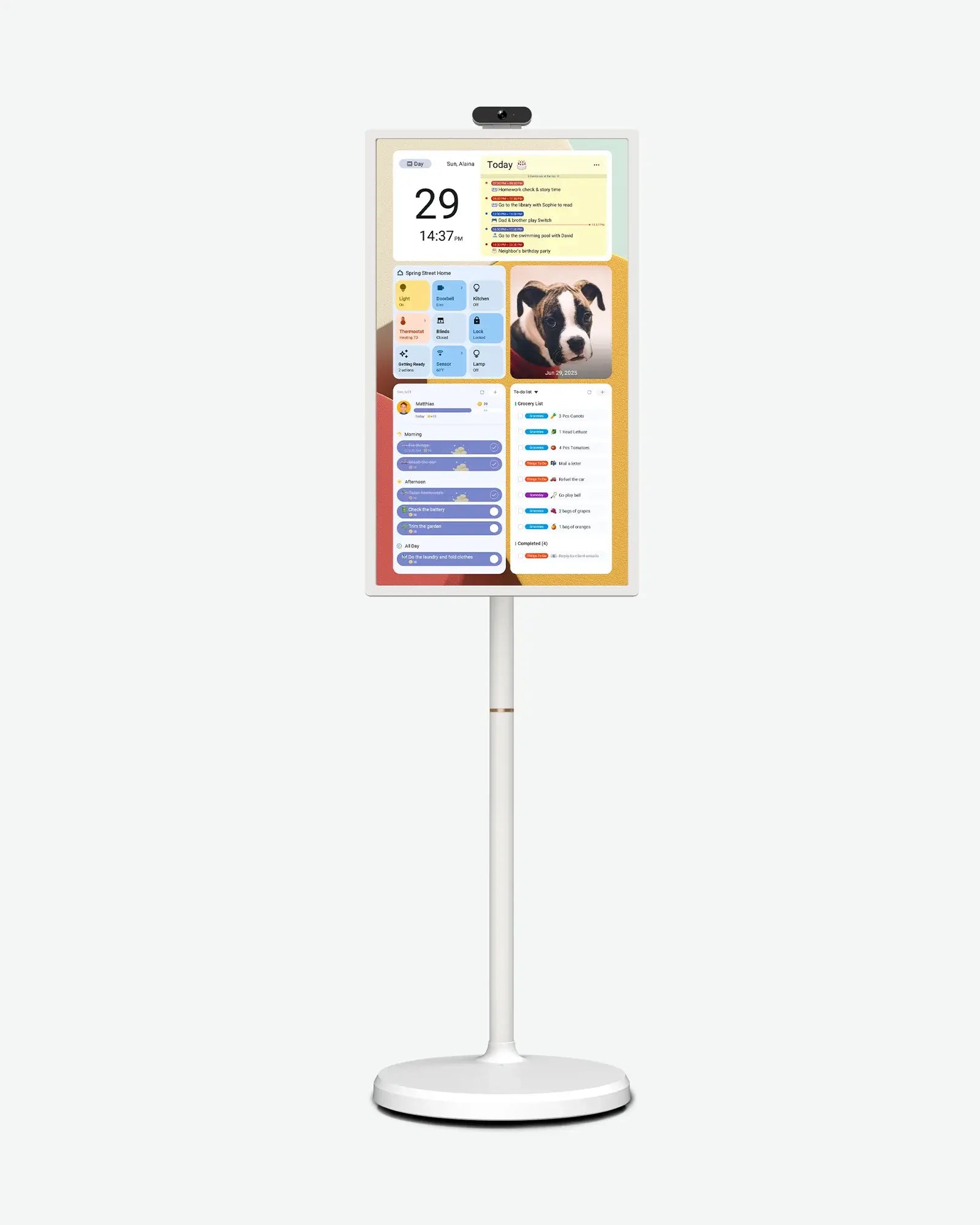
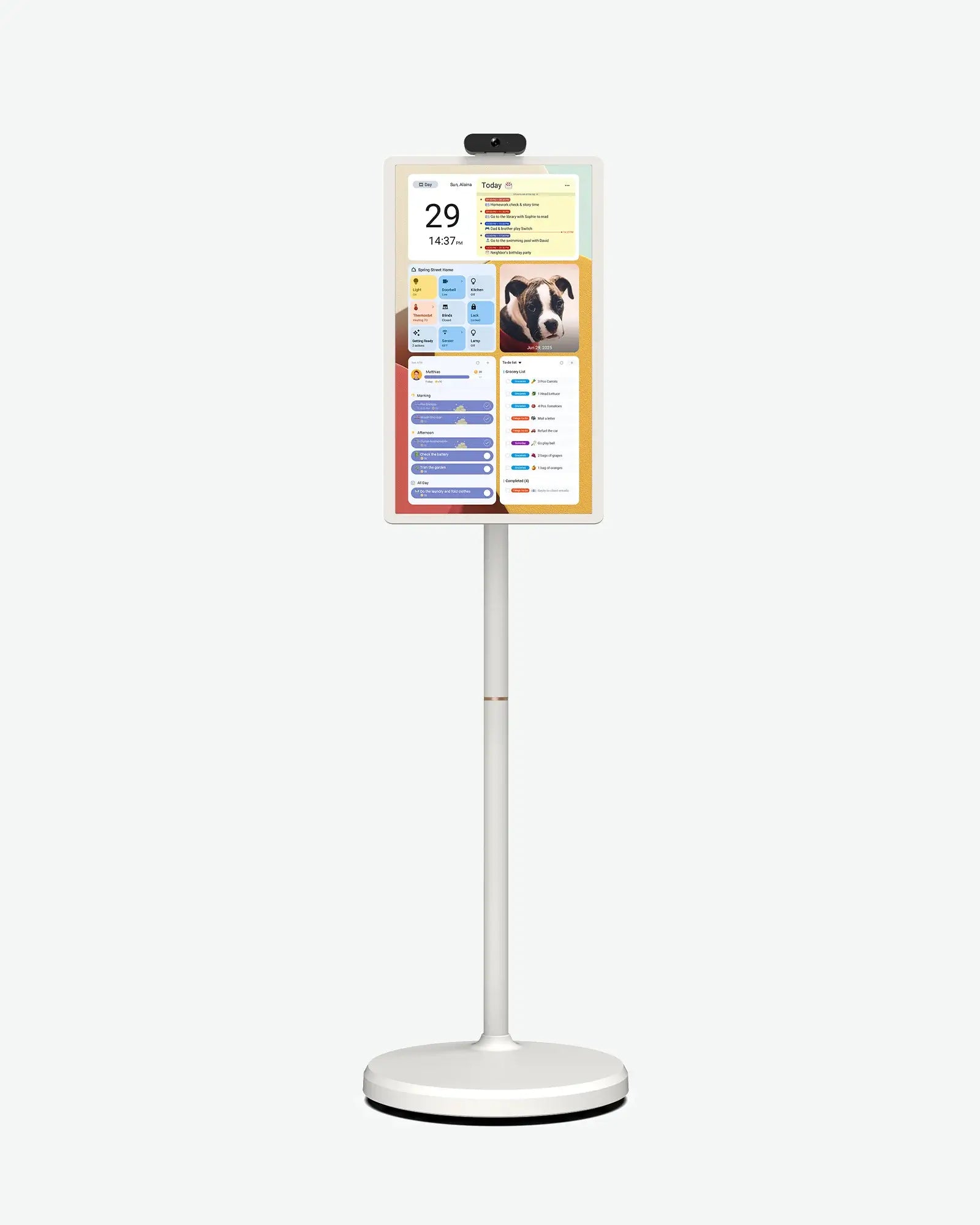
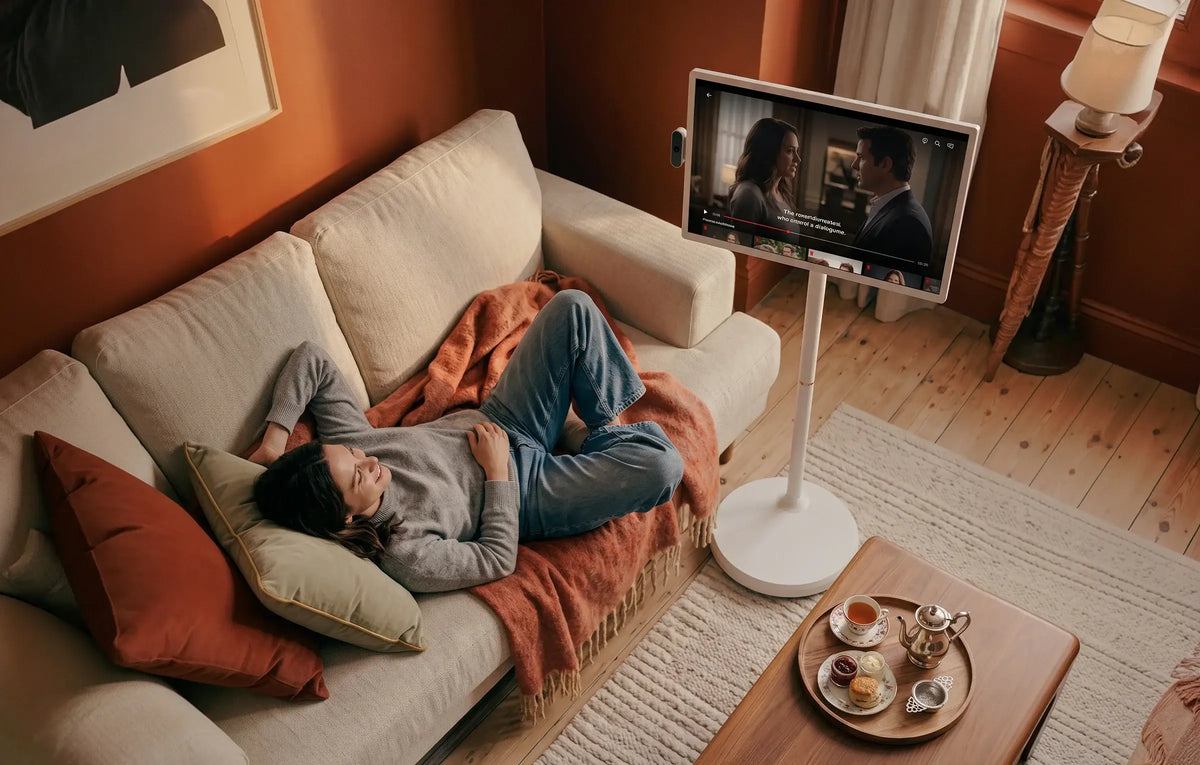
Built to roam. The Apolosign portable touch screen TV features a completely cordless design, built-in rechargeable battery, and a smooth-rolling stand powered by a smart Android system. Effortlessly roll it from the bedroom to the home office, or the living room to the patio—bringing work, play, and family time wherever you go.
Portable TV with Wheels.
From kitchen island to backyard patio, our cordless smart screen with silent wheels lets you stream, play, or cook without being tied to an outlet.

Built-in Battery for Cordless Entertainment.
No outlets, no limits. Equipped with a high-capacity built-in rechargeable battery, this portable television brings hours of unplugged entertainment to your garden, camping trips, or any room in your home.

Your Favorite Apps, on a Big Screen.
Access the Google Play Store on Android 16 to download your apps. Whether streaming, gaming, or working, you can enjoy and interact with your content directly on the large, high-resolution touch display.

Total Control, Your Way.
Manage your smart screen your way. Navigate with intuitive touch, use the Bluetooth remote, or simply speak. With built-in Google Assistant and Gemini AI, you can find content, or get instant answers completely hands-free.

Your Smart Command Hub.
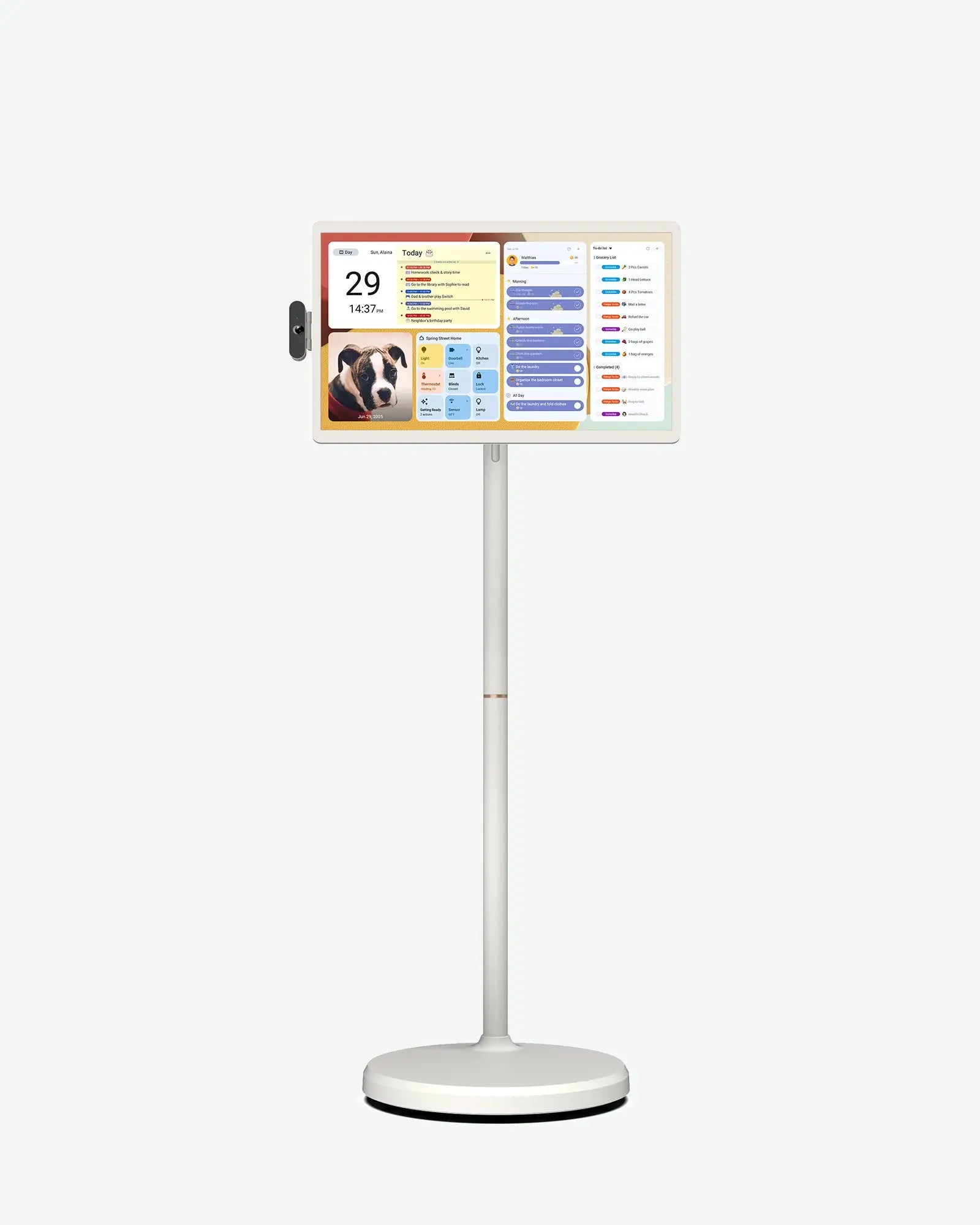
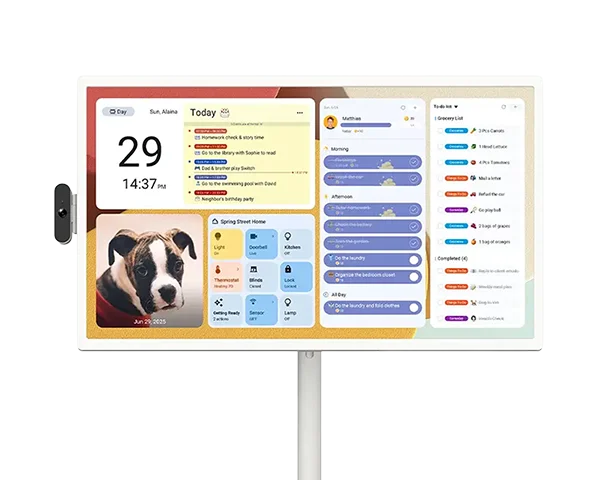
More than just a portable TV, it’s the central hub for your household. Seamlessly sync your shared family calendars, display daily widgets, and manage your IoT smart home devices all from one stunning, portable touch interface.

Versatile Display for Your Work & Play.
Need a bigger view? Connect your laptop, gaming console, or smartphone via HDMI or Wi-Fi to use this screen as a portable external monitor. It’s the perfect display for work presentations, gaming sessions, or multitasking on an extended screen.

Made for Modern Life
Smart Portable TV vs Traditional TV
Don't let cords and walls limit your fun. Compare the features below and see how the Apolosign portable TV delivers a smarter, more flexible.
Smart Portable TV
Briefcase Portable TV
Traditional TV
Move room to room
Carry It Anywhere
Fixed installation
Built-in rechargeable battery
Built-in rechargeable battery
Requires outlet
Yes
Yes
No
Calendar and widgets
Calendar and widgets
Limited
Google Play
Google Play
Limited
Flexible
Durable & Secure
Less convenient
Find the Right Portable TV for You
Compare Features and Sizes Across Our Portable TV Lineup


Colors
Screen Size
Display
Processing
Connectivity
Power and Battery
Camera and Audio
Others

Rated 4.5 out of 5 on Amazon and Trustpilot by real customers
Why Families Choose Apolosign Portable Smart TVs
Portable Smart TV Guides and Ideas.


FAQs
Apolosign Portable Smart TV FAQs
Can I download apps from the Google Play Store on this portable TV?
Yes, you can download your favorite apps directly from the Google Play Store. Our portable smart screen runs on a fully compatible system, allowing you to install streaming apps, games, and productivity tools to customize your entertainment experience just the way you like.
Is the Chrome browser pre-installed on the portable smart TV?
Yes, the Chrome browser comes pre-installed on the device for instant web browsing. You can easily surf the web, stream videos, or access web apps right out of the box. For other browsers or applications, simply download them via the Google Play Store.
How do I connect external devices to the portable TV via Bluetooth?
Please click here to view the Bluetooth connection method.
What should I do if my portable TV remote control is not working?
If your Bluetooth remote control is unresponsive, please try the following troubleshooting steps:
1.Check the Batteries: Ensure fresh batteries are correctly installed in the remote.
2.Re-pair via Bluetooth: The remote connects via Bluetooth. Follow our video tutorial to pair it with your smart screen again.
3.App Compatibility: Please note that remote control operation requires app support; some third-party apps downloaded from the Google Play Store may not fully support remote navigation (we recommend using the touchscreen for these apps).
Why won't my portable smart screen turn on with the remote after entering sleep mode?
By default, the portable TV disconnects Bluetooth during sleep mode to conserve battery life. Because of this power-saving feature, the Bluetooth remote cannot wake the device.
1.Quick Solution: Press the physical power button on the back of the screen to wake it up. Once active, your remote will reconnect automatically.
2.Always-On Alternative: If you prefer to wake the device using the remote, you can enable this by going to Settings → Bluetooth → Keep Bluetooth Active During Sleep → Turn On. (Note: This will slightly increase standby power consumption).