


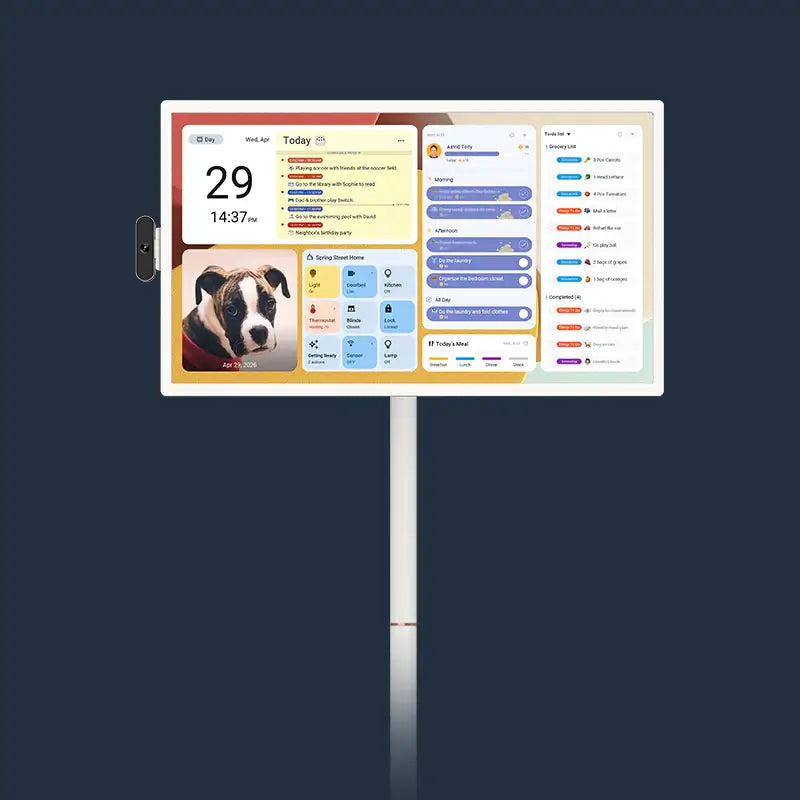
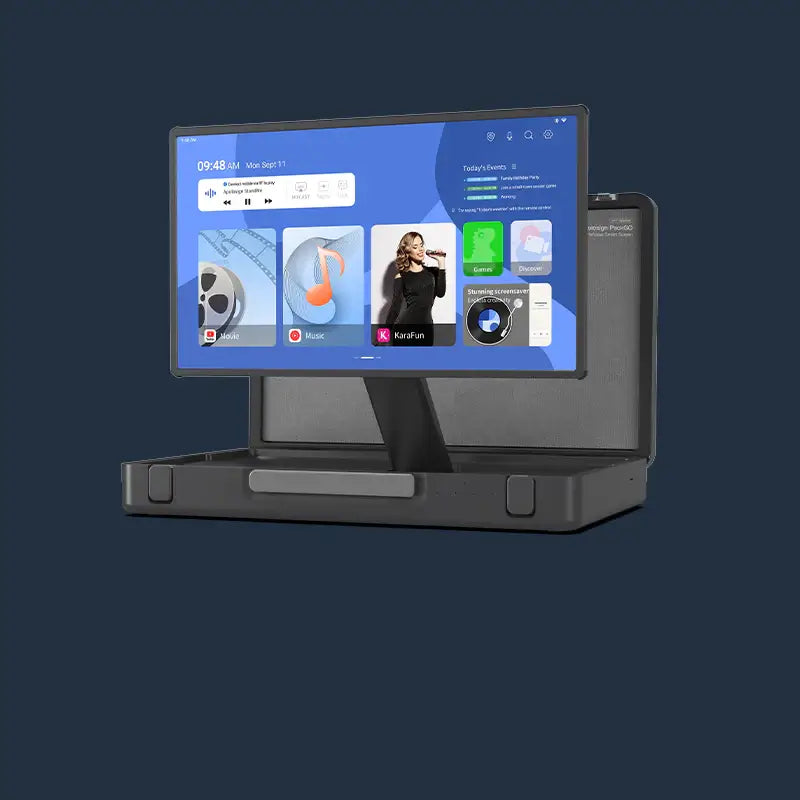
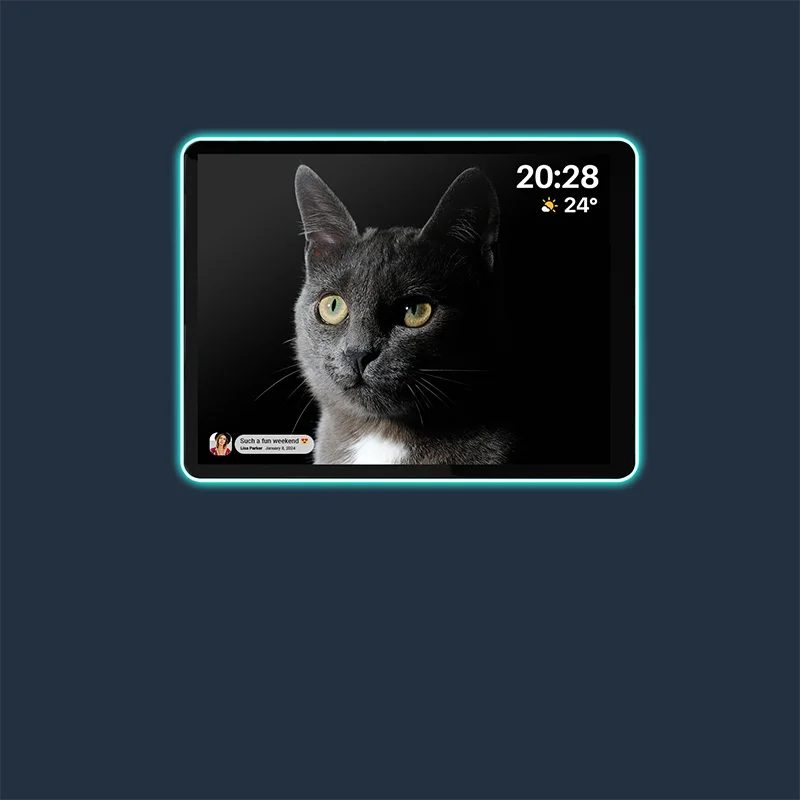


Your child walks over to check the day’s schedule and soon opens a video app. “Just five more minutes” becomes a familiar refrain, and deciding when to stop turns into a daily discussion.
A shared family screen brings convenience, but it also benefits from clear boundaries. Parental controls on Apolosign Digital Calendar help you manage app access, set usage limits, and review activity, making family rules easier to put into practice.
Manage App Access with Clear Boundaries
Parents and children use the same screen for different reasons. Instead of repeatedly saying, “Please don’t open that app yet,” you can decide in advance which apps are available and which require permission.
Under Parental Controls > Manage Apps, review installed apps and set each one as available or restricted. Restricted apps require the parent PIN to access.
For example, you can keep approved learning apps available while restricting entertainment apps that you prefer to use together. Children can still explore approved options, and parents have fewer rules to explain each time.
App permissions control access to an app, not the suitability of everything inside it. Check each app’s own content settings as well.
Set Screen Time Limits That Fit Your Routine
“How long can I use it?” and “When can I use it?” are different questions. Parental controls offer settings for both, so you can combine them around your family’s routine.
Daily Screen Time Limits: Set a Total Allowance
To set a daily limit, go to Parental Controls > Control Time > Total Time. Choose a preset duration or customize the allowance, then apply it by day or across the week.
Agreeing on an allowance with your child first helps make expectations clear. Once the limit is reached, the device locks until the next available period or a parent extends the time.
Usage Schedules: Choose Available Hours
If screen use tends to interrupt homework, meals, or bedtime, set permitted hours under Parental Controls > Available Time Periods.
This gives screen use a predictable place in the day, rather than leaving you to decide when to intervene.
Time restrictions can involve locking the device. When using it as a shared family calendar, check the scope of the lock and test whether it affects access to the schedule.

Allow Extra Time Without Changing Every Rule
Sometimes a learning video is nearly finished, or the family decides to watch a little longer together.
Use Extend Usage Time to add time, then confirm with the parent PIN. Once the extension ends, the original restrictions resume automatically.
This leaves room for occasional exceptions without requiring you to change your regular settings.
Review Usage Before Adjusting Limits
If you’re unsure where screen time is going, review the activity before making changes.
Parental controls show daily device usage and app usage for today or the past seven days. These records can help you understand which apps are used most and whether the current limits suit your family.
Use the information to start a conversation. Is your child learning something, watching videos, or simply losing track of time? Understanding the reason makes it easier to choose a useful adjustment.
How to Set Up Parental Controls
Get started with a few simple steps:
- Open Parental Controls from the home screen.
- Sign in with a parent account.
- Create a four-digit PIN.
- Choose the app permissions and usage limits that fit your family’s routine.
Keep your parent account details and PIN secure, as they protect access to these settings.
Start with one app restriction or time limit. Try it together so your child understands what happens when an app is restricted or their available time ends. Adjust the settings as you learn what works for your family.
Clearer Rules, Easier Family Conversations
Parental controls help put rules into practice, but those rules are worth discussing together first: which apps are available, when screen time fits into the day, and how to ask for extra time.
Explore Apolosign Digital Calendar and see how a shared screen can support your family’s daily routine.
Already have an Apolosign? Open Parental Controls and start with one app permission or time limit, so the next screen session begins with clear expectations.
FAQ
1. Do app restrictions automatically filter inappropriate content?
No. App permissions determine whether an app can be opened; they do not filter everything inside it. For video and other third-party apps, review their own child profiles and content settings.
2. What if I forget my parental control PIN?
Select Recover Password on the relevant screen and follow the prompts to verify your identity or reset the PIN. To change it yourself, go to Parental Controls > Settings > Change Password.
3. Do I need to restore restrictions after extending usage time?
No. When you use Extend Usage Time and confirm with the parent PIN, the original restrictions resume automatically once the extension ends.