


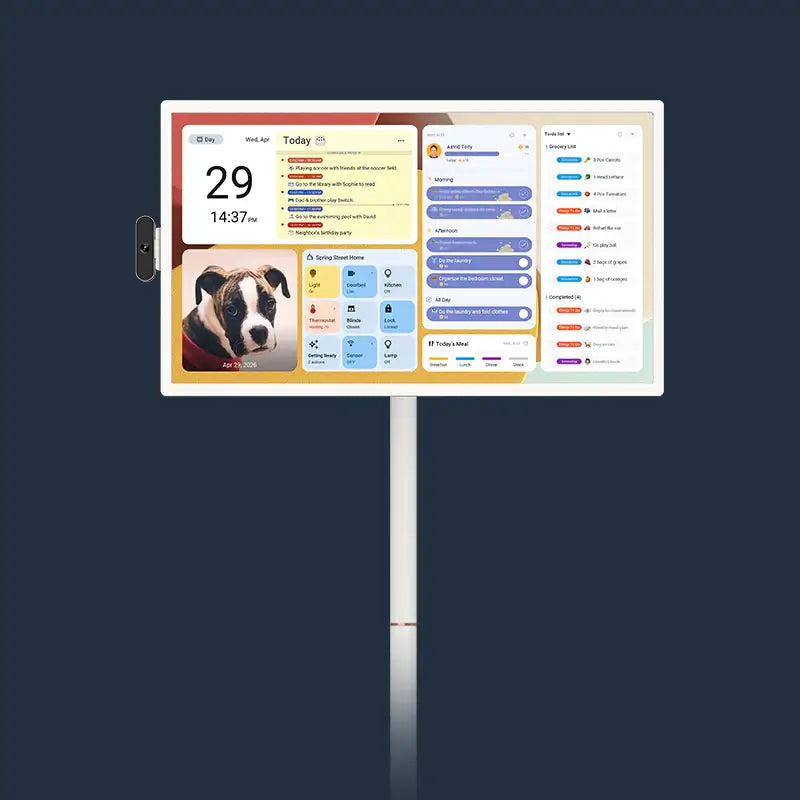
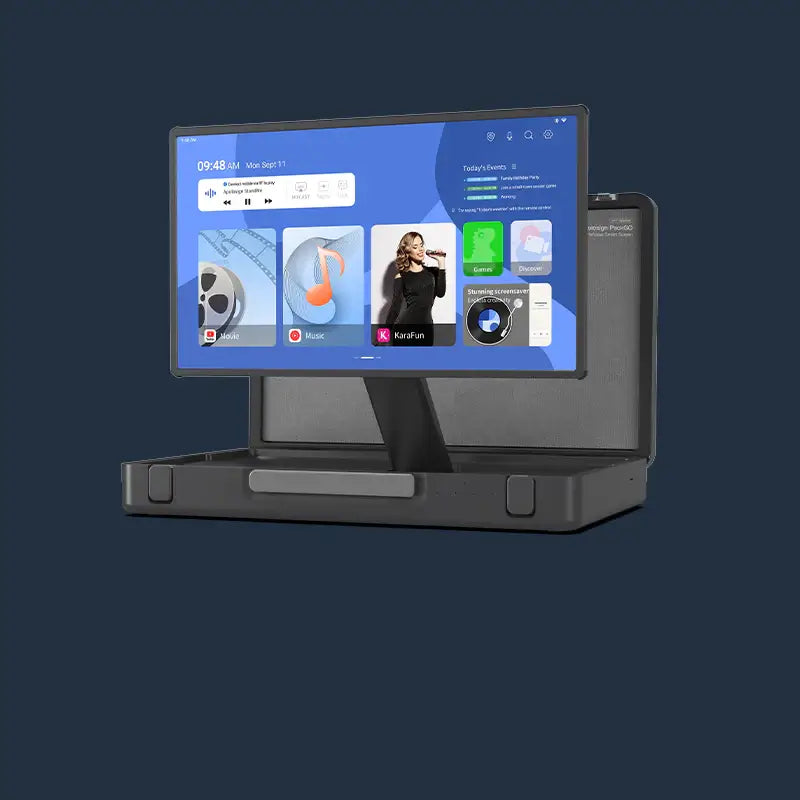
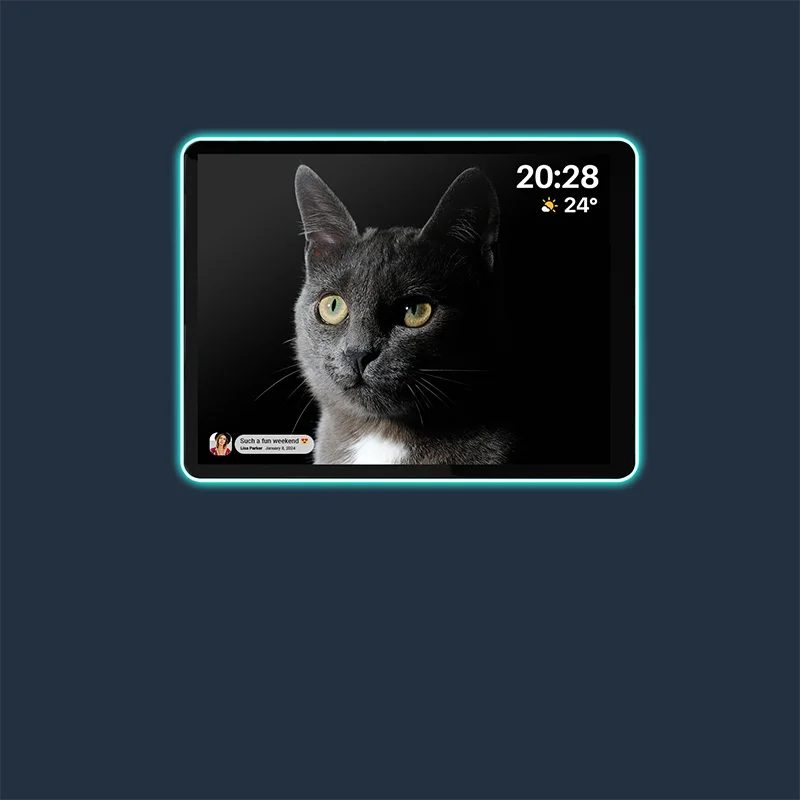


A favorite beach trip. A birthday full of laughter. A photo of the grandparents that makes the kids smile.
Family photos capture moments we want to remember, but many end up tucked away on our phones. Displaying them at home gives everyone another chance to enjoy them.
With Google Photos and the Screen Saver feature on Apolosign Digital Calendar, you can choose an album to display as a photo slideshow when the screen is idle. Your calendar becomes a place for family memories between checking schedules and making everyday plans.
Here are a few ways to make the most of it, plus the steps to get started.
Turn Your Family Calendar Into a Photo Display When It’s Idle
Your family calendar helps everyone keep track of what’s coming next. When it’s idle, a slideshow can bring a few favorite moments back into view.
Place it in a shared space, such as the kitchen or living room, where family members can enjoy the photos as they go about their day.
A picture from last summer might start a conversation over breakfast. A photo of a much younger child might lead to a story they haven’t heard before. These small moments give family photos a place in daily life beyond a phone gallery.
The pictures you love become something the family can enjoy together.
Choose Photo Albums That Mean Something to Your Family
A dedicated album makes it easier to choose what appears on your home display. Start with a collection you would enjoy seeing every day.
Celebrate the Kids’ Growing-Up Moments
Bring together first-day-of-school photos, birthday celebrations, and everyday moments that show how much the children have grown.
Include the little things, too: a proudly held drawing, a missing-tooth smile, or an afternoon spent baking together.
Keep Loved Ones in View
Create an album with grandparents, relatives, and other people who matter to your family.
For children, seeing familiar faces around the home can prompt questions, stories, and conversations about the people in their lives.
Revisit Trips and Family Traditions
Collect photos from a holiday, a weekend outing, or a favorite annual tradition.
An album of beach days or family celebrations gives those memories another life after the trip or event is over. You can choose a different album whenever you want to refresh what’s on display.
Watch How to Set Up Your Google Photos Slideshow
Follow the video below to see how to connect Google Photos, choose an album, and display it through Screen Saver.
You can also follow the written steps below as you set up your own family photo display.
How to Display a Google Photos Album on Apolosign Digital Calendar
Before you begin, choose the Google account that contains the family photos you want to display.
Step 1: Open Google Photos and Sign In
Open the Google Photos app on your Apolosign Digital Calendar.
Sign in to your Google account. Google Photos on the calendar will sync with the account you’re signed in to, making the photos in that account available.
Make sure you use the account that contains the photos you want to include.
Step 2: Create an Album for Your Family Display
In Google Photos, create an album and add the photos you want to show. If you already have a suitable album, you can use that instead.
Give it a name that’s easy to recognize, such as:
- Family Favorites
- Growing Up Together
- Our Summer Adventures
- Moments With Grandparents
A dedicated display album helps you keep the selection intentional, especially when the screen is in a shared area of your home.
Step 3: Open Screen Saver
Return to the Home screen on your digital calendar and open Screen Saver.
Step 4: Select Google Photos and Choose an Album
In Screen Saver:
- Select Google Photos.
- Choose the album you want to display.
This selects the photo collection for your screen saver slideshow.
Step 5: Adjust How Photos Fill the Screen
If a photo doesn’t fit the display the way you expect, select Enter Photos Settings, then find Photos fill screen to adjust how images are displayed.
Check a few portrait and landscape photos afterward. Filling the screen may crop part of an image, so pay attention to faces and important details near the edges.
Make Your Family Photo Slideshow Feel Personal
You don’t need a large collection to get started. A small album of meaningful photos can be just as enjoyable as years of pictures.
Choose a mix of special occasions and ordinary moments. A holiday portrait might sit alongside a messy kitchen baking session or a snapshot from a walk around the neighborhood.
When you want a change, update your collection in Google Photos or select a different album in Screen Saver. A birthday month, a recent trip, or a new season can be a good reason to revisit what you display.
Because the photos will appear in a shared space, choose pictures everyone featured is comfortable having on view.
Give Your Favorite Memories a Place at Home
Your family photos deserve to be seen more often than the occasional scroll through your phone.
Already have an Apolosign Digital Calendar? Open Google Photos, choose a favorite album, and set it up in Screen Saver. Start with a few pictures that make your family smile.
Looking for a calendar that brings both everyday plans and family memories into your home? Explore Apolosign Digital Calendar and make space for the moments that matter.