



The modern family schedule is a beast with many heads. Between soccer practice, parent-teacher conferences, work deadlines, and dentist appointments, keeping track of where everyone needs to be is a full-time job. This is where a digital family calendar becomes essential. It replaces the chaos of paper scraps and sticky notes with a unified, automated system. But before you invest in one, you need to know exactly how it talks to the devices you already own.
Why Account Sync Matters for a Modern Family Calendar
In the past, a family calendar was a physical object that required manual entry. If you wrote an appointment on the kitchen wall, it didn’t magically appear on your spouse’s phone. Today, that lack of communication is a recipe for missed pickups and double-booked evenings.
The primary value of a digital wall calendar is not just that it displays information, but that it aggregates it. Your life is likely segmented across different platforms: you might use Outlook for work, your partner uses Google Calendar for personal events, and the kids’ school schedule is hosted on a completely different system. Account synchronization bridges these silos. It ensures that when a change is made on a smartphone miles away, it is instantly reflected on the central hub at home, keeping the entire household on the same page without requiring a weekly family meeting to coordinate schedules.
The Big Three: How Google, iCloud, and Outlook Calendars Work Behind the Scenes
When shopping for a digital calendar display, you will find that almost all robust systems rely on connecting to the "Big Three" providers: Google, Apple (iCloud), and Microsoft (Outlook). Understanding how these work behind the scenes helps you troubleshoot potential issues.
- Google Calendar: This is often the easiest to sync because of its open integration standards. Most digital displays run on Android-based operating systems, making Google Calendar the "native" language. Changes here are usually instantaneous.
- Apple iCloud: Apple uses a protocol called CalDAV. While highly secure, it sometimes requires an "app-specific password" to allow a third-party device (like a wall display) to read your data. Once authorized, however, it syncs seamlessly, allowing iPhone users to keep their preferred ecosystem while contributing to the family view.
- Outlook/Office 365: This is common for corporate environments. Microsoft uses Exchange protocols. A good digital display needs to support Exchange ActiveSync to properly pull work meetings onto the home screen without compromising corporate security settings.
What a Digital Family Calendar Reads (And What It Doesn’t) From Your Accounts
It is important to manage expectations regarding what data actually transfers from your phone to a digital calendar display for home. These devices are designed to give you an "at-a-glance" view of your day, so they prioritize specific data points.
Generally, the device will pull the Event Title (e.g., "Soccer Practice"), the Time and Duration, the Location, and often the Color Coding associated with the specific sub-calendar. Many advanced displays will also pull the Description or notes field, which is helpful if you need to see a gate code or a Zoom link.
However, there are limitations. Most displays will not sync email attachments (like a PDF attached to a meeting invite). Furthermore, if you are using a specialized, niche calendar app that doesn't sync to the cloud (local-only storage on your phone), the digital display cannot see it. The data must exist in the cloud for the device to grab it.

One Screen, Many Users: Handling Multiple Google / Apple / Microsoft Accounts in One Home
The "Holy Grail" of a digital family hub is the ability to overlay multiple lives onto a single grid. A typical household setup involves mixed ecosystems. Perhaps one parent is on Android (Google), the other is on iPhone (Apple), and the teenager has a school account (often Google Classroom or Outlook).
A high-quality digital calendar allows you to log in to multiple distinct accounts simultaneously. It doesn't force you to merge everything into one "Family" Google account. Instead, you authenticate Dad’s Google account, Mom’s iCloud account, and the family’s shared Cozi account separately. The device then takes these separate streams and layers them visually.
Ideally, the display should maintain the color coding you have already set up. If Mom is "green" on her phone, she should be "green" on the wall. This visual continuity allows family members to glance at the screen and instantly know who needs to be where, without reading the fine print.
Common Sync Scenarios: School Calendars, Sports Teams, Work Meetings, and Family Events
The true test of a syncing system is how it handles the external calendars that you don't control.
- School Calendars: Many schools publish their schedules via "iCal subscriptions" (URLs ending in .ics). A good digital calendar allows you to subscribe to these URLs, so school holidays and early dismissals appear automatically.
- Sports Teams: Apps like TeamSnap often provide calendar feeds. By syncing this feed to your personal Google or Apple calendar, the digital display can pick it up, ensuring you never miss a game.
- Work Meetings: This is the trickiest scenario due to privacy. Many people want their work blocks to show up so the family knows when they are busy, but they don't want the specific details of confidential meetings displayed on the kitchen wall. This usually requires adjusting privacy settings on your work account to show events as "Busy" rather than displaying the full details.
What Happens When You Add, Edit, or Delete an Event?
The Apolosign Digital Calendar supports two-way sync with Google Calendar, which means any changes made on the wall display are instantly reflected on your spouse’s or family members’ Google Calendar—and vice versa.
- Two-Way Sync Mode: Adding, editing, or deleting events on the wall display automatically updates everyone’s Google Calendar. For example, if you add a “dentist appointment” on the touchscreen, it will immediately appear on your partner’s calendar. Cancel a dinner plan, and it’s removed from their calendar as well.
- View-Only Mode: In read-only mode, the display only shows Google Calendar content, and any changes made on the wall screen won’t sync back to mobile devices or the cloud, which can be less convenient.
With two-way Google Calendar sync, Apolosign transforms from a passive display into an active, smart tool for managing your family’s schedule.
Privacy and Permissions: Granting Access Without Sharing Everything
Introducing a connected device into the home raises valid privacy questions. When you connect your accounts, you are essentially granting a "token" of authorization to the device.
You should look for devices that allow granular control over which sub-calendars are displayed. For example, your Google account might contain a "Holidays" calendar, a "Work" calendar, and a "Personal" calendar. A smart display should allow you to check off "Personal" and "Holidays" for display, while leaving "Work" hidden if you prefer to keep that separate. This ensures that the family sees only what is relevant to the household, reducing visual clutter and maintaining privacy where needed.

How a Wall-Mounted Digital Calendar Uses Sync to Become the Family’s Command Center
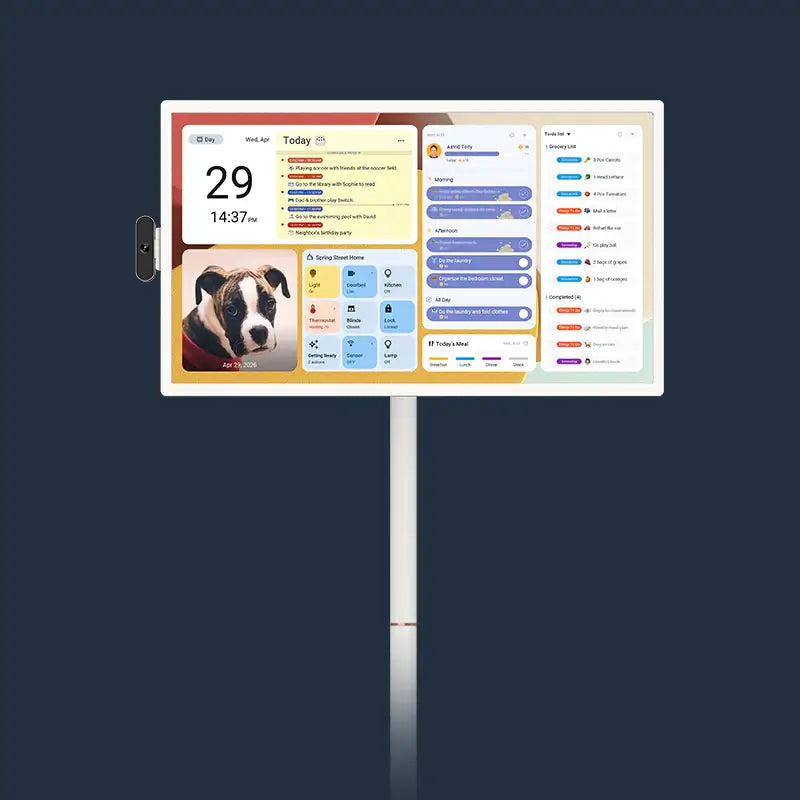
Ultimately, the hardware you choose determines how smoothly these accounts come together. A prime example of hardware built specifically for this level of integration is the Apolosign Wall-Mounted Digital Calendar, which comes in three sizes—15.6", 21.5", and 27". The 27-inch model is available in both 1080p and 4K, with the 4K version positioned as the flagship option.
The first thing you notice is the screen. The Apolosign features a 27-inch 4K ultra-clear display. Unlike standard tablets that can be reflective and hard to read from a distance, this device uses an anti-glare matte finish. This is crucial for a central home device, as it remains comfortable for the eyes even in bright rooms or under direct kitchen lighting.
The Apolosign excels in its ability to unify diverse platforms. It doesn't matter what devices your family members carry in their pockets; the Family Calendar auto-syncs with major platforms including:
- Google Calendar
- Apple Calendar
- Outlook
- Yahoo Calendar
- Cozi
This broad compatibility supports multi-calendar sync, ensuring schedules are kept up to date and accessible across all devices in real-time.
What separates the Apolosign from a standard monitor is its Dual Mode interface, which allows you to switch seamlessly between two distinct operating environments:
- Focus Mode (Calendar Mode): This is designed for pure organization. It offers an immersive calendar view for focus, allowing for chore planning and multi-calendar views. It even includes a routine task tracker with points, turning mundane chores into a game to help build good habits for children.
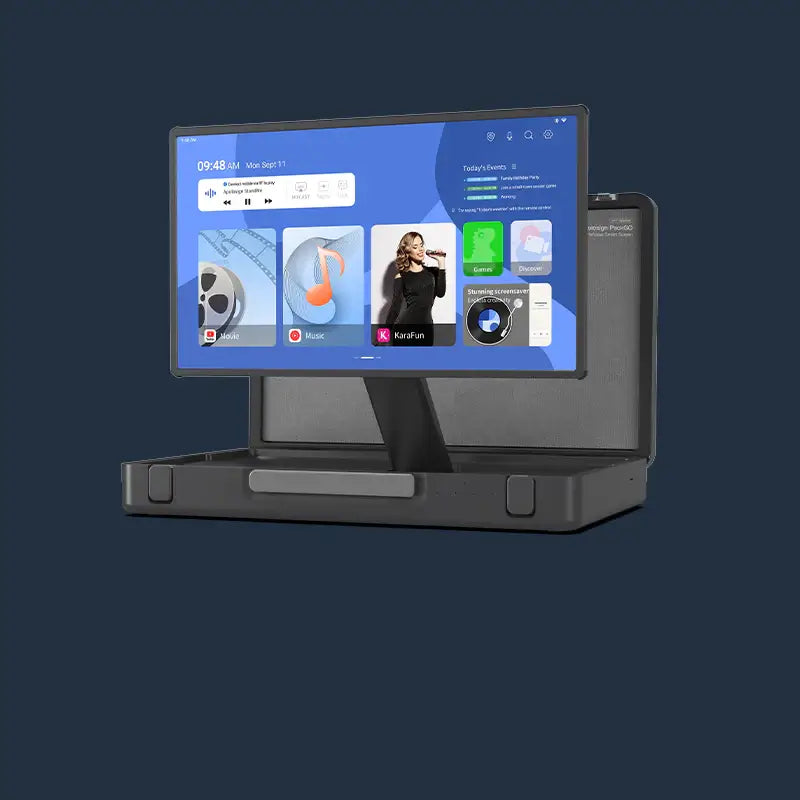
- Custom Mode (Android Mode): Powered by an Android operating system (EDLA-licensed) and an RK3576 octa-core processor, this mode turns the screen into a massive smart tablet. You can freely download and arrange widgets for weather, music, stocks, and meals.
This digital family hub integrates deeply with the smart home ecosystem. It offers voice control with Google Assistant, allowing you to set alarms or check the weather hands-free. With full Google Home integration, you can monitor doorbells and cameras right from the 27-inch screen.
Key Specifications:
- Connectivity: High-speed Wi-Fi 6 ensures sync happens instantly, and Bluetooth 5.4 allows for peripheral connections.
- Audio: Equipped with 2 × 3 W speakers and a Quad-mic array for clear voice interaction.
- Design: It features a VESA Mount (100 × 100 mm) for easy wall installation and supports auto-rotation via a built-in light sensor.
- Storage: With 4 GB of RAM and 64 GB of ROM, the interface remains high in responsiveness with smooth touch interaction.
By combining the Immersive Calendar View with the flexibility of the Customizable Android Dashboard, the Apolosign leverages account syncing to act as the central brain of the household. For those seeking similar smart technology for entertainment on the go, our collection of portable touch TVs offers a versatile solution.
Checklist: Is This Digital Calendar’s Sync System Good Enough for Your Family?
Before making a final decision, run your potential choice through this quick checklist to ensure it meets your syncing needs:
- Does it support Google, Apple, and Outlook simultaneously?
- Does the calendar update automatically, or do you have to manually hit "refresh"?
- Will it respect the color choices you have already made on your phone?
- Can you hide specific sub-calendars (like a private work calendar) while showing others from the same account?
- If the Wi-Fi goes down briefly, can you still view the cached version of the schedule?
If you have specific questions about compatibility, it's always a good idea to reach out to the support team for clarification.
Start with One Protected Block This Week
Adopting a digital calendar is about more than just technology; it is about reclaiming your time. By consolidating your accounts onto a single, visible screen, you eliminate the mental load of remembering everyone's schedule. Start small: sync your main family account, set up one "protected" block of family time this week, and watch how a shared view changes your household dynamic.