


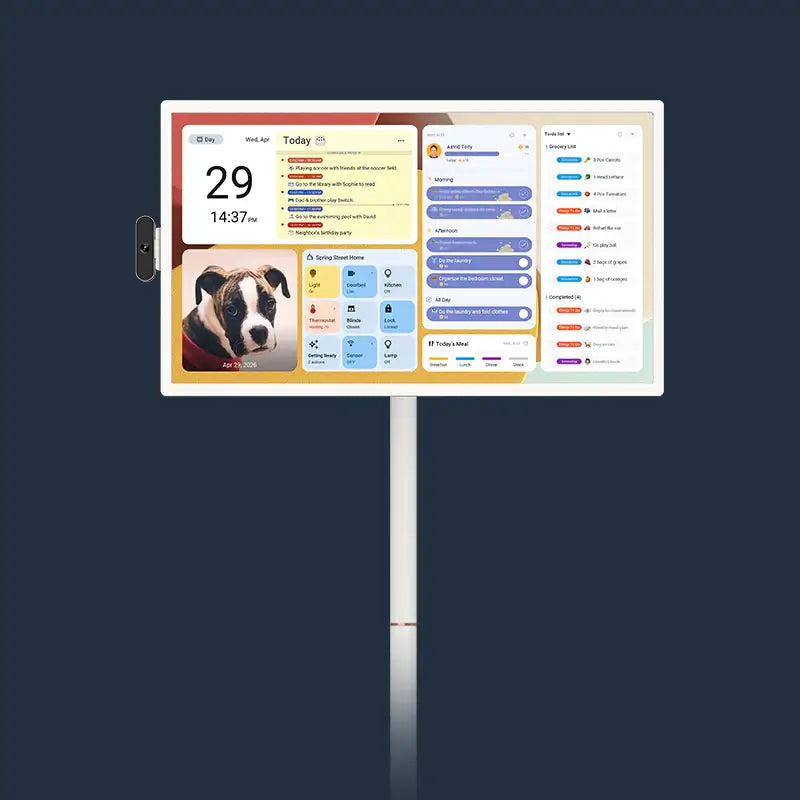



Chaos reigns when soccer practice clashes with dental appointments, leaving families scrambling to pick up the pieces. A central hub transforms scattered schedules into harmony, offering a breath of fresh air for busy households. The modern home demands a unified approach to time management, bringing order to the mayhem through a shared visual interface.
An Overview of Calendar Apps
Before diving into the mechanics of connecting a digital calendar, understanding the landscape of scheduling tools is crucial. Most users rely on a fragmented mix of applications, each serving a distinct purpose in their lives.
- Google Calendar stands as the titan of versatility. Its ubiquity across Android and web platforms renders it the default choice for personal and professional coordination. The seamless integration with Gmail and Maps creates a powerful ecosystem for managing time.
- Outlook, conversely, rules the corporate sphere. Microsoft built a robust platform for business, prioritizing email integration and meeting scheduling. While excellent for work, it often feels rigid for casual family use.
- iCloud Calendar serves as the heartbeat for Apple loyalists. Deep integration with iOS and macOS offers a smooth experience for iPhone users, yet stepping outside the Apple walled garden often presents challenges.
- Yahoo Calendar and Cozi cater to specific niches. Yahoo remains a steadfast option for legacy users, while Cozi specifically targets family management with features like color-coding and shared lists.
Here is a quick breakdown of the major players:
iOS / Mac
| App Name | Best Ecosystem | Primary Use Case | Sync Flexibility |
| Google Calendar | Android / Web | Universal Scheduling | High (Open API) |
| Outlook Calendar | Windows / Office | Corporate / Business | Medium (Exchange) |
| iCloud Calendar | Personal / Family | Low (Apple ID locked) | |
| Yahoo Calendar | Web | Basic Personal | Medium |
| Cozi Calendar | Cross-Platform | Family Management | High (App-based) |
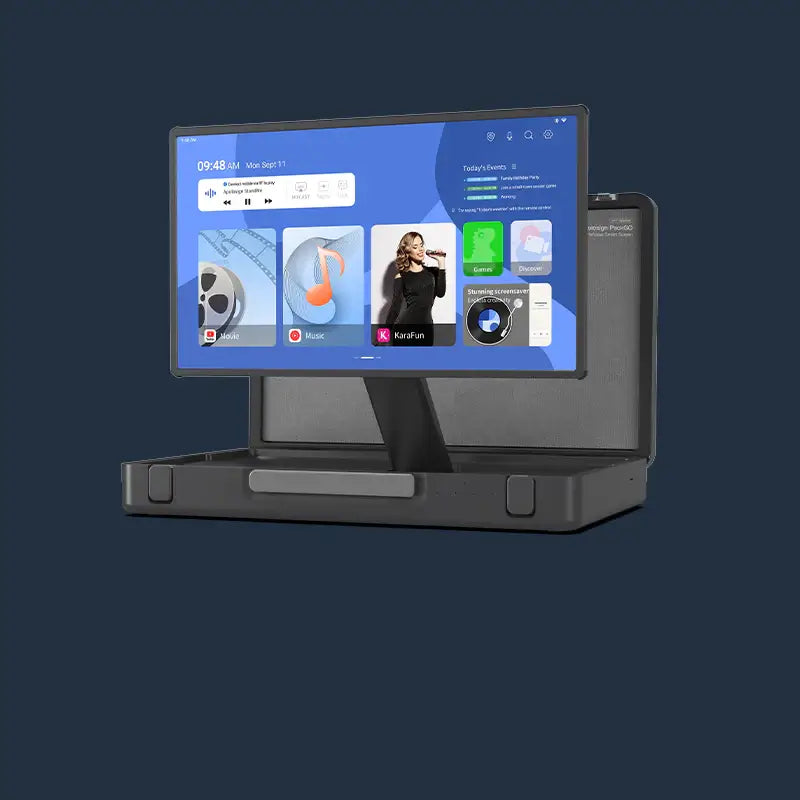
Integrating these diverse platforms into a single digital calendar display requires a bridge. The ApoloSign 27-Inch 4K Digital Calendar acts as that bridge, employing its Dual Mode interface to merge these distinct worlds.
Digital Calendar Display: Why Synchronization is Important
For a smart calendar for wall placement to function effectively, it must represent the single source of truth. A beautiful 4K screen hanging in the kitchen becomes useless if it displays outdated information. Synchronization bridges the gap between individual devices and the communal space.
- Real-Time Updates: Changes made on a phone while at work appear instantly at home, preventing miscommunication.
- Centralized Truth: Merging work and personal schedules onto one electronic wall calendar reveals conflicts immediately.
- Reduced Mental Load: Parents no longer need to memorize three different schedules; the wall display holds that information.
- Family Autonomy: Kids and partners can check the digital wall calendar themselves instead of asking "what's happening today?" repeatedly.
- Cross-Platform Harmony: It allows an iPhone user and an Android user to exist in the same household without friction.

How to Sync iCloud, Outlook, and Google Calendars to the Apolosign Calendar?
The Apolosign digital calendars (available in 15.6", 21.5" , 27" , and 27" 4k) utilize a companion mobile application to handle the heavy lifting of data connections. The 27-inch 4K display itself runs on a dual system, but the actual linking of accounts happens conveniently on your smartphone. The following steps detail the process using the Apolosign App.
How to Sync iCloud Calendar to the Apolosign?
Sync via iCal Link
Step 1: Get the iCal Link on Your Mobile Device
① Open Safari and go to iCloud.com, then log in to your iCloud account.
② Open Calendar and locate the calendar you want to sync.
③ Tap the Share button at the bottom-left of the calendar name.
④ Enable “Public Calendar” or obtain the private iCal link.
⑤ Copy the generated iCal link.
⚠️ Note: If you cannot get the link on your mobile device, please use a computer to access iCloud.com.
Step 2: Add the iCal Link in the Apolosign App
① Open the Apolosign mobile app.
② Tap More (⋯) in the top-right corner → Calendars → + Add Calendar.
③ Select “iCal / Calendar Link” as the calendar type.
④ Paste the iCal link you copied.
⑤ Tap Confirm to complete the addition.
How to Sync Outlook Calendar to the Apolosign?
Step 1: Get the iCal Link from Outlook
- Open Outlook on your desktop browser (Outlook.com or Office 365).
- Go to Calendar, locate the calendar you want to sync.
- Click Share or Publish Calendar.
- Copy the iCal URL (usually listed as “ICS link” or “iCal link”).
⚠️ Note: Outlook mobile app does not provide a direct way to copy iCal links, so a desktop browser is required.
Step 2: Add iCal Link in Apolosign App
- Open the Apolosign mobile app.
- ap More (⋯) → Calendars → + Add Calendar.
- Select iCal / Calendar Link as the calendar type.
- Paste the iCal link you copied.
- Tap Confirm to complete the addition.
How to Sync Google Calendar to the Apolosign?
You can sync your Google Calendar with Apolosign by signing in with your Google account.
Steps:
- Open the Apolosign app on your phone, tap the More icon (three dots) in the top-right corner, then select Calendars +.
- Select Google Calendar as the calendar type.
- Sign in with your Google account.
- Allow access permissions and choose the calendars you want to display.
- Confirm to complete the sync.
Once added, your Google Calendar events will automatically appear on your Apolosign Digital Calendar and update in real time.
For a visual demonstration of these specific menu interactions and to see the interface in action, viewing the video guide provides excellent clarity. You can watch the full tutorial here. If you encounter any issues, our digital calendar FAQs page offers solutions to common problems.
Final Thoughts: Simplify Family Scheduling Today
Transforming a blank wall into a dynamic command center requires only a few minutes of setup. Connecting these major platforms to the ApoloSign digital calendar empowers families to visualize their time, creating a harmonious environment where everyone stays informed and organized. Learn more about ApoloSign's mission to create harmonious, organized homes through innovative technology.