




A busy family doesn’t always have a calendar problem. Sometimes, the bigger problem is that one person has to remember how everything fits together.
One parent keeps appointments in Google Calendar. Another uses Apple’s iCloud Calendar. School events, sports practices, and weekend plans add more details to track. When someone asks, “Who’s picking up the kids?” one person often ends up checking several schedules before answering.
That ongoing work of remembering, reminding, and coordinating is part of the family mental load.
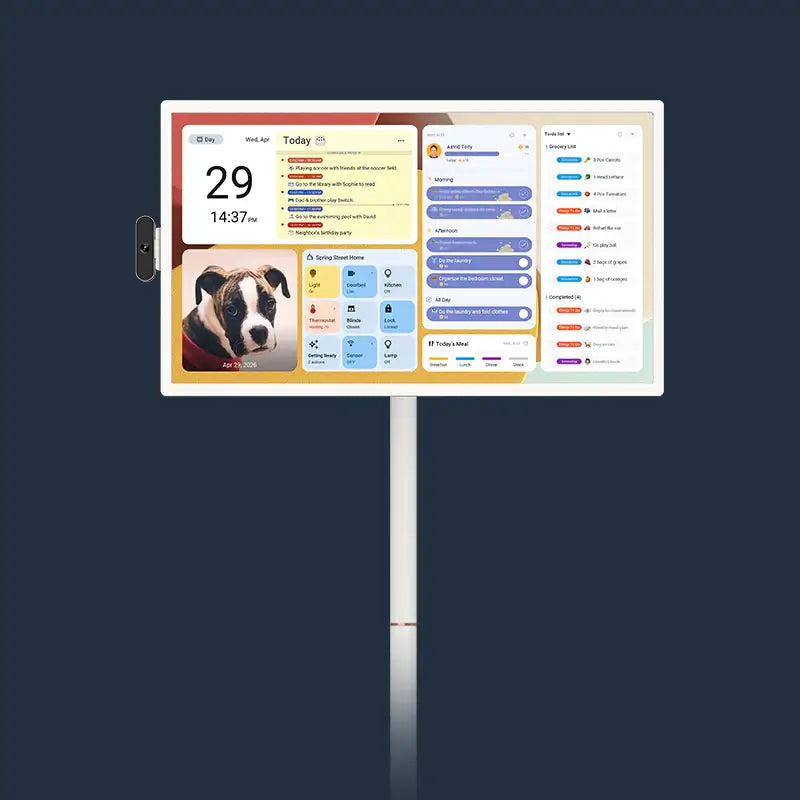
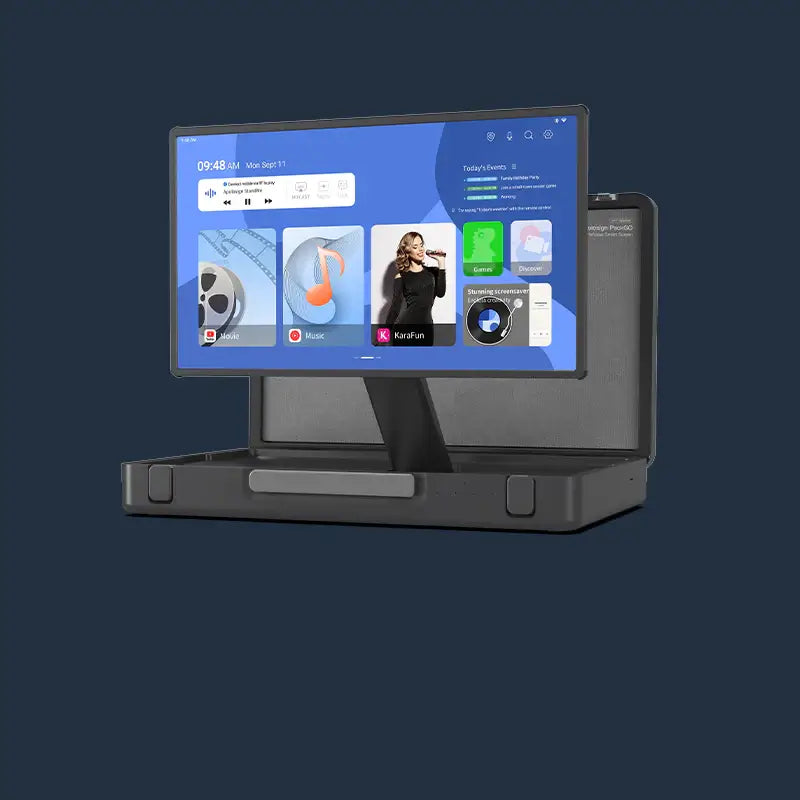
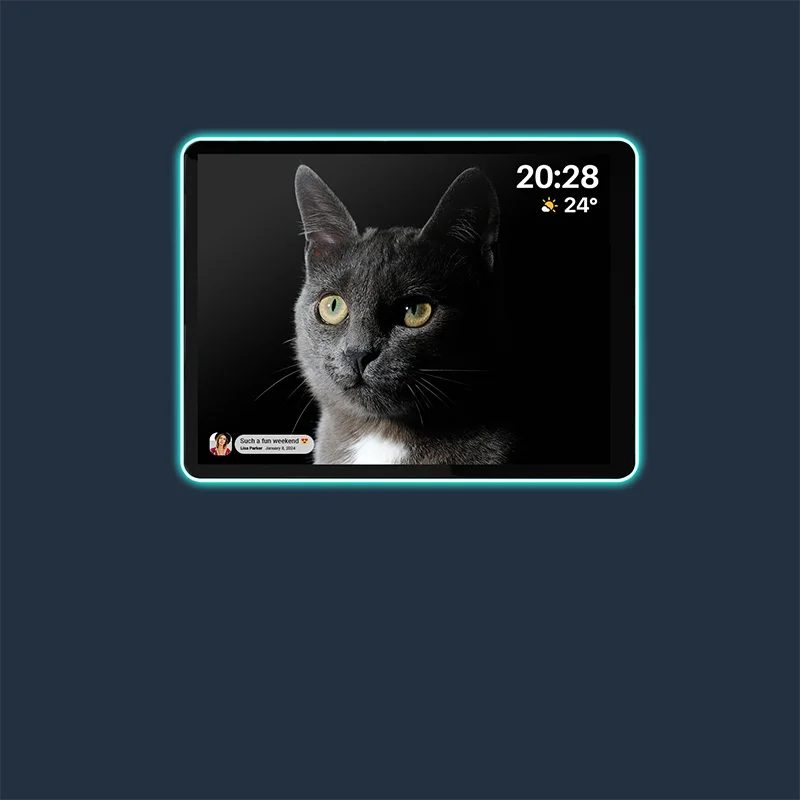
Apolosign Digital Calendar brings those scattered schedules onto a shared display at home. With a clearer picture of the day, family members can check their plans, discuss conflicts, and agree on who will handle what.
Connect the Calendars Your Family Already Uses
A shared family calendar works best when it fits into existing routines. Family members can continue using supported calendar services while bringing relevant schedules together on Apolosign.
The connection method determines how events sync:
- Google Calendar: Supports two-way sync, allowing events to sync between the connected Google calendar and Apolosign.
- Apple’s iCloud Calendar: Supports two-way sync when connected through the iCloud Calendar option using an Apple app-specific password. Connecting through an iCal link provides one-way viewing instead.
- Outlook Calendar: Supports one-way sync through an iCal link, bringing Outlook events into Apolosign. This connection does not send changes from Apolosign back to Outlook.
Start with the calendars that help your household coordinate: school activities, appointments, practices, and shared plans. There is no need to bring every calendar into the family view.
How to Set Up Calendar Sync
You can connect supported calendars through the Apolosign mobile app.
- Open the Apolosign app on your phone.
- Tap the menu icon in the upper-left corner.
- Select My Family and scroll to the Calendar section.
- Tap + Add Calendar.
- Choose the appropriate calendar type and follow the connection steps.
- Tap Confirm, then check that your events appear on your Apolosign Digital Calendar.
For Google Calendar, sign in and choose the calendars you want to display. For iCloud two-way sync, use your iCloud email address and an Apple app-specific password. For Outlook, obtain the calendar’s iCal link through a desktop browser and add it using the calendar-link option.
Find the detailed instructions for your service here:
Updates may not appear immediately. If an event change is missing, open the Calendars page in the Apolosign app, select the calendar, and tap Sync Calendar to refresh it.
What This Looks Like on a Busy School Day
Imagine a Thursday afternoon: one parent has a meeting from 4:00 to 5:00, a child has soccer practice at 4:30, and the other parent has an evening appointment.
Over breakfast, the family checks the shared calendar and notices that the meeting overlaps with the drive to practice. They agree that the other parent will handle the drop-off and confirm who will collect the child afterward. The child sees that it is a practice day and packs their soccer bag before leaving for school.
The calendar makes the overlap easier to notice. The conversation turns that information into a plan.
With the 2.0 update, Family View gives each family member a dedicated, color-coded time band in one daily timeline. This makes it easier to compare commitments and spot overlaps when coordinating rides, appointments, and activities.
Turn a Shared Schedule into a Shared Habit
Connecting calendars is a useful first step. A short daily check-in helps the family put that shared information to work.
Choose a regular moment, such as breakfast or the evening before, to review upcoming plans. Confirm who is responsible for pickups, check what needs to be prepared, and encourage children to look for their own activities.
For responsibilities that need more than a calendar entry, To-Do can help keep tasks visible. Routines and Rewards can encourage children to participate in recurring household tasks, while Meal Planning helps families plan meals around busy days.
These small habits can reduce the need for one person to keep checking, reminding, and answering the same scheduling questions.

Core Family Organization Without a Recurring Subscription
Apolosign Digital Calendar’s core family organization features—including calendar management and sync, shared to-do lists, routines and rewards, and meal planning—are available without a recurring monthly or annual software subscription.
These tools give families a practical way to coordinate schedules and everyday responsibilities in one shared space.
Start with One Calendar
Begin with the calendar your family relies on most. Connect it to Apolosign, check that the events appear, and review tomorrow’s plans together. Add other calendars as needed.
A busy schedule still takes coordination. Making plans visible gives everyone a better opportunity to prepare ahead and take responsibility for their part of the day.
Explore Apolosign Digital Calendar and bring your family’s plans together.
FAQ
Does everyone need to use the same calendar service?
No. Apolosign supports connections with Google Calendar, iCloud Calendar, and Outlook, so family members can continue using different supported services.
Does Apolosign support two-way calendar sync?
Google Calendar supports two-way sync. iCloud Calendar also supports two-way sync when connected through the iCloud Calendar option with an Apple app-specific password; an iCal-link connection is one-way. Outlook uses one-way sync through an iCal link.
Do I need a subscription to use the core family organization features?
No. Core features such as calendar sync, shared to-do lists, routines and rewards, and meal planning do not require a recurring monthly or annual software subscription.
What should I do if a calendar change does not appear?
Open the Calendars page in the Apolosign mobile app, select the connected calendar, and tap Sync Calendar. For service-specific setup or troubleshooting, follow the linked guides above.