


Household management often feels like juggling flaming swords while riding a unicycle. One moment you feel confident about the soccer schedule, and the next, you realize the dentist appointment clashed with a piano recital. Missing events or double-booking dates drains energy and creates unnecessary friction. Getting the whole house on the same page eliminates the chaos.
Why You Should Sync Your Family’s Schedules
Why bother syncing? Because the mental load of running a home is heavy. Usually, one person shoulders the burden of remembering every practice, birthday, and grocery run. It is exhausting. Shifting to a shared system distributes that weight. Suddenly, questions like "When is the vet appointment?" aren't directed solely at you. The answer sits right there on the screen for everyone to see.
A digital family calendar does more than list dates; the tool fosters accountability. When teenagers see their own practice times, they take ownership of their day. Partners coordinate without exchanging a dozen text messages. Such a system transforms a group of individuals living together into a cohesive team. Research suggests that visualization can reduce anxiety. You aren't constantly worried you forgot something; the device remembers for you.
Method 1: How to Sync iCloud
Syncing via iCloud is the native path for Apple users. Follow these steps:
- Click Apolosign APP.
- Click Meatball Menu.
- Scroll down to Click the "+" Next to the Calendars.
- Click "Add iCloud Calendar".
- Leave the Apolosign App running in the background and click the Apple Calendar.
- Click Calendars UI, Then the Sensor Number.
- Click Public Calendar, then Share Link and copy the Link.
- Go back to the Apolosign App and paste the link into the Calendar URL under Add iCloud Calendar.
- Select the Color and Participants before all is done.
Method 2: How to Sync Outlook
For those relying on Microsoft's ecosystem, syncing Outlook requires generating a publishable link:
- Click Apolosign APP.
- Click Meatball Menu.
- Scroll down to Click the "+" Next to the Calendars.
- Click "Add iCloud Calendar".
- Leave the Apolosign App running in the background.
- Open the Outlook Calendar on the Web.
- Click Settings and Shared Calendars.
- In "Publish a calendar", finish "select a calendar" and "select permissions" and click Publish.
- Copy ICS Files and transfer to your phone.
- Copy ICS Files on your phone and go to the Apolosign App and paste the link into the Calendar URL under Add iCloud Calendar.
- Select the Color and Participants before all is done.
Cross-Platform Fix: Sharing with Android or Google Users
What if your partner uses a Google Pixel or lives in Outlook? Apple doesn't make the option obvious, but sharing across platforms is possible via a public URL. The process essentially publishes your calendar to a web address that other services can subscribe to.
Here is the workaround:
- Open the Calendar app and tap Calendars.
- Tap the (i) button next to the calendar you wish to share.
- Toggle on Public Calendar.
- Wait a moment, then tap Share Link and copy the URL.
Now, send that link to the Android user. They can't just click the link on their phone, though. They need to go to Google Calendar on a desktop computer:
- On the left sidebar, find "Other calendars".
- Click the + and choose From URL.
- Paste the iCloud link.
Once added, events sync to their Android phone. Note that the connection is usually read-only for them. They see your events, but they cannot edit anything from Google Calendar. It acts as a one-way street, but it keeps everyone in the loop.
Troubleshooting: Why Can’t My Family See My Events?
Technology hiccups happen. You add an event, but your spouse says, "It’s not on my phone." Frustrating, right? Usually, the issue is a sync delay or a setting glitch.
Try these quick fixes:
- Refresh the connection: Open the Apolosign calendar app on your phone. Tap the three dots in the upper right corner. Scroll down to the "Calendars" section and find the relevant calendar. Tap the calendar, then select "Refresh Calendar" to sync the changes.
- The Toggle Trick: Go to Settings > Calendar > Accounts. Tap your iCloud account, toggle Calendars OFF, wait ten seconds, and toggle the switch ON again. Doing so forces a re-sync.
- Check Default Settings: When creating an event, check which calendar it is assigned to. If you save the item to "Home" instead of "Family," others won't see it.
- Re-send the Invite: Go to calendar settings (the 'i' button) and choose Resend Invitation if the person never received the initial ping.

Taking It Beyond the Phone: Viewing Calendars on Large Digital Displays
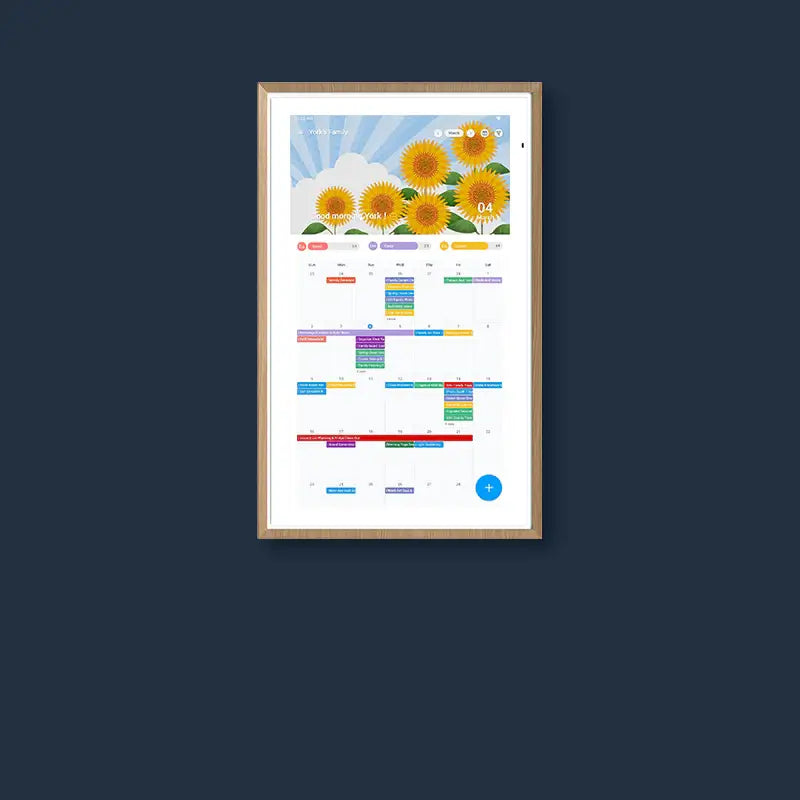
Phones are great, but they stay in pockets. A schedule hidden in a pocket is a schedule easily ignored. To truly harmonize a household, you need information visible to everyone, all the time. A digital calendar for family placed in a central hub, like the kitchen, changes the game.
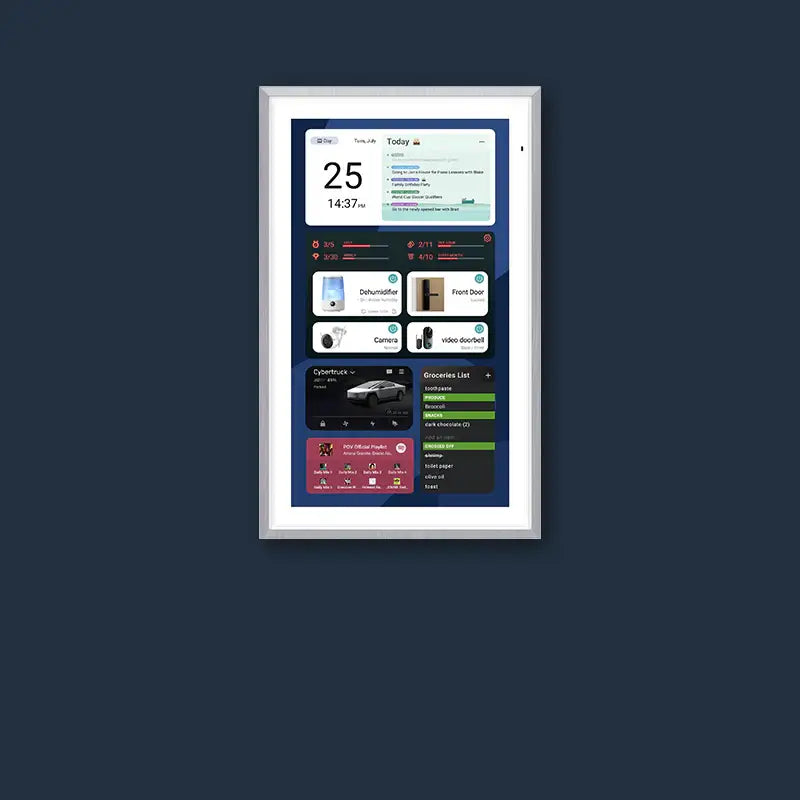
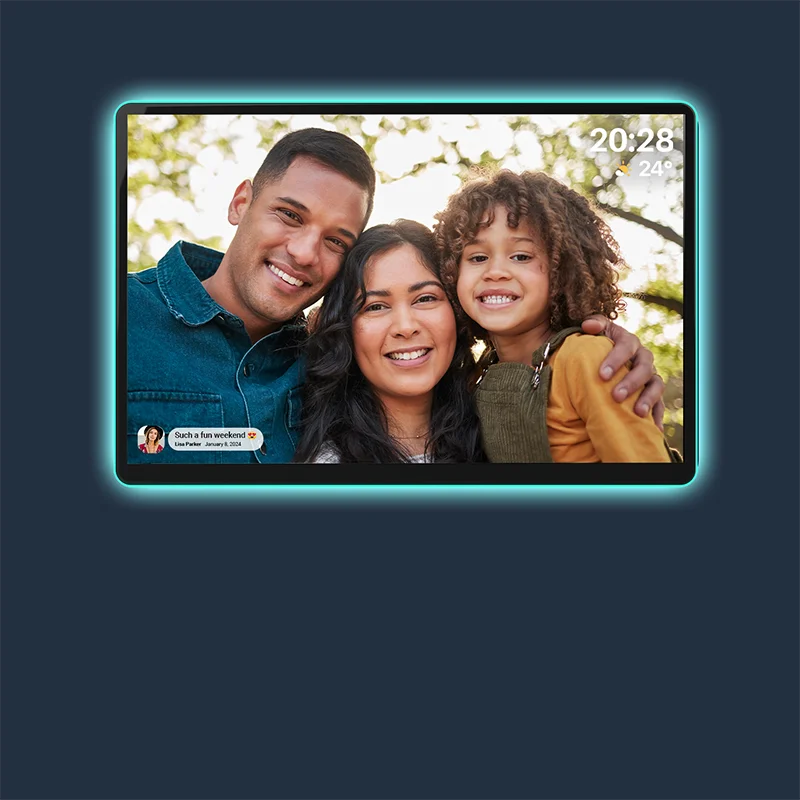
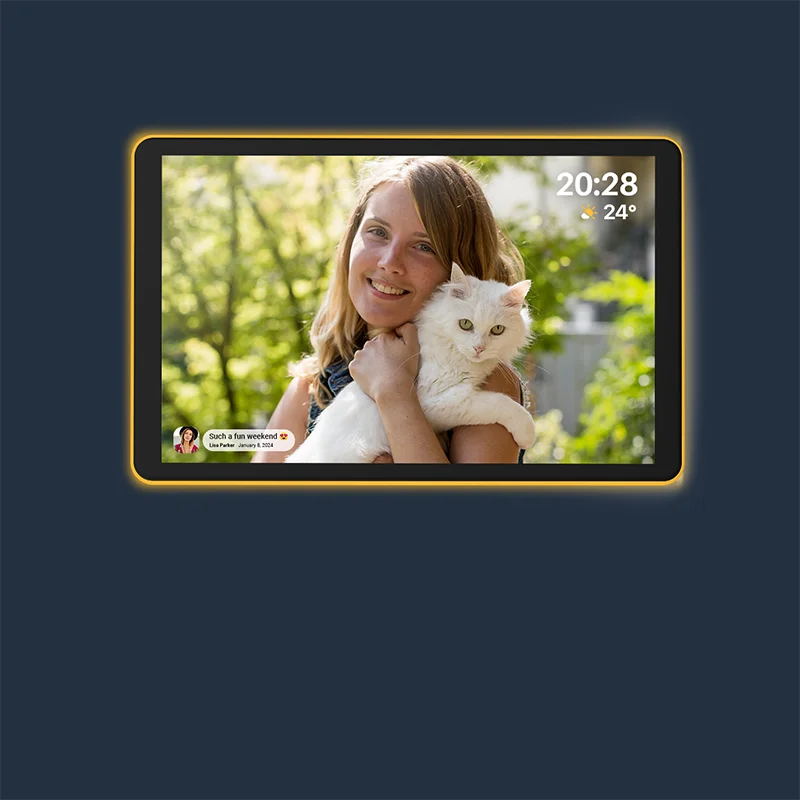
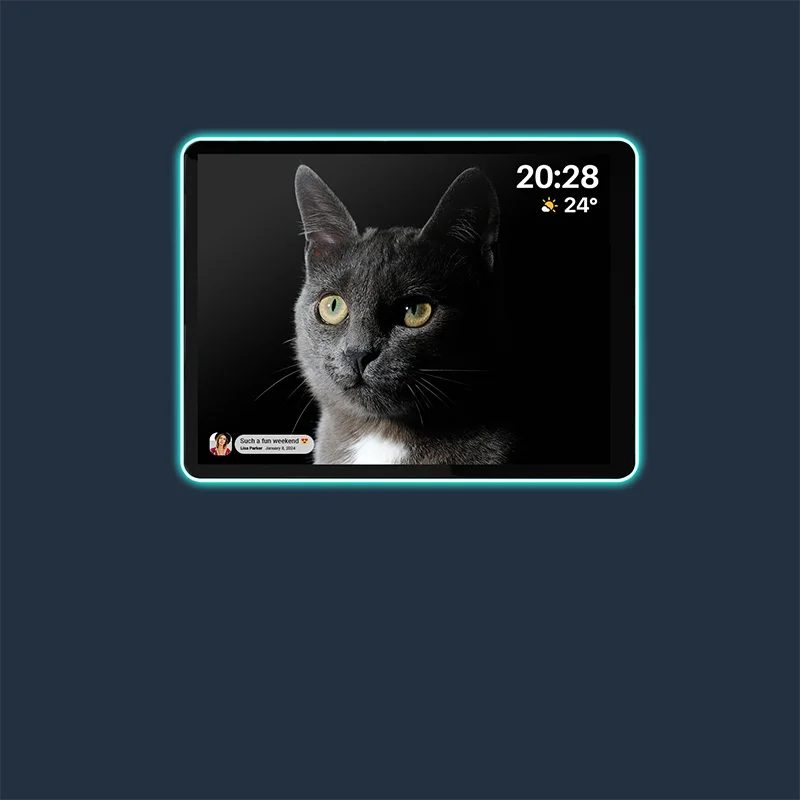
Hanging a dedicated display on the wall creates a "command center." It replaces the messy whiteboard or the collection of sticky notes. When looking for hardware, you want something robust that handles multiple calendar sources.
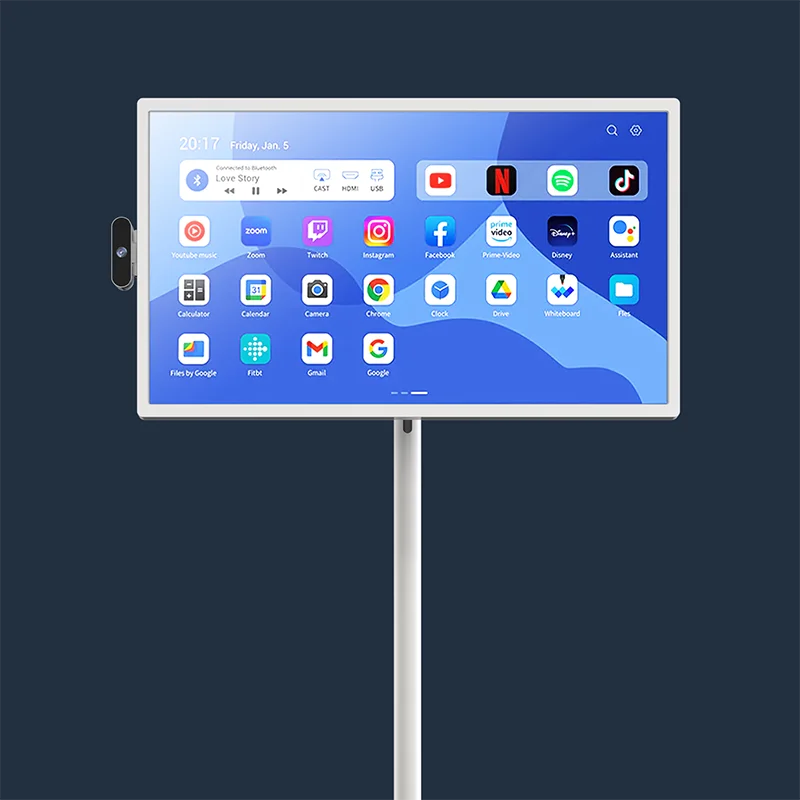
The Apolosign 27" Digital Calendar serves exactly that purpose. It isn't just a monitor; the device is a smart hub running on an Android operating system. It features a unique Dual-System Mode, allowing you to switch between a focused "Calendar Mode" for pure organization and an "Android Mode" for apps. It syncs with Google, Outlook, and iCloud (via the shared URL method discussed above), bringing fragmented schedules onto one big, 1080p touchscreen.
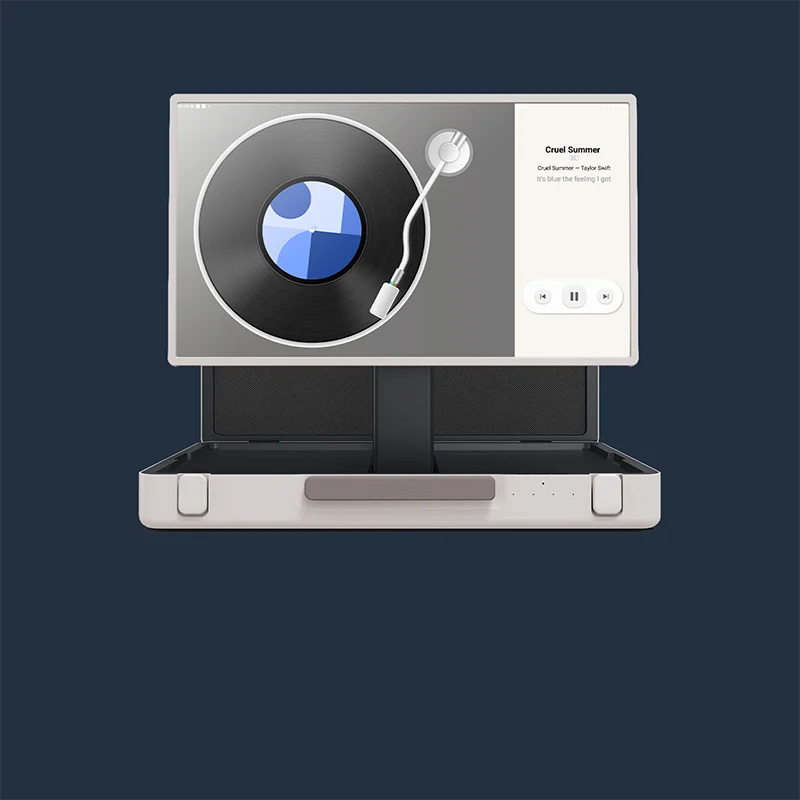
Beyond dates, the device helps manage the home. You can set up chore charts with a point-reward system to motivate kids—turning "clean your room" into a game. The device also supports streaming apps like Spotify and YouTube, so the screen doubles as an entertainment hub while you cook.
If you crave sharper visuals, the Apolosign 27" 4K Digital Calendar upgrades the experience with an Ultra HD 3840x2160 display. Text looks crisper, and if you use the digital photo frame feature to display family memories from Google Photos, images look stunning. It keeps the same anti-glare matte finish, so reflections from kitchen lights won't obscure your view of the week's agenda. With Wi-Fi 6 and a powerful octa-core processor, scrolling through months of events feels fluid and fast. Plus, the One-Swipe Privacy Cover lets you instantly hide personal info when guests arrive.

Having a large, always-on digital calendar for family organization means the schedule becomes passive information. You don't have to unlock a phone to check the plan; you just glance at the wall.
Conclusion: Achieving Clarity Through Synchronization
Syncing calendars is the single most effective step available to lower household stress. It eliminates the "I didn't know" excuse and empowers everyone to manage their own time. Whether you stick to Apple's native ecosystem or expand to a large wall display, the goal remains the same: clarity.


