




A Practical Tutorial Focused on Google Assistant Voice Control
The more smart devices you add to your home – lights, thermostats, cameras, doorbells – the more apps you need to juggle on your phone. Toggling a light or checking a camera often means digging through multiple apps. And getting everyone in the family to use them? Even harder.
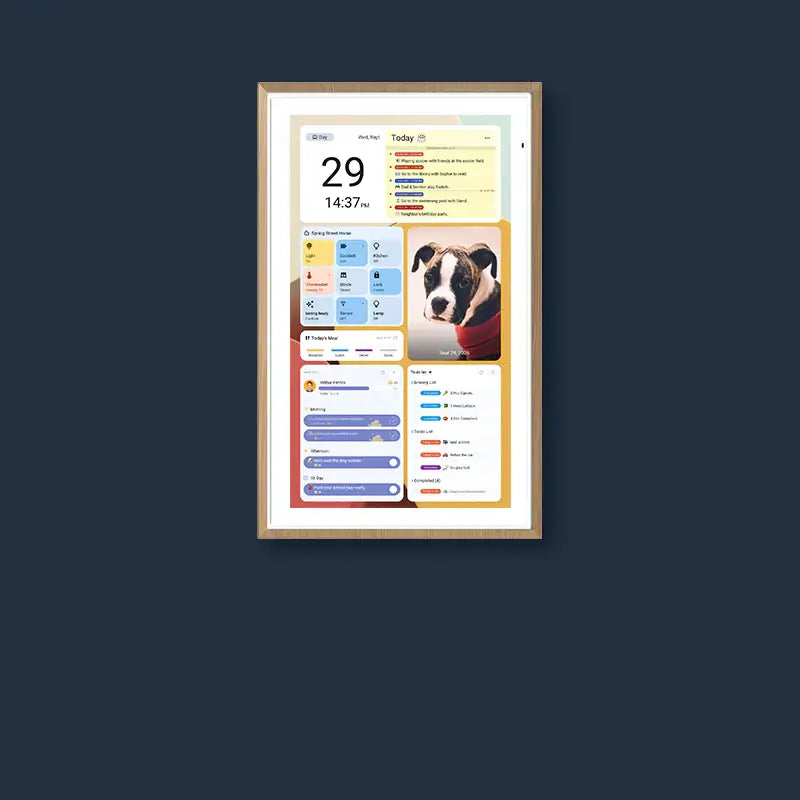
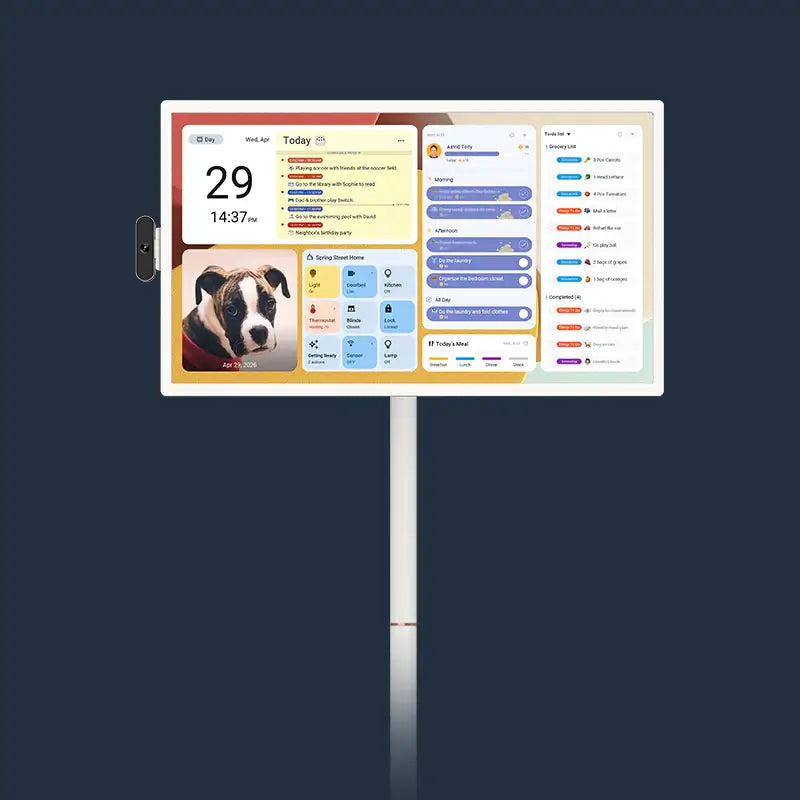
The ApoloSign Digital Calendar offers a much simpler solution. It hangs on your wall, comes with far‑field microphones and built‑in Google Assistant, and supports Android widgets. You can bring all your most‑used device controls, scenes, and information onto a single screen, turning this digital calendar into a smart control center for the whole family.
This tutorial focuses on Google Assistant voice control, with a practical look at how DIY widgets help you build a unified dashboard on your ApoloSign Digital Calendar. A video tutorial at the end walks you through the widget setup step by step.

1. Built‑in Google Assistant: Voice Control Right Out of the Box
The ApoloSign Digital Calendar features a quad‑microphone array and comes pre‑loaded with Google Assistant and Google Gemini AI. All of this works with no subscription fees – it's ready the moment you turn it on.
Quick Setup (3 Steps)
- Switch to Android Mode and sign in to your Google account (use the same account you use for Google Home).
- Sync your Google Calendar (optional): Add your Gmail account to see your family's shared schedule on the calendar view.
- Start using voice commands: Just say "Hey Google" or "Ok Google."
What You Can Do with Voice
|
Command Type |
Example |
|
Lights & switches |
"Hey Google, turn off the living room light." |
|
Thermostat & AC |
"Hey Google, set the AC to 24 degrees." |
|
Cameras & doorbells |
"Hey Google, show the front door camera." |
|
Calendar & reminders |
"Hey Google, what's on the family schedule today?" |
|
Scenes & modes |
"Hey Google, turn on 'Away' mode." |
Most devices compatible with Google Home can be controlled by voice directly from this wall‑mounted digital calendar.
2. DIY Widgets: Put All Your Controls on One Page
Voice is great, but sometimes it's more convenient to see and tap – for example, checking the status of lights, seeing a live camera feed, or glancing at today's tasks and weather.
ApoloSign's Android model lets you freely add widgets. You can drag control cards from multiple smart home apps onto the same home screen, creating a single unified dashboard. No more switching between apps.
How it's done: On the Android home screen, long‑press an empty area → select "Widgets" → find the smart home apps you use (like Google Home, your camera app, etc.) → drag the widget you want onto the screen → adjust the layout.
For a detailed walkthrough, watch the video tutorial below.
3. Video Tutorial: DIY Widget Dashboard
The video shows you how to build a clean, functional wall panel – adding light switches, camera feeds, weather, calendar tasks, and more – step by step.
4. Summary: Your Wall, Your Control Center
The ApoloSign Digital Calendar works as a smart home control panel because it combines:
- Far‑field microphones + built‑in Google Assistant – No subscription, no extra hub, ready to use.
- Full Android widget support – Customize your own dashboard that works for the whole family.
- Native Google Home compatibility – Works with the smart devices you already own.
Whether you're new to smart homes or just want a simple, beautiful wall panel that everyone can use, the ApoloSign is a hassle‑free, long‑lasting choice.