


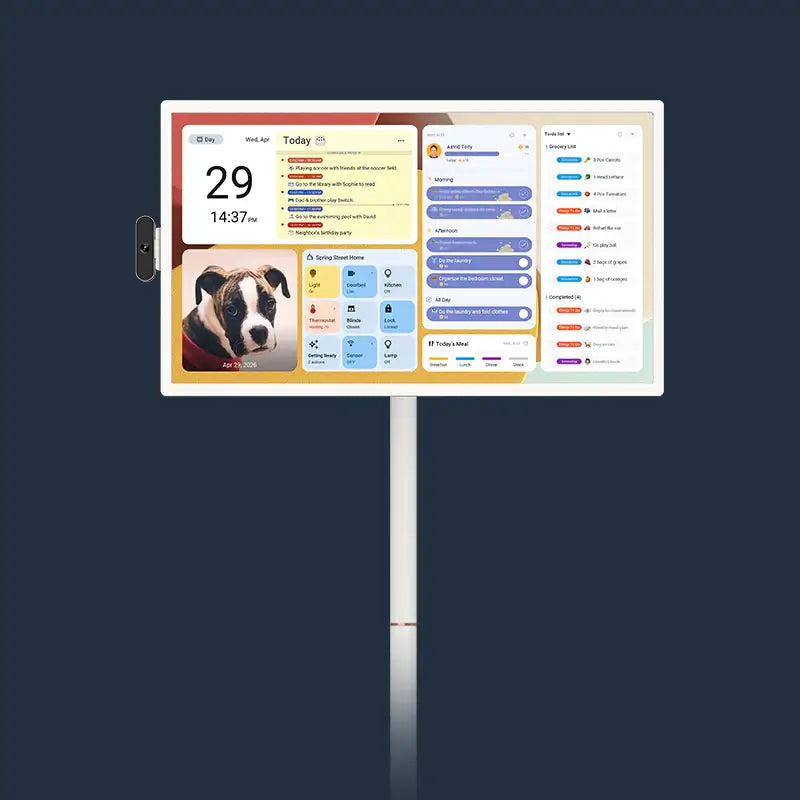
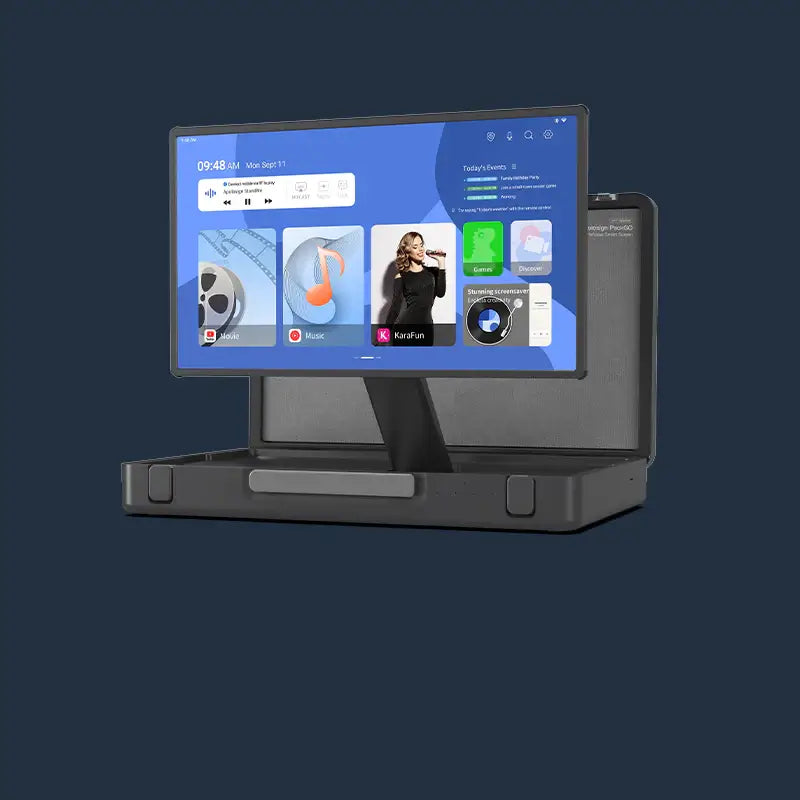
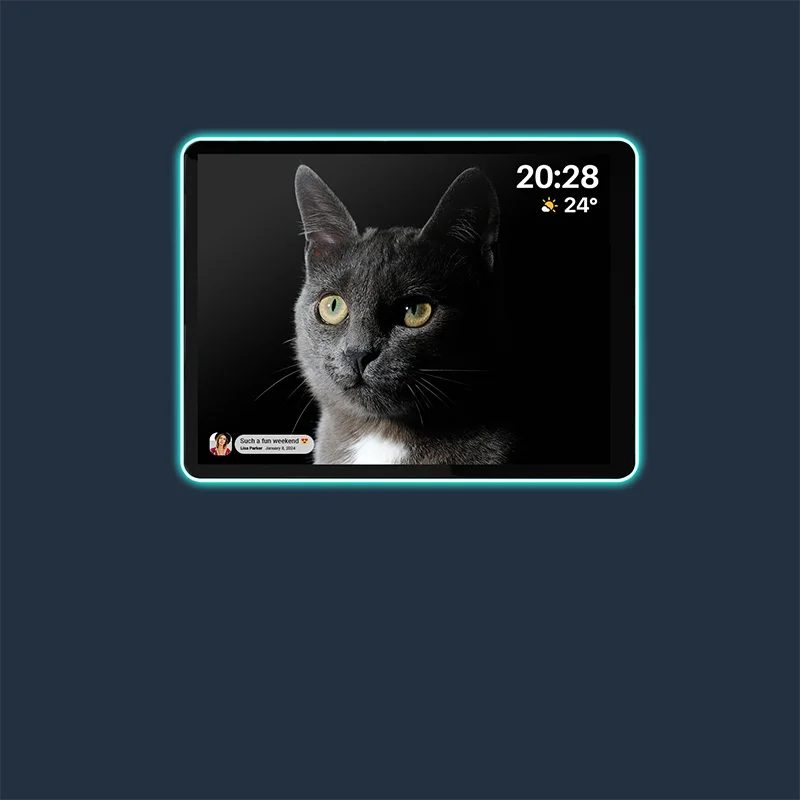


An all-in-one digital calendar changes the family workflow by giving the household one visible planning surface while allowing broader screen use when the device supports it. Planner Mode is intended for shared schedules, chores, reminders, and notes; Android Mode is useful for specific, verified apps or screen functions. The switch does not automatically guarantee universal app access, instant syncing, or replacement of private calendars, so the right choice depends on your household's planning habits and willingness to maintain the setup.

How an All-in-One Digital Calendar Uses Two Modes
Switching between Planner Mode and Android Mode changes the screen's primary job, not necessarily the underlying accounts or sync behavior. Think of Planner Mode as the shared household workflow and Android Mode as a broader screen workflow whose exact controls, apps, and permissions depend on the model.
Planner Mode for Shared Household Coordination
Planner Mode centers the information a family needs to see together: the day's schedule, recurring tasks, reminders, and household notes. It can serve as a common reference point in a kitchen, entryway, or counter area, but the exact chores, rewards, color-coding, or note functions should be confirmed in the documentation for the model you are considering.
The practical benefit is visibility rather than automation. A parent can review what happens next, a child can see an assigned task, and the household can discuss an update while looking at the same screen. Private work, school, medical, or personal events may still belong in separate calendars or phone reminders.
For a broader introduction to this approach, see this dual-mode calendar workflow, but use current model documentation for specifications.
Android Mode for Flexible Screen Use
Android Mode may make the display useful beyond a dedicated planner, but treat it as a compatibility question rather than unrestricted access to every Android app or widget. Android app widgets are described as at-a-glance app views whose behavior depends on support, sizing, layout, and the app itself. Before relying on this mode, check:
Which apps or screen functions the exact device supports, including any display or touch limitations.
Whether each service needs a separate sign-in, account connection, permission, or paid plan.
Whether widgets are supported on that model and remain readable at the intended viewing distance.
How software updates, app updates, and account changes are handled.
Whether Android Mode changes what is visible to everyone in the room, especially when private information is involved.
This distinction matters for a household comparing a smart digital family calendar with a dedicated wall planner. The Android label describes a platform or workflow; it does not prove that a particular app, widget, or calendar provider will work as expected.
Switching Modes During a Typical Day
A simple daily sequence might look like this:
Morning check: Use Planner Mode to review departures, appointments, school activities, and the first household tasks of the day.
Verified task use: Switch to Android Mode only for a specific supported screen function, such as an app or display experience the buyer has confirmed for the model.
Evening update: Return to Planner Mode to review tomorrow's schedule, add approved changes, and prepare recurring tasks or notes.
This is just one example workflow—every family will use these modes differently depending on their needs. If the household rarely needs the second step, a simpler digital family planner may be easier to maintain.
Planner Mode vs Android Mode: Which View Fits the Task?
Planner Mode is usually the clearer choice for a consistent shared schedule, while Android Mode earns its place when a specific, verified broader-screen task matters. The best decision is therefore based on what the household needs to do at the display, not on which mode sounds more advanced.
|
Decision point |
Planner Mode |
Android Mode |
|
Primary purpose |
Shared schedules, tasks, reminders, and notes |
A broader screen workflow using confirmed device support |
|
Best timing |
Morning checks, transitions, and evening planning |
A specific task that benefits from another supported app or function |
|
Information focus |
Glanceable household coordination |
Flexible content, subject to app and account compatibility |
|
Setup questions |
Which calendars and shared items should appear? |
Which apps, widgets, sign-ins, permissions, and updates are supported? |
|
Privacy consideration |
Keep private events out of the shared view |
Review what an app or connected account may display publicly |
|
Main trade-off |
More focused, but less flexible |
More flexible, but potentially more setup and maintenance |
Choose both modes when the family genuinely needs a shared baseline and a broader screen function. Choose Planner Mode alone when the main problem is scattered schedules and repeated "what's happening today?" questions. If the only goal is one private schedule or a basic reminder list, a phone, paper planner, or simpler display may be sufficient.
A shared family calendar setup can help you define the information that belongs on the common screen before you evaluate Android features.

Where a Shared Digital Calendar Helps Family Routines
A visible digital family planner is most useful during predictable transition moments, such as leaving the house, returning from school or activities, preparing for tomorrow, and handling recurring household work. It provides a shared reference point while personal calendars and notifications continue to handle private or individualized information. Consumer Reports describes digital wall calendars as large-screen tools for family schedule planning, which fits this shared-display role.
- Morning departures: Show the appointments, school or work commitments, transportation notes, and first action each person needs to remember. The responsible adult or family member can confirm what changed before leaving rather than relying on a private phone view alone.
- After-school transitions: Use the shared screen for activity times, pickup details, homework reminders, or a next-step note when the selected model supports those inputs. Keep sensitive details or private appointments in the appropriate personal calendar.
- Evening planning: Review tomorrow's schedule, identify conflicts, and decide who owns the next household action. This is where a visible screen can support a short family check-in without claiming to eliminate missed events.
- Recurring tasks and meals: Add chores, meal notes, or recurring routines only if the exact model includes those tools and someone will keep them current. A stale task list can create confusion instead of reducing it.
The display works best when the family agrees on what it means: a reliable shared snapshot, not the sole record of every event. For more family scheduling ideas, start by assigning one owner for changes and deciding which information should remain private.
What to Check Before Choosing an All-in-One Digital Calendar
Before buying, verify the exact calendar connections, permissions, refresh behavior, Android functions, physical placement, upkeep requirements, privacy controls, and commercial terms for the selected model. Follow these steps to ensure a smooth setup:
Identify each calendar source and the account that owns it.
Confirm who can view or edit shared events and which events should stay private.
Check internet access and account sync settings.
Confirm that the intended calendars, not just the account, are selected.
Test one shared event, one private event, and one edited event.
Verify whether the device offers a refresh control, how it behaves after a connection loss, and what the product documentation says about updates.
Verify Calendars, Permissions, and Refresh Behavior
Test the complete path from calendar account to visible event rather than assuming that a familiar provider will connect automatically. Google's guidance shows that family-calendar access depends on permissions such as who may view, edit, or manage sharing; those rules do not establish universal compatibility with every provider or device. Review family-calendar access permissions before connecting accounts.
Internet access, account sync, calendar selection, and device behavior can all affect when a change appears. Google's calendar sync troubleshooting supports checking those conditions, but it does not establish a universal refresh interval for an Android-mode digital calendar device. For a last-minute change, use a manual check or the original calendar service instead of assuming the display is current.
Check Android Functions and Household Fit
Verify the second workflow against a named use case. Do not treat "Android" as proof that every app, widget, or account will work on the screen.
- Android compatibility: Confirm the exact apps, widgets, sign-ins, permissions, touch behavior, update requirements, and display limitations for the model.
- Placement and readability: Measure the wall or counter location, viewing distance, glare, power access, and whether everyone can comfortably read the schedule.
- Household tools: Check whether chores, reminders, notes, rewards, photos, or color coding are included, optional, or absent on the selected model. Remember that features can vary significantly between different models.
- Privacy: Decide which calendars and Android screens may be visible in a shared space. Review connected-app calendar sharing settings before granting access, and decide which events should remain private.
- Commercial terms: Confirm current subscription language, warranty coverage, return window, shipping terms, and any ongoing service requirement on the exact product page. A product description or category page should not substitute for those terms.
Compare the intended placement and size with 27-inch or 15.6-inch digital calendar options to see what fits your space best. The right size depends on viewing distance and the amount of information the household expects to show at once.
Who Benefits From a Dual-Mode Family Calendar?
A dual-mode format fits a household that needs both a visible shared hub and a specific, verified broader-screen function—and has someone willing to maintain accounts, permissions, updates, and recurring inputs. A simpler planner, paper system, or phone workflow is a better fit when one schedule is enough, privacy is the priority, or no one will own upkeep.
Use this practical fit test:
- Choose the location: Identify a high-traffic place where the family already passes and looks for information.
- Assign ownership: Name the person responsible for event changes, permissions, recurring tasks, and troubleshooting.
- Set the daily check-in: Decide when the household will review the display, such as before school or after dinner.
- Define mode rules: Write down when Planner Mode is used and the one or two verified reasons to switch to Android Mode.
- Test one recurring workflow: Try a representative schedule, shared event, or household task before building the entire system around it.
- Reassess after use: If inputs go stale or no one uses the second mode, simplify rather than adding more features.
If that test matches your household, browse our digital calendar options as a next research step. If not, a lower-maintenance system may solve the actual problem more directly.
FAQs
Can Different Family Members Use Separate Calendar Accounts?
Yes, different family members can connect separate calendar accounts, depending on the calendar provider and sharing permissions.
What If a Calendar Event Changes After It Appears?
Check internet access, account sync, the selected calendar, and the device's documented refresh behavior. For urgent changes, verify the original calendar until you know how the display handles edits.
Does Android Mode Require Separate App Accounts or Subscriptions?
It may. An app can require its own sign-in, permissions, paid service, or update path. Confirm those requirements for each intended app before making it part of the household workflow.
How Can Families Protect Private Calendar Information?
Decide which events belong on the shared screen before connecting an account. Review provider permissions and connected-app access, and keep sensitive details in a private calendar unless the household has approved their display.
What Determines How Much Setup a Shared Calendar Needs?
Count the variables: placement and power, Wi-Fi, accounts, permissions, selected calendars, recurring tasks, Android sign-ins, and the first family check-in. More accounts and apps mean more setup to maintain.