




A good shared custody calendar does one thing well: it keeps the same schedule accurate in both homes, so no one has to type it in twice. That means changes made in one home should show up in the other right away, each parent should get their own login instead of sharing one password, and it should be clear who gets the final say when plans change.
Map the Schedule Before Choosing a Calendar
Before you buy anything, write down what has gone wrong before. A missed recital, a mixed-up pickup time, or a doctor’s appointment only one parent knew about shows you exactly what the new calendar needs to fix. That list matters more than any feature comparison chart.
Most digital family calendars are made for one household: one account, one home, one set of eyes on it. Two households need the same schedule to look right in two places at once, which is a harder problem. Most mix-ups happen in one of three ways: at the handoff itself, when one parent adds a new event but forgets to tell the other, or when a repeating event slowly drops off one household’s radar.
Once you have that list, the rest is easier. You just match the calendar’s features to the problems on your list, instead of picking whichever one has the most features.
How to Share a Family Calendar Across Two Homes
Once you know what’s missing, the next step is figuring out how to share the calendar between two homes without adding new confusion.
Visibility for Exchanges and Everyday Commitments
Every custody exchange, school event, and doctor’s visit needs to show up on both households’ calendars, not just the one where someone typed it in. Pick a calendar that marks pickup and drop-off times differently from regular events, so they do not get lost among birthday parties and soccer practice. Color-coding by household or by child helps too, since a quick glance then shows whether two events are about to collide, instead of reading every line to catch it.
Everyday events matter just as much. If one parent adds a parent-teacher conference, it should show up for the other parent automatically, same day, same time, with no phone call or screenshot needed to check it worked. If a calendar cannot do that, it is not solving the real problem.
Calendar Accounts, Feeds, and Update Direction
Real-time sync means a change made in one home shows up in the other right away, with no retyping. Some calendars do this with one shared account both parents log into. Others give each parent a separate account that pulls from the same calendar, the same way a shared work calendar can update across different email logins.
It also matters which way the updates flow. Some calendars only let one parent make changes that the other parent sees, like a one-way street. Others let either parent make a change that shows up for both. Before you buy, ask a plain question: can both parents make edits, or only one? Check this for the exact product you are looking at, and do not assume every calendar works the same way.
Access, Privacy, and Change Visibility
Each parent should have their own login instead of sharing one password. That way, you can always see who added or changed something. A time stamp on each entry answers the “who changed this” question without a long text chain.
Privacy matters just as much as access. Look for a calendar that lets each parent keep personal items private, like their own work schedule or a new partner’s plans. That keeps the shared calendar focused on the kids, not a source of extra tension. Do not assume a shared calendar keeps everything hidden by default, and do not assume you can share only part of it either. Some multi-household linking features sync everything or nothing, with no way to hold back individual items, so ask specifically whether partial sharing is possible before you buy.

Compare Apps, Wall Displays, and Paper Calendars
Once you know how sharing should work, the next choice is which type of calendar you will actually use every day.
There are three main options: a phone app, a wall-mounted screen, or a paper calendar at each house. Each one solves the syncing problem in its own way, and each fits different habits.
| Option | Sync between homes | Visible without opening anything | How easy to learn |
|---|---|---|---|
| Coparenting or family calendar app | Automatic, real-time in most cases | No, requires unlocking a phone | Easy to fairly easy |
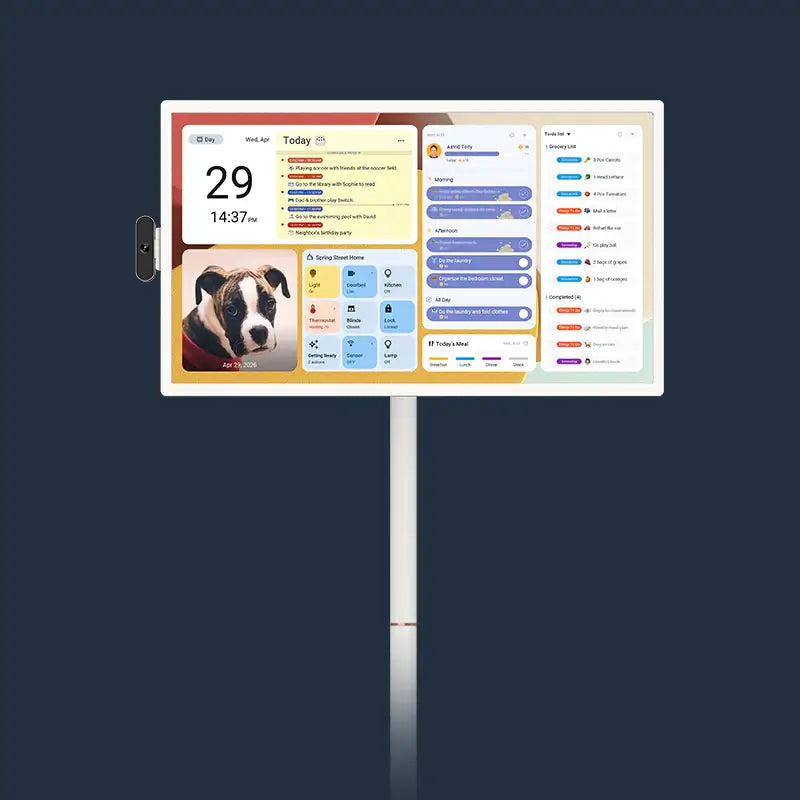
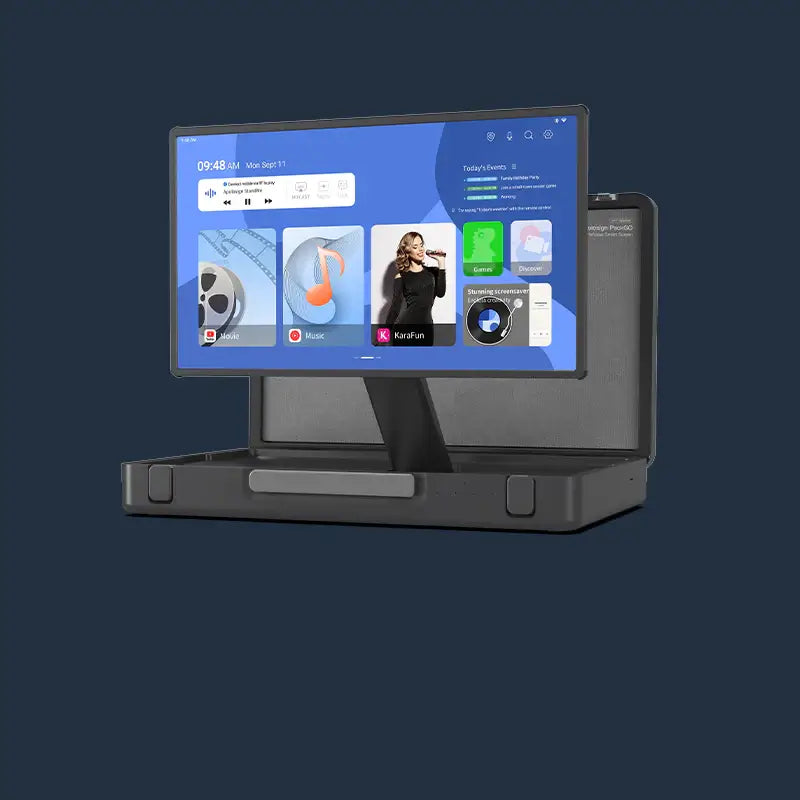
| Wall-mounted electronic family calendar display | Automatic, if both homes have one connected to the same account | Yes, visible at a glance | Easy |
| Paper calendar at each house | Manual only, someone has to copy it over | Yes, visible at a glance | Nothing to learn |
An app works well when both parents check their phones often and want a notification the moment something changes. A wall display works well when kids need to see the schedule too, since a quick glance at the kitchen wall is easier for a child than checking a phone. A paper calendar can still work for a simple schedule with few changes, but someone has to remember to copy every update to the other house by hand. That is the exact problem most two-household families are trying to fix.
Match the Display to Your Household’s Workflow
Once you pick an app, a display, or paper, a physical display still needs to fit how your household actually uses it.
Choose Screen Size and Placement by Viewing Habit
Pick a screen size based on how far away people will stand, not how much wall space you have. A bigger screen, 21 to 27 inches, works best in a kitchen or hallway, where the whole family reads it from a few feet away. A smaller screen is enough for a bedroom nightstand or a home office desk, where the reader sits much closer.
Where you put it matters just as much as size. Hang the calendar somewhere people walk past every day, like a kitchen wall or an entryway, not in a room only one person uses. If checking the calendar means making a special trip, people check it less, no matter how good the syncing is.
Fit the Controls to Mixed Tech Comfort
Pick a calendar the least tech-savvy person in the family can use, not just the most confident one. A grandparent covering a weekend pickup, or a parent who is not great with gadgets, still needs to read the calendar, and ideally add to it, without someone walking them through it first.
Look for large, easy-to-read text and simple touch controls, not a crowded screen full of menus. Test it yourself: hand the display to whoever in the family knows touchscreens the least, and watch if they can find today’s schedule without help. If they cannot, that trouble will show up every day, not just on day one.
Set Up a Weekly Handoff Routine That Stays Current
A synced calendar only stays accurate if both homes actually use it that way. Pick one set time each week, like Sunday evening, for both parents to check the coming week’s schedule together before the next exchange. Add that habit to a calendar that syncs automatically and gives each parent their own login, and most scheduling mix-ups get caught before they happen.

Frequently Asked Questions About Shared Custody Calendars
Q1: Can both households edit the same shared calendar without needing the other parent’s approval first?
In most cases, yes, but it depends on the app’s settings. Many shared calendars let both parents make changes right away. Some let one household set the other to view-only. Check the settings before you assume both sides can edit freely.
Q2: Do Both Families Need to Use the Same Calendar Platform?
Not necessarily. What matters is whether the calendars each family uses can sync with the Apolosign Digital Calendar, rather than whether they use the same brand of device or calendar platform. Both Google Calendar and iCloud Calendar support two-way syncing with the Apolosign Digital Calendar, so parents can continue using the calendar platform they are already familiar with to manage their schedules.
Q3: Can one household’s personal calendar entries stay hidden from the other household?
Yes, if the calendar has privacy settings for each account, though not every one does. Look for a setting that keeps personal items, like a parent’s own work schedule, separate from the shared family and custody events both homes need to see.
Q4: What happens if both parents edit the same event at the same time?
Most calendars either keep the newest edit or flag the conflict for someone to review, but it depends on the app. A simpler fix works regardless of the app: agree on one household as the primary editor for shared events, especially if past changes have caused mix-ups. Still check the app’s actual behavior before you rely on it for a last-minute change, like swapping a pickup time, since a silently overwritten edit can otherwise cause a real scheduling mistake.
Q5: How far in advance should a change be entered so both households have time to see it?
Enter any change as soon as you know about it. Do not wait until the same day unless you have no other choice. Adding it right away gives the other household the most time to plan around it. Last-minute entries are more likely to get missed between weekly check-ins.