



There is no single best aspect ratio for every phone photo library. The right choice depends on the shapes that dominate your camera roll and how the frame's software handles photos that do not match its screen. Start by matching the frame's native ratio to your most common photo shape, then check its resolution and image-fitting behavior as separate decisions.
Most smartphones default to a 4:3 or similar still photo shape, but wide shots, panoramas, and social media edits can shift that pattern fast. A digital frame that fits your household's actual mix will look better than one chosen for screen size or brand alone.
There Is No Universal Best Frame Ratio
Every frame ratio makes a tradeoff. A 4:3 panel suits standard phone stills, while 16:10 and 16:9 panels suit wider content, and mixed libraries need to look past the ratio label entirely.

| Native shape | Strongest library match | Likely tradeoff | Evidence boundary |
|---|---|---|---|
| 4:3 | Standard phone snapshots and portraits | Wide or panoramic shots may show borders | Not every phone photo defaults to 4:3 |
| 16:10 | Wide travel or landscape-heavy libraries | Standard portraits may show more empty space | Fewer direct comparisons than 16:9 for phone photos |
| 16:9 | Landscapes, panoramas, widescreen video stills | Portrait photos can leave side bars | Fit behavior still depends on the specific model |
The table shows starting points, not guarantees. If your library is mixed, the frame's documented fit behavior matters more than which row it falls into.
When 4:3 Fits Everyday Phone Photos Best
Choose a 4:3 frame first if your photo library is mostly ordinary family snapshots, portraits, and everyday shots rather than wide scenery. A 4:3 screen shape sits closer to the shape of a standard phone still, so there is less unused space around faces and everyday scenes.
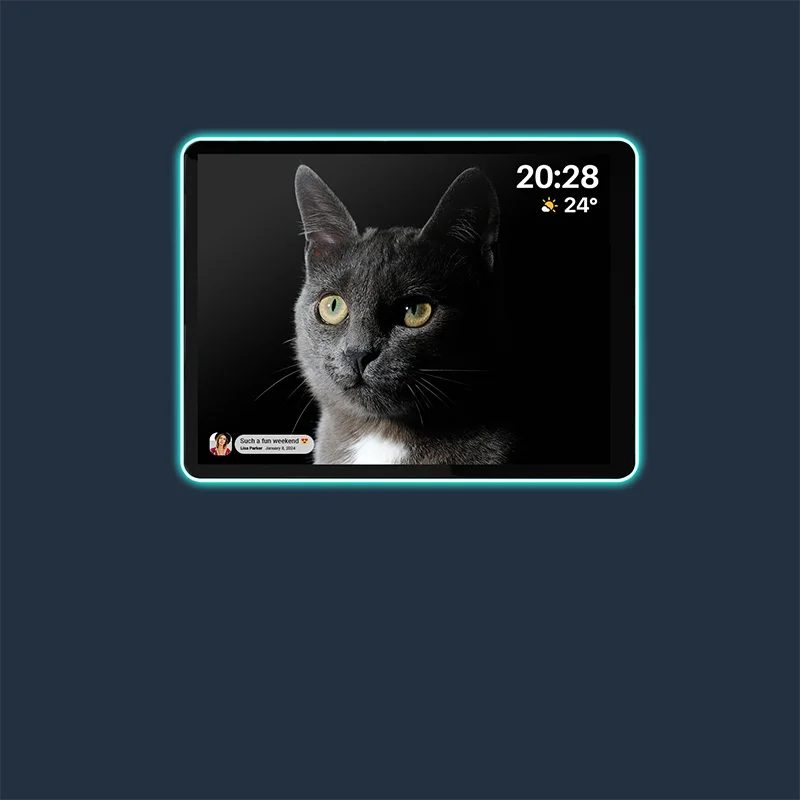
Picture a kitchen counter frame that rotates through birthday photos, school portraits, and weekend snapshots. Most of those images share a similar upright or square-ish proportion, so a 4:3 panel starts closer to that shape than a wide screen would. Our Apolosign 9.7-inch 2K frame uses a 9.7-inch 4:3 display with 2048×1536 2K resolution and auto-rotation for both vertical and horizontal photos, which fits this everyday-snapshot pattern well.
That said, the product's specifications confirm its ratio, resolution, and rotation support, not how it handles a photo that does not match the screen shape at all. If your library includes some wide shots too, read the fit behavior section below before deciding.
When a Wider Screen Makes More Sense
Choose a wider 16:10 or 16:9 frame when panoramic travel shots, landscape photography, or widescreen video stills make up most of your library. A wide screen uses that extra width instead of leaving it unused on a narrower panel.
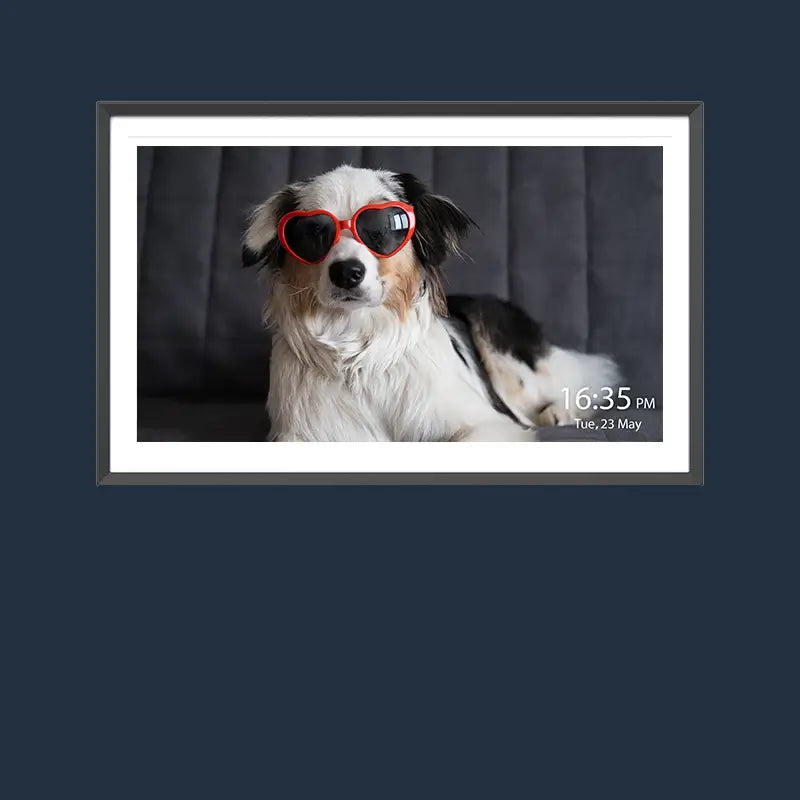
Picture a household that just came back from a national park road trip with dozens of wide canyon and coastline shots. A 16:9 panel is a wide format built for landscapes and scenes where the width of the shot matters, according to Canon's aspect ratio guide. Cropping a wide photo down to a narrower ratio removes image area and can reduce the resolution retained in the final display. Our Apolosign 15.6-inch frame uses a 16:9, 1920×1080 panel with auto-rotation for vertical and horizontal content, which fits a landscape-heavy library.
Treat 16:10 as a similar wide option worth comparing against your own photos rather than an automatic upgrade, since it has less direct support specifically for phone photo libraries. If your photos are a genuine mix of portraits and landscapes, the wider shape alone will not guarantee a clean fit for everything you display.
Why Resolution Does Not Fix a Ratio Mismatch
Resolution and aspect ratio answer two different questions. Ratio controls the shape of the screen and whether a photo fills it without cropping, while resolution controls how much fine detail the panel can show.
Aspect ratio describes the proportional relationship between a photo's width and height, and it is a separate property from resolution, according to Wondershare's ratio guide. Two images can share the same 16:9 ratio while having very different pixel counts, and two images can have similar pixel counts while having completely different shapes. That means a sharper 2K panel can still crop, border, or otherwise adjust a photo whose shape does not match the screen. If you want more background on what resolution numbers actually mean for a display, our resolution guide breaks down HD, Full HD, and 4K in plain terms.
In practice, this means you should settle on a ratio first, then treat resolution as a separate detail decision once the shape question is settled.
Fit Behavior Decides the Mismatch Tradeoff
Before choosing a frame, decide which mismatch result you can live with: preserved proportions with visible borders, intentional cropping, or another documented mode. This choice matters more than the ratio label by itself.
When a photo's shape does not match the screen, the frame's software has to do something with the leftover space. It can add bars or borders and keep the full image visible, it can crop the edges to fill the screen, or it can stretch the photo and distort it, notes the same aspect ratio guide from Wondershare. Preserving proportions with borders is the safer default for faces and ordinary family photos, since cropping and stretching both change what the viewer actually sees. Auto-rotation on a frame confirms that it can display both vertical and horizontal orientations, but it does not tell you which of these fitting modes the frame actually uses for a mismatched photo. That detail has to come from the model's own documentation rather than from its ratio or resolution specs.
Compare Your Phone Library Before You Buy
Open your own phone photos before comparing any frame's specs sheet. Your actual library, not a generic sample, tells you which ratio and fit behavior will look right in your home.

Start with Representative Photos
Pull up ten or twenty real photos from the library you plan to display, not stock examples. If your household regularly captures both portraits and wide shots, include a mix of both so the comparison reflects reality.
Read the Three Display Facts
Look up the candidate frame's native aspect ratio and native resolution separately, since they answer different questions. Then check whether the product page or manual describes its orientation support and its image-fitting behavior, since those are two more separate facts. Digital Camera World's frame buying guide recommends weighing screen size, orientation, ratio, and the source of your photos together rather than picking by any single spec.
Choose the Expected Result
Pick the ratio closest to your library's dominant shape if one shape clearly leads. If your photos are genuinely mixed, prioritize the frame whose documentation describes a fit result you are comfortable with, since that detail will affect more of your photos than the ratio number alone.
Final Choice: Match Photo Shape First
For a library dominated by standard phone snapshots, the closest native shape is usually a 4:3 panel, since it starts nearer to how most everyday stills are framed. For a library led by wide landscapes or panoramic shots, a 16:9 or comparable wide panel puts that extra width to use instead of wasting it.
For a genuinely mixed library, put documented fit behavior ahead of the ratio label. A frame that preserves proportions with borders will usually feel more natural for portraits and family faces than one that crops or stretches without saying so. Resolution, including a 2K spec, is worth comparing only after the shape and fit questions are settled, since it improves detail but does not change the screen's shape.
If you want to browse frames with the 4:3, 2K panel style described above, our Neon Light Digital Photo Frame collection is a reasonable next stop.
FAQs
Does a 4:3 digital frame match every phone photo?
No. A 4:3 panel is a strong starting point for libraries dominated by standard phone snapshots and portraits, but it is not guaranteed to match every phone or every photo mode. Wide shots and panoramas will still show borders or need cropping on a 4:3 screen.
Can a 2K screen prevent cropping or borders on a mismatched photo?
No. Resolution controls pixel detail, not screen shape. A 2K panel can show sharper detail than a lower-resolution panel, but it cannot make a photo with a different aspect ratio fill the screen without cropping, bordering, or stretching.
What is the difference between cropping and stretching a photo on a frame?
Cropping removes part of the image so the remaining area fills the screen, which can cut off edges of a photo. Stretching keeps the whole image but changes its proportions, which can distort faces and objects. Preserving the original proportions with borders avoids both problems, though it leaves visible empty space around the photo.
Does auto-rotation mean a frame automatically fits mismatched photos?
No. Auto-rotation means the frame can switch its display between vertical and horizontal orientation depending on how a photo was taken. It does not tell you whether the frame crops, stretches, or adds borders when a photo's proportions differ from the screen's native ratio. That behavior has to come from the model's own documentation.
What is the best choice for a household with a mixed photo library?
For a mixed library, choose based on documented fit behavior rather than the ratio label alone. A frame that keeps full photos visible with borders is generally a safer default for family portraits than one that crops or stretches images without stating how it handles a mismatch.