


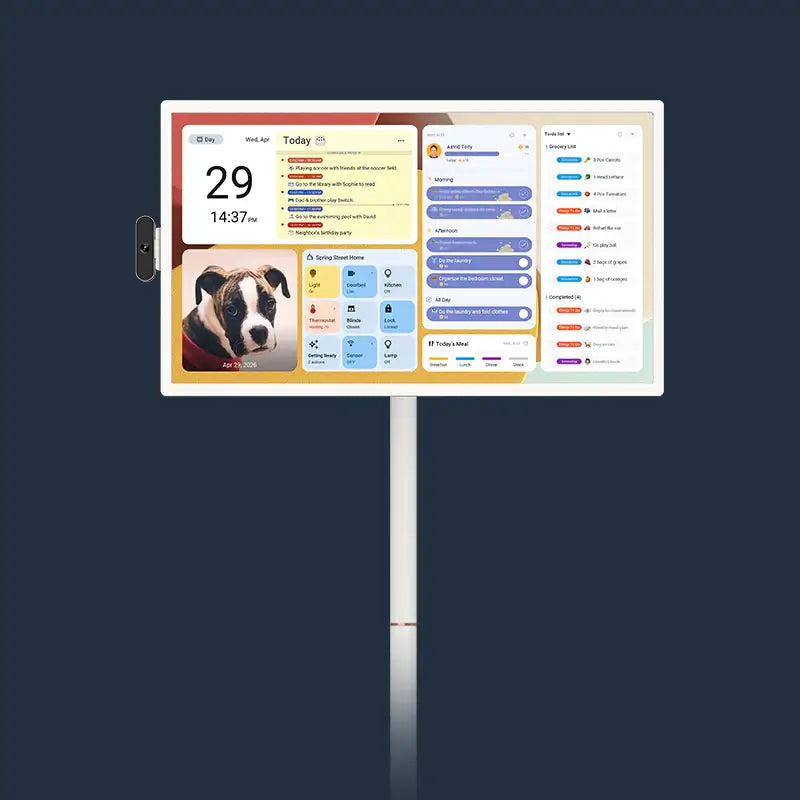
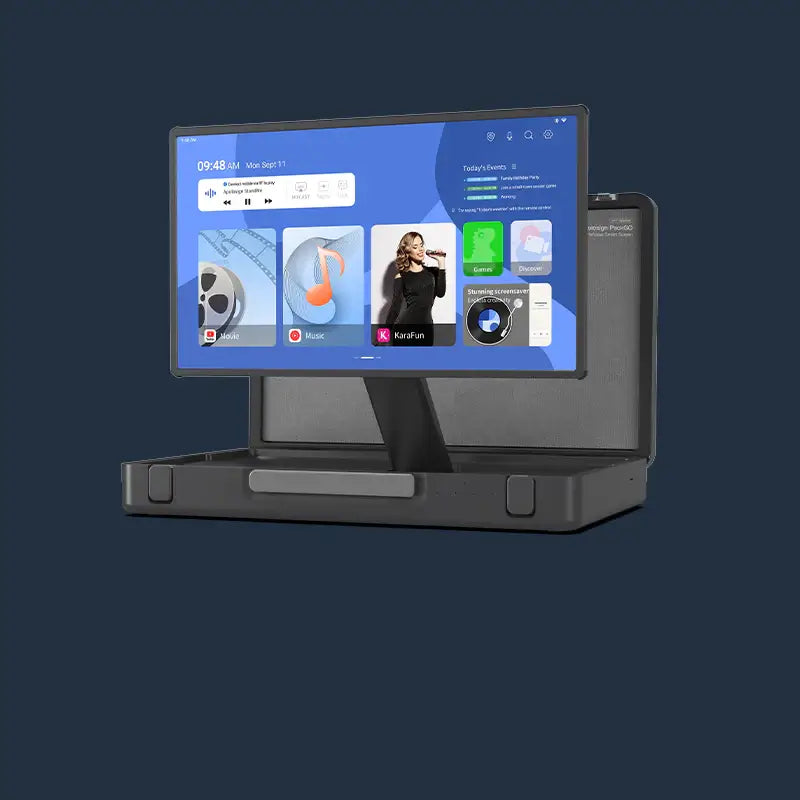
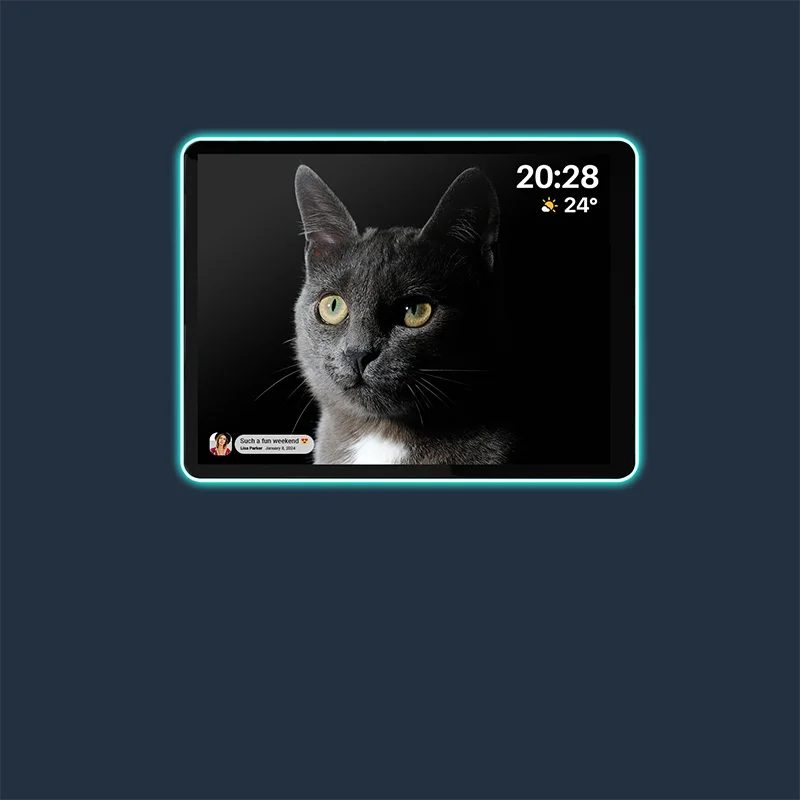


A digital calendar photo view can make a shared screen feel less exposed while it is idle by replacing an active schedule with a less detailed visual state. While it looks cleaner, a photo screen doesn't lock your device, change calendar permissions, or encrypt your synced data. The practical approach is to show only the details the household needs, test the schedule-to-photo control on the actual device, and inspect the screen from real room sightlines.

Keep Family Schedules Visible Without Leaving Photos Exposed
A shared family schedule is useful only when the information visible to everyone in the room is appropriate for everyone who may see it. In a kitchen, hallway, entryway, or living room, nearby viewers may notice names, routines, locations, notes, or personal photos, so treat a cleaner display as exposure reduction—not secrecy or account protection.
Start by separating communal coordination from personal detail. A shared screen may need to show that soccer is next at 4 p.m.; it may not need a private note, an exact address, a medical detail, or every attendee. Keep information that belongs to one person on an individual device or in a restricted calendar view whenever possible.
Then check the actual sightlines. Stand at the doorway, in the hallway, in the adjacent room, and where a guest or roommate would normally sit. Look for readable names, event titles, locations, and photos. A display that seems private from the sofa may be easy to read from the entryway.
The same boundary applies to a digital calendar photo: the photo state may reduce visible schedule detail, but it does not determine who can access the connected account or what remains active in the background. Review event-detail settings and account permissions separately from the screen's visual mode. For more family scheduling ideas, keep the same rule in mind: shared convenience should not require putting every personal appointment on the communal view.
How a Digital Calendar Photo Display Can Change Modes
A photo screensaver may replace the active schedule with a home-friendly visual state, but the exact control and behavior vary by product and software version. Think of this as a quick visual test to see if the display works for your specific room setup.
Choose a default view that balances your family's daily needs with your privacy preferences:
- Schedule-first: Fits frequent planning when the visible details are appropriate for the room. Keep event information limited to what everyone needs.
- Photo-first: May suit a guest-facing space or a display that serves a decor role between schedule checks. It does not protect the underlying calendar.
- Lower-detail: May work when the household needs a time, date, or broad event cue but not names, notes, or exact locations. Verify that the device offers this control.
Switching Between Schedule and Photo Views
Try this quick setup test before leaving your calendar on display around guests or roommates:
- Observe the current schedule view: Record the event details, names, locations, widgets, notifications, and other content visible before changing modes.
- Use the verified control: Follow the current device documentation or use the control you have confirmed on the live screen. Do not assume that “one tap” works across models.
- Inspect the resulting display: Note what disappears, what remains, and whether touching the screen returns to an active schedule. While product pages love to highlight "one-touch Google Photos slideshows," always remember that a screensaver is just a display feature, not a true privacy lock.
- Restore the schedule and retest relevant behavior: Return to the calendar, then check reopening, timeout, touch behavior, and restart or power recovery if those behaviors matter in your home.
The key question is not simply whether photos appear. It is whether the visible change does what you expect without creating the false impression that permissions, synced data, notifications, or widgets have changed too. A community example of a photo-screen workflow illustrates one possible behavior rather than a standard shared-display function.

Choosing a Shared-Screen Default
Choose the least-exposing visible state that still supports the household's most common task. The options above are starting points for testing, not proof that every model supports each mode.
A family digital wall calendar should earn its place through the routine it supports, not through the assumption that a polished idle screen is a security feature. If you want to compare available models, the digital calendar collection is a starting point for checking current listings; verify each model's live controls and documentation separately.
Family Workflows That Benefit From a Shared Display
The right visible mode depends on the audience and the moment. Use a limited schedule for active coordination, review shared details around roommates or guests, and treat photos as communal content rather than assuming they are private.
| Content Choice | Visual Role | Possible Exposure | Review Needed |
|---|---|---|---|
| Family photos | Personal, welcoming display | Faces, school settings, trips, or recognizable locations | Remove images that reveal details the household does not want displayed publicly |
| Neutral artwork | Low-context decor | Usually less schedule-related information, but visibility still depends on the room | Check whether the source, account, or rotation behavior is appropriate |
| Minimal schedule | Quick coordination cue | Names, times, routines, or locations may remain visible | Limit event detail and test the view from doorways and adjacent rooms |
Morning Planning and Activity Changes
Morning use favors a quick, shared check of what happens next. Show the event name and timing only if that is enough to coordinate; remove notes, exact locations, and other details that do not help everyone leave on time. When an event changes, confirm the updated information on the display or the responsible person's device before relying on it.
For school mornings, the useful question is usually “What is next, and who needs to act?” rather than “Can everyone see the complete appointment record?” That distinction keeps a digital wall calendar for family coordination useful without turning it into a full public record of household activity.
Guests, Roommates, and Shared Rooms
When people outside the immediate household can see the screen, review the shared boundary before connecting calendars:
- Check which names, routines, locations, and event titles appear from the likely viewing positions.
- Use a dedicated shared calendar or limited event details instead of placing every personal appointment on the communal display.
- Decide who can change the shared calendar and review invitations or permissions separately from the display mode.
- Switch to a neutral, photo, or lower-detail view when appropriate, but treat that as a presentation choice rather than a substitute for permissions.
This approach is especially useful in a living room, a shared apartment, or a hallway that visitors pass through. A digital wall calendar for family use can coordinate shared logistics without exposing unrelated personal schedules.
Photos as Home-Friendly Display Content
Photos can make a screen feel more like home decor, but they can also reveal private information. Review both the image and how it is selected or changed before making it part of an always-visible routine.

What to Check Before Choosing a Family Wall Calendar
Choose a shared display only after comparing verified screen controls, schedule-detail behavior, actual calendar compatibility, account permissions, and current ownership terms. Confirm these details in current documentation or on the live device.
| Check | What to Compare | Why It Matters |
|---|---|---|
| Calendar service | The household's current calendar provider and account type | A listed service may not behave identically across personal, work, or shared accounts |
| Permissions | Shared calendars, invitations, editors, and viewers | The display should not require connecting unrelated personal appointments |
| Event fields | Titles, notes, locations, attendees, and detail limits | The visible fields determine how much information reaches the communal screen |
| Refresh behavior | Automatic updates, manual steps, and behavior after reconnection | A stale or incomplete view can create coordination problems |
Independent testing of digital wall-calendar usability is useful comparison context, not a substitute for current product documentation. Editorial comparison coverage can help identify buying questions, while feature and subscription availability remain model-specific.
Privacy and Display Controls
Use this checklist when reviewing documentation or testing a live device:
- Look for controls over visible event details, photo selection, mode changes, timeout, and account access.
- Verify whether a mode change affects only the screen or also notifications, widgets, synced data, and connected accounts.
- Check what appears after touch, reopening, a software update, restart, or power interruption where practical.
- Confirm whether different household members have different permissions or whether anyone with physical access can change the view.
- Look for current terms governing photo services or paid features. Feature comparisons, including photo-mode comparison coverage, can identify questions to ask but do not establish the terms for a particular model.
The comparison target is not “does it have photos?” It is “what can the household control, what remains visible, and what happens when the display is touched or restarted?”
Calendar, App, and Account Compatibility
Match the display to the household's actual services and sharing arrangement instead of relying on a platform name alone.
Also verify mounting or placement requirements, subscription terms, returns, and warranty coverage on current official pages. Product titles and summaries do not prove compatibility, permissions, refresh behavior, or commercial terms. A 21.5-inch display is a great starting point for comparison, but always double-check the dimensions to ensure it fits your specific space.

Set Up a Lower-Exposure Display Routine
A lower-exposure routine comes from deliberate placement, minimum useful detail, a tested display mode, and a follow-up review. Placement can reduce casual exposure, but it cannot guarantee that private information will remain unseen.
- Choose the location: Favor a place readable by intended users without pointing the display directly toward a doorway, window, hallway, or adjacent room where passersby can easily view it.
- Set the minimum useful detail: Start with the date, time, broad event name, or other information needed for coordination. Add exact locations, notes, or personal calendars only when the household has a clear reason.
- Configure and test the visible mode: Set the schedule, photo, neutral, or lower-detail state supported by the device. Test the switch, touch response, timeout, reopening, and restart behavior that matter in your routine.
- Check real sightlines: View the screen from the front door, hallway, nearby rooms, windows, and normal guest seating. Remove or shorten anything readable from an unintended angle.
- Review after one week: Ask whether the display reduced phone-checking or clutter. Remove content that adds exposure without improving coordination, and repeat the sightline check after furniture or placement changes.
FAQs
Is a Photo Screensaver the Same as Locking a Digital Calendar?
No. It changes the visible screen state but does not prove device locking or account protection. Test what appears after touch and review access controls separately.
How Much Event Detail Should Appear on a Shared Family Calendar?
Show the least detail needed for coordination, then remove private notes, exact locations, or unrelated attendees. Check the result from the most public sightline.
Can Roommates Share a Calendar Without Showing Every Personal Appointment?
Use a dedicated shared calendar or limited event details when possible. Review viewers and editors, then inspect the screen for names, locations, and notes.
Where Should a Digital Wall Calendar Be Mounted for Better Privacy?
Choose a spot less exposed to doors, windows, hallways, and adjacent rooms. Check what is legible from each position; no location guarantees privacy.
What Should I Test After Connecting My Calendars to a Shared Display?
Confirm the account and calendar permissions, then check event fields, refresh behavior, photo transition, touch response, reopening, and restart behavior against the source calendar.
Before adding a shared display to your cart, verify the live model documentation, actual sightlines, and current return and warranty terms.