




Breakfast is underway, school bags are still being packed, and your phone is somewhere in another room. You want to set an alarm before everyone leaves—but your hands are already full.
These are the moments when voice control can be useful.
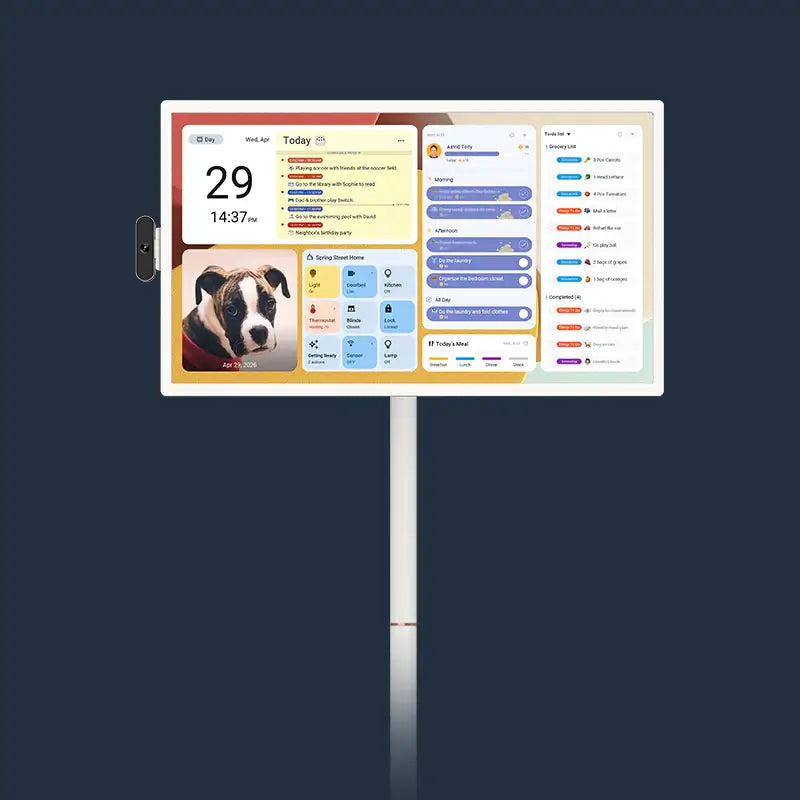
Apolosign Digital Calendar keeps family plans in view and supports Google Assistant for everyday requests. From morning preparations to a quieter evening at home, here are a few ways to put it to use.
Set an Alarm While Getting Everyone Ready
School mornings often involve several things happening at once. Someone is finishing breakfast, someone is looking for a library book, and you’re trying to keep an eye on the time.
You can ask Google Assistant to set an alarm while you continue what you’re doing. For example:
“Set an alarm for 7:45 a.m.”
Check the confirmation so you know the request was understood. An alarm can provide a shared cue that it’s time to put on shoes or get ready to leave.
Set it a few minutes before departure to leave time for checking bags and gathering the things everyone needs.

Find Cooking Instructions When Dinner Is Already Planned
Your family has chosen chicken for dinner, but you want to try preparing it a different way. Or you’ve planned a familiar main dish and need an idea for a side.
The Meals feature on Apolosign helps keep your meal plans organized. Google Assistant offers another way to look for recipes and cooking information when you need them.
Try a request such as:
“Find a roast chicken recipe.”
When you’re preparing ingredients, speaking your request can save you a pause to find your phone and type. Review the results on screen, choose a suitable recipe, and check the instructions before cooking.
This can also help when a family member wants to contribute an idea. A question over breakfast—“Could we try something different with potatoes tonight?”—can become a recipe search to explore together.
If you find a recipe you want to keep, copy its webpage link and use From Link in Meals to import it. Review the recipe card before saving it for a future meal.
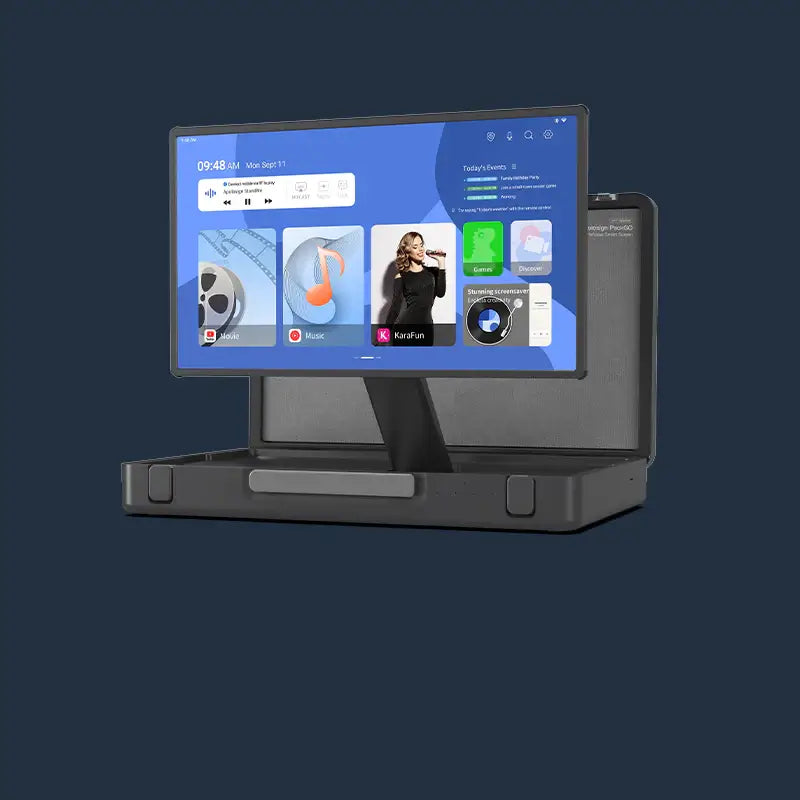
Open a Video App When It’s Time to Relax
The kitchen is tidy, the day’s tasks are finished, and everyone is ready for a break. Perhaps you want to watch a cooking video together or find something for a family sing-along.
Ask Google Assistant to open an installed, supported app:
“Open YouTube.”
Then choose what you’d like to watch on the screen.
This is a simple way to begin a shared activity without first navigating through the home screen. You can make the choice together, whether it’s a craft tutorial for the weekend or a video someone has been eager to show the family.
Opening an app and controlling its content are separate actions. Some steps inside the app may still require a tap.
Adjust Compatible Smart Lights While Your Hands Are Busy
You’re carrying dinner to the table when you notice the living room is still dark.
Once compatible lights are linked through Google Home and set up for voice control, you can ask:
“Turn on the living room lights.”
Apolosign Digital Calendar supports managing compatible smart home devices through Google Home. Connecting them gives you a convenient way to perform supported actions while you’re busy elsewhere in the room.
Use clear device names that everyone recognizes, such as “living room lights” or “kitchen light.” This makes requests easier to remember and helps identify the device you mean.
Smart home devices need to be connected separately. Check that your device supports the action you want to use, then try the command after setup.
Try Your First Voice Command
Ready to give it a try? Make sure your Apolosign Digital Calendar is connected to the internet, then follow our voice control setup guide to get started.
Begin with one simple request, such as setting an alarm before school, and explore more ways to use voice control throughout your family’s day.
A Little Help Throughout the Day
A morning alarm. An idea for dinner. A video to enjoy together. These small requests are part of the rhythm of family life, and voice control gives you another way to handle them.
Already have an Apolosign Digital Calendar? Try a spoken request the next time your hands are busy.
Explore Apolosign Digital Calendar and bring family plans and everyday tools together in one shared place.
FAQ
What Can I Do with Voice Control on Apolosign?
You can use voice control for everyday requests such as setting alarms, finding recipes, and opening supported apps. You can also control compatible smart home devices after connecting them through Google Home.
How Do I Set Up Multi-User Voice Recognition for Google Assistant (Gemini)?
Open the Google Home app and look for Voice Match in the Google Assistant settings. Each family member should use their own Google account and follow the prompts to teach the assistant to recognize their voice. Complete the setup for your Apolosign device and check the available personalization settings.
For detailed steps, follow our multi-user voice recognition guide.
What Should I Check If Voice Control Isn’t Responding?
Check your internet connection, microphone permissions, Google account sign-in, and voice assistant settings. Move closer and try again in a quieter environment.
If the problem continues, restart the device and consult the voice control setup guide or contact Apolosign Support.