




Before school, everyone needs something different: a look at today’s schedule, a reminder to bring library books, or a quick weather check. By evening, the questions shift to dinner, activities, and what still needs to get done.
A custom dashboard gives your family one place to check.
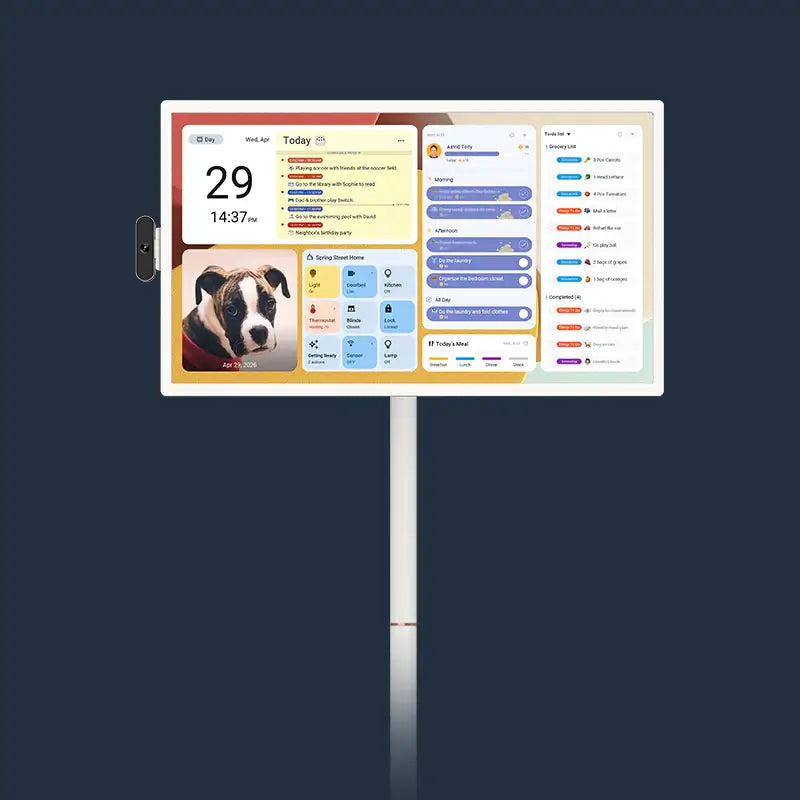
With Apolosign Digital Calendar, you can bring schedules, meal plans, routines, to-dos, and notes together on the same screen. Choose the widgets your household uses most, arrange them in a way that makes sense, and create extra pages when you need more space.
Here are a few ways to make that dashboard useful at home, followed by the steps to build your own.
Make School Mornings Easier With a Family Dashboard
Getting everyone out the door often means repeating the same reminders while trying to get ready yourself.
A morning dashboard can bring the essentials together:
- Family schedule: See today’s appointments, school activities, and after-school plans.
- Weather: Check whether a jacket or umbrella might be needed.
- Individual routines: Give each child a place to check their regular morning activities.
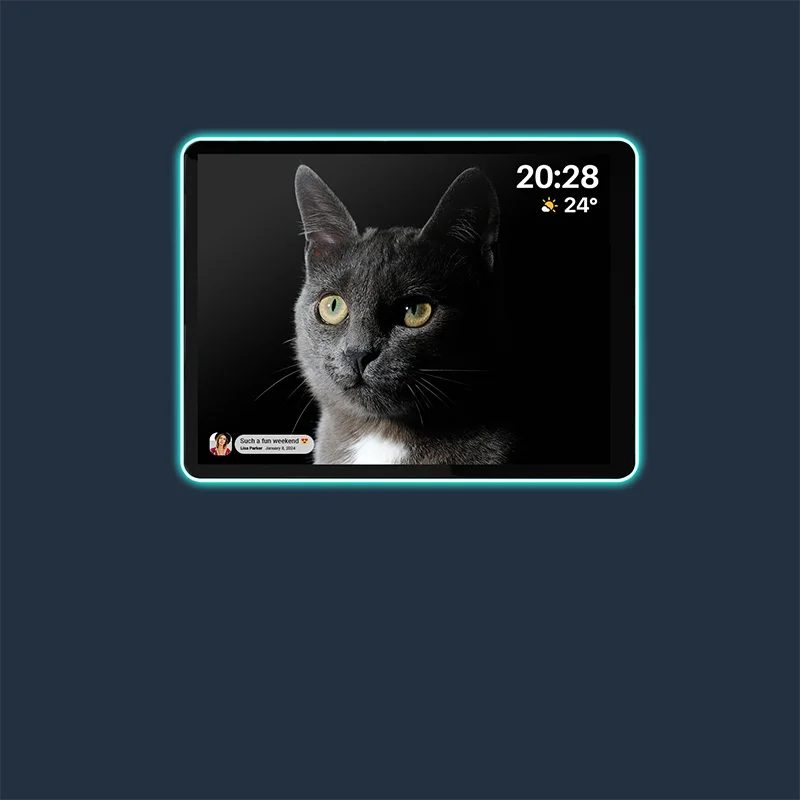
- Stickies: Highlight a reminder such as “Your library books are by the door.”
Imagine a school morning when your child can check their routine, see that there’s practice after school, and spot your note about what to bring—all on one page.
Having a consistent place to look can help family members prepare more independently and reduce the number of reminders you need to repeat.

Keep Dinner Plans and Evening Activities in One View
The end of the day brings its own coordination. Dinner needs preparing, someone has an activity, and another family member may be coming home late.
Put meal plans, family schedules, to-dos, and Stickies together on an evening dashboard.
The meal plan answers “What’s for dinner?” The schedule shows what’s happening around mealtime. A note such as “Save a plate for Dad—home around 7” adds the detail everyone needs.
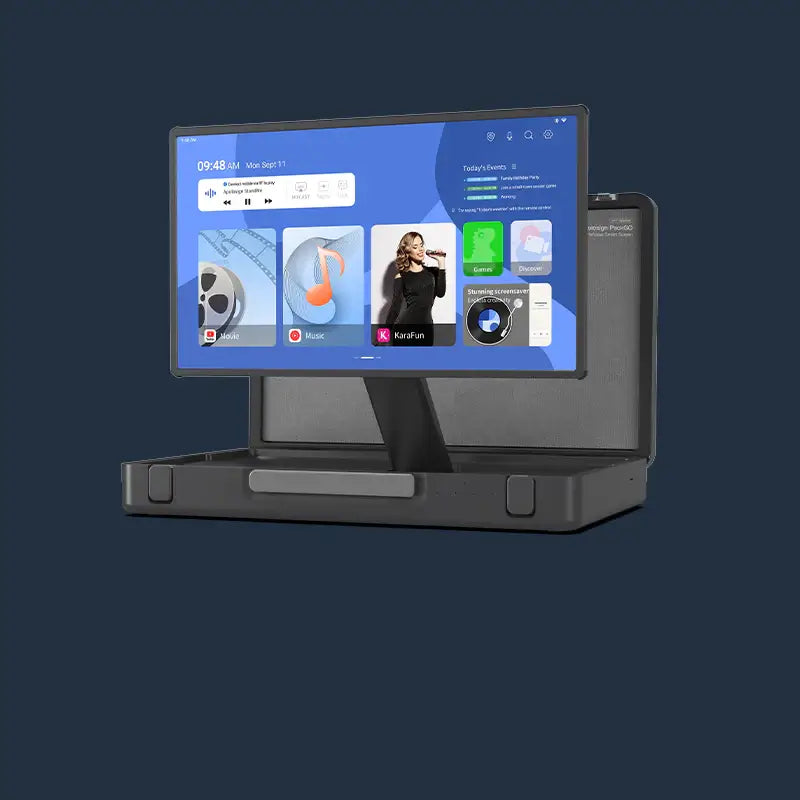
You can also add a music widget for convenient access while cooking.
When the evening’s plans are visible together, family members have a place to check before asking you. It becomes easier to see how dinner fits around everything else happening at home.
Watch How to Set Up Your Custom Dashboard
Follow the video below to see how to switch to Android Mode, add widgets, and arrange your dashboard. You can also use the written steps that follow while setting up your own screen.
👇 Watch the Apolosign dashboard setup tutorial on YouTube.
How to Add and Customize Dashboard Widgets
Apolosign Digital Calendar supports Calendar Mode and Android Mode. To set up your custom dashboard, start in Android Mode.
Step 1: Switch to Android Mode
- Open Apolosign Calendar.
- Go to Settings.
- Select General.
- Find Advanced and select the option to switch to Android Mode.
Step 2: Choose a Dashboard Page
On the Android home screen, swipe through the pages to find a blank page.
Press and hold an empty area of the screen to access the customization options. You can add widgets here or create additional pages for your dashboard.
Step 3: Add the Widgets Your Family Needs
Start with a few widgets your household checks regularly. Available options include:
| Widget | Everyday Family Use |
|---|---|
| Family schedules | Check activities and appointments. |
| Meal plans | See what’s planned for upcoming meals. |
| To-dos | Keep tasks easy to find. |
| Individual routines | View a family member’s regular activities. |
| Stickies | Share quick reminders and messages. |
| Weather | Prepare for the day before heading out. |
| Music | Access music while cooking or relaxing together. |
| Smart home controls | Keep available home controls within reach. |
| Stocks | Follow market updates at a glance. |
For a first dashboard, try the family schedule, weather, and a Sticky. Add more as you learn what your family finds useful.
Step 4: Arrange and Resize Your Widgets
Drag widgets into position and adjust their sizes to suit the information they display.
Give the family schedule enough room to read comfortably. Place a short reminder nearby, and keep related content—such as meal plans and evening activities—close together.
You can build your own arrangement or choose a built-in layout template to guide widget sizing and placement.
Before finishing, check whether the most useful information is easy to spot and the text is comfortable to read. A clear layout makes the dashboard more helpful during a quick glance.
Organize Multiple Dashboard Pages Around Family Life
If one page starts to feel crowded, create another. Press and hold an empty area of the home screen to access the option to add pages.
Each page can have a different purpose:
Family Overview
Keep schedules, weather, and shared notes together for a quick look at the day. This is a useful starting page for information that matters to everyone.
Kids’ Routines and To-Dos
Group individual routines, to-dos, and encouraging messages on a dedicated page.
For example, a child can check their after-school routine alongside a note saying, “Good luck at practice!” Giving these items a predictable place can make it easier to build the habit of checking them.
Meals and Home
Bring meal plans, music, and smart home controls together for convenient access while spending time in the kitchen or shared living area.
You don’t need to build every page at once. Start with one that solves a daily frustration, then expand when your family needs something more.
Build a Family Dashboard That Works for Your Home
The most useful dashboard reflects what your family actually needs to see: today’s activities, tonight’s dinner, a child’s routine, or a reminder that would otherwise need repeating.
Already have an Apolosign Digital Calendar? Switch to Android Mode and create your first page with a few everyday essentials. Arrange the widgets yourself or start with a built-in layout template, then adjust it as your family uses it.
Ready to bring your family’s daily plans together? Explore Apolosign Digital Calendar and give everyone a clear place to check what’s next.