


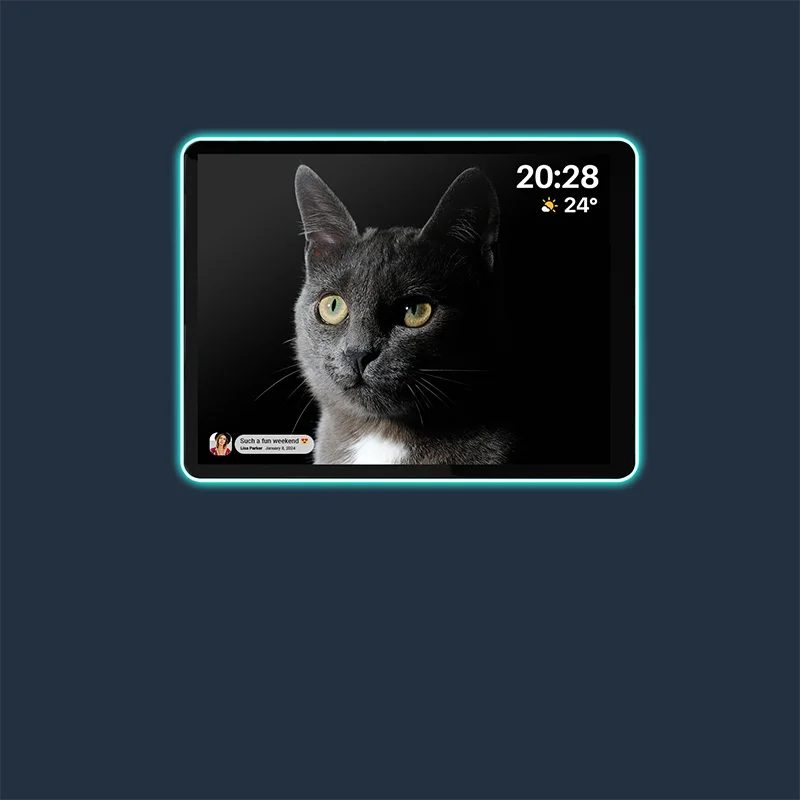


Getting a digital photo frame ready as a gift means five things: curate the photos, load them through the frame's own app or storage method, line up any relatives who want to add pictures, test the screen in the room where it will live, and pack the box with a clear note about anything the recipient still has to finish. Some frames need the recipient to connect their own Wi-Fi or account before the last step, so plan for that instead of assuming the gift will be fully plug-and-play. The checklist below walks through that order so nothing gets missed before wrapping.
Use this ready-to-wrap sequence
Work through these six steps in order, since each one sets up the next. For households managing multiple displays, checking our guide on privacy on shared screens can clarify how ambient displays handle personal media. Finishing all six steps either produces a gift that is ready to display immediately, or a gift with one clearly written recipient step attached.
- Curate the starter photos. Pick a small, recognizable set tied to the recipient's family and memories. This gives the first slideshow a clear, personal feel instead of a random mix.
- Identify the frame's supported loading method. Check whether the model uses an app, a web uploader, email, a memory card, or a mix. Loading through the wrong method can leave photos stuck on your phone instead of on the frame.
- Line up your contributors. Decide which relatives will add photos and whether they join before or after the gift is opened. This avoids someone trying to share through an app the frame does not use.
- Test the display in its intended room. View both portrait and landscape photos where the frame will actually sit. This catches cropped faces or hard-to-read brightness before the recipient ever sees it.
- Check the physical contents. Confirm the power adapter and manual are in the box and that the frame reaches a nearby outlet. A missing adapter turns a ready gift into an unusable one.
- Complete or label the account and Wi-Fi handoff. Finish the documented transfer step if your model has one, or write down exactly what the recipient needs to do. Do not leave your personal login attached as a shortcut.
A frame that finishes all six steps with no outstanding item is ready to wrap as-is. If step six still needs the recipient's Wi-Fi or account, tape a short note to the box instead of guessing at a workaround.
Choose photos that feel personal to the recipient
Photo choice depends on who the frame is for and how many people will keep adding pictures later. Split your plan into a one-time slideshow and an ongoing sharing plan so the first viewing feels intentional either way.
For a one-time personal gift
Lead with close family members, shared milestones, and photos that make sense without a caption. Put your strongest, clearest images first so the frame looks complete the moment it turns on. Skip anything private or embarrassing unless you are confident the recipient would want it included.

For ongoing family sharing
Decide which relatives should contribute and whether they join before delivery or after the recipient sets up the frame themselves. Keep the starter slideshow coherent even though more photos will likely arrive later. A Nixplay contributor path will not work on a Frameo-based model, so confirm which app ecosystem your specific frame uses before inviting anyone. For more ideas on choosing gifts your family will actually use, our guide on thoughtful tech gifts walks through picking presents around real family habits.
Load photos through the frame's supported path
Photo loading depends entirely on the model, so identify the exact method before assuming any single approach works. Upload options vary by device and can include an app, a web uploader, email, or a memory card, and the right choice depends on what your specific frame supports.
App-connected frames
Load photos only through the app your model actually uses, since sharing ecosystems are not interchangeable. Independent coverage lists several supported photo sharing methods, including app, web, and email paths to send photos to that specific model. If your frame still needs the recipient's own Wi-Fi or account to finish the connection, write that step down rather than treating app access alone as proof the gift is fully transferred.
Local-storage frames
If your model takes a memory card or USB drive, check whether it plays files directly from the card or asks you to import them into internal storage first. Confirm the photos actually show up in the frame's normal slideshow before you remove the card, since a card that looks loaded is not the same as a card the frame is actually reading. Use the exact file types and storage limits listed for your model rather than assuming every frame handles the same formats.
Set up family sharing for the right contributors
Family sharing works best when you match the contributor plan to the frame's actual app instead of guessing at a universal process. Keep the Nixplay and Frameo ecosystems separate, since a contributor invited through one will not be able to add photos through the other.
When contributors can join before delivery
Invite relatives only through the model's own sharing method, whether that is an app invite, a shared code, or another supported route. Tell each contributor what kind of access they are getting, and never hand out your personal login as a workaround. Send a test photo and confirm it actually appears on the frame before telling everyone the sharing is set up.
When the recipient must finish the connection
If the documented process requires the recipient's own Wi-Fi or account, leave that step for gift day instead of trying to complete it yourself. Write a short note naming the app and the one action the recipient needs to take, without including any of your own credentials. Treat the frame as recipient-assisted rather than fully ready if this step cannot be completed in advance.
Test the screen where the gift will live
Screen testing means placing the frame exactly where it will sit and checking it the way the recipient will see it. A 15.6-inch frame with a 16:9 screen and a 9.7-inch frame with a 4:3 screen crop photos differently, so test with your actual model rather than assuming one setting fits both.
Check orientation and cropping
Load a mix of portrait and landscape photos instead of testing with just one image. Independent coverage confirms the 15.6-inch Apolosign's landscape-and-portrait auto-rotation, so review both orientations if your frame is this model or one with a similar feature. If your frame offers a fit or fill option, choose whichever keeps faces and important details from being cut off at the edges.
Check the room, not just the screen
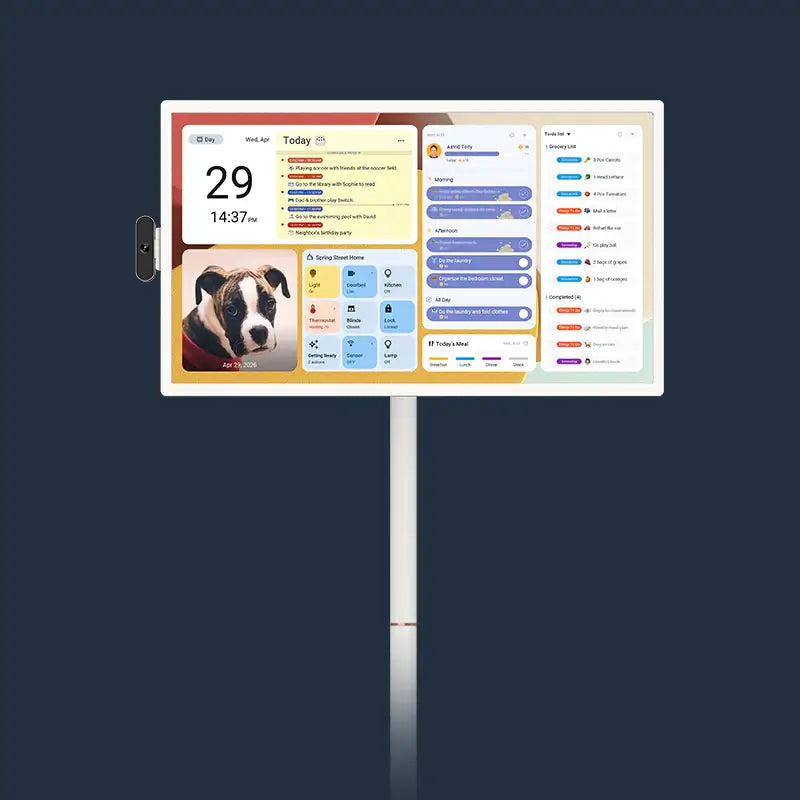
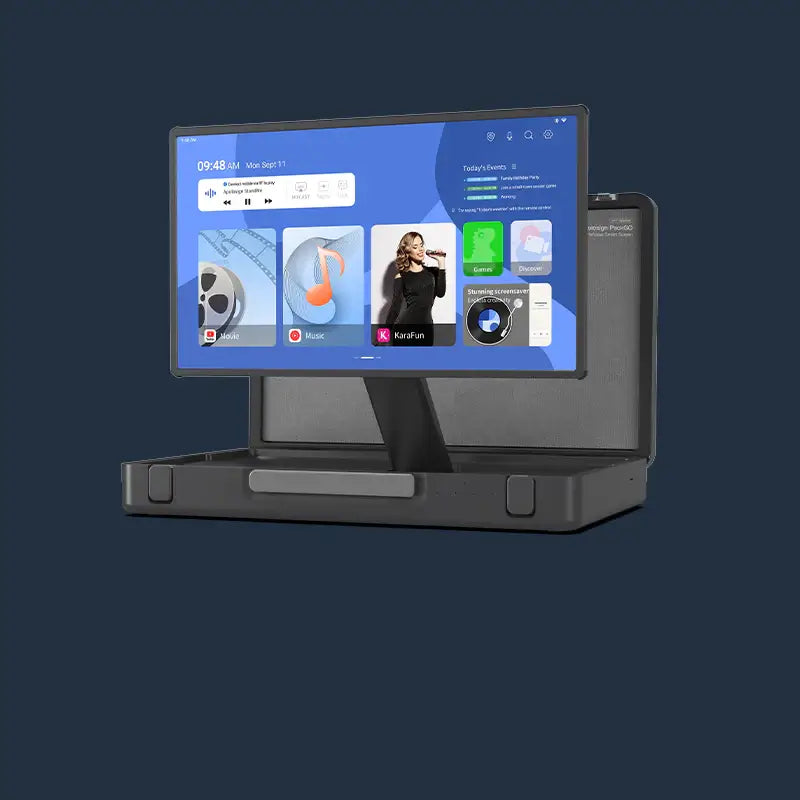
View the frame in daylight and again in the evening if the room gets both kinds of light. Adjust brightness and slideshow timing if your model gives you those controls. Confirm the viewing angle looks clear from where the recipient will normally sit, and make sure the power cord reaches the outlet without an awkward stretch. Buyers weighing a full-size touchscreen against a compact display can compare the 15.6-inch Apolosign frame and the 9.7-inch Apolosign frame side by side before deciding which fits the intended room.
Finish the handoff before wrapping
The last stage is packing the box correctly and deciding how much account access stays attached. Getting this step wrong is the most common way a ready-looking gift turns into a frustrating first day for the recipient.
Keep the physical handoff complete
Check the box against your model's listed contents, since a power adapter and manual should be included with most current frames. Confirm the frame reaches its intended outlet once it is out of the box, and repack the accessories the recipient will need on day one. Add a short note naming the app and any remaining action, without listing private details.
Clear or label private access
Complete your model's documented transfer, sign-out, or reset process if one exists, rather than leaving your personal account attached by default. Do not hand your login to the recipient as a stand-in for a real transfer step, since that keeps your data connected to their gift. If no clear transfer process is documented for your model, say so in your note and treat the gift as recipient-assisted instead of fully self-contained.
FAQs
Should I try to preload every photo before wrapping the frame?
Preload a small, coherent starter set instead of the entire photo library. A large but unsorted collection can make the first slideshow feel random, while a short, recognizable set gives the recipient an immediate, personal first impression.
What if my photos are a mix of portrait and landscape shots?
Review both orientations on the actual frame before wrapping it, since a screen's aspect ratio affects how much of each photo shows. If the model offers a fit or fill setting, pick whichever avoids cutting off faces, and swap out any photo that crops poorly.
Can multiple family members add photos to the same frame?
Yes, but only through the exact app or sharing method the frame supports, since different ecosystems are not interchangeable. Confirm each contributor's test photo actually appears on the frame, and avoid sharing your own login as a substitute for a proper invite.
What should I do if the recipient still needs to connect their own Wi-Fi or account?
Leave that step for gift day and attach a short note naming the app and the exact action required. Treat the frame as recipient-assisted rather than fully ready, since finishing that step yourself could leave the gift tied to your personal network instead of theirs.
Conclusion: Wrap it only when the handoff is clear
A frame is ready to wrap once the photos are curated, loaded through its supported path, tested in the intended room, and packed with complete contents and no lingering personal account access. If any of those pieces is missing, especially the Wi-Fi or account step, attach a clear note for the recipient rather than guessing that a normal setup will transfer cleanly. If you are still deciding between a frame and another way to display family photos, our comparison of a photo frame versus calendar can help you settle on the right gift format, and our classic digital photo frames collection is a low-pressure place to browse options if you have not chosen a model yet.