


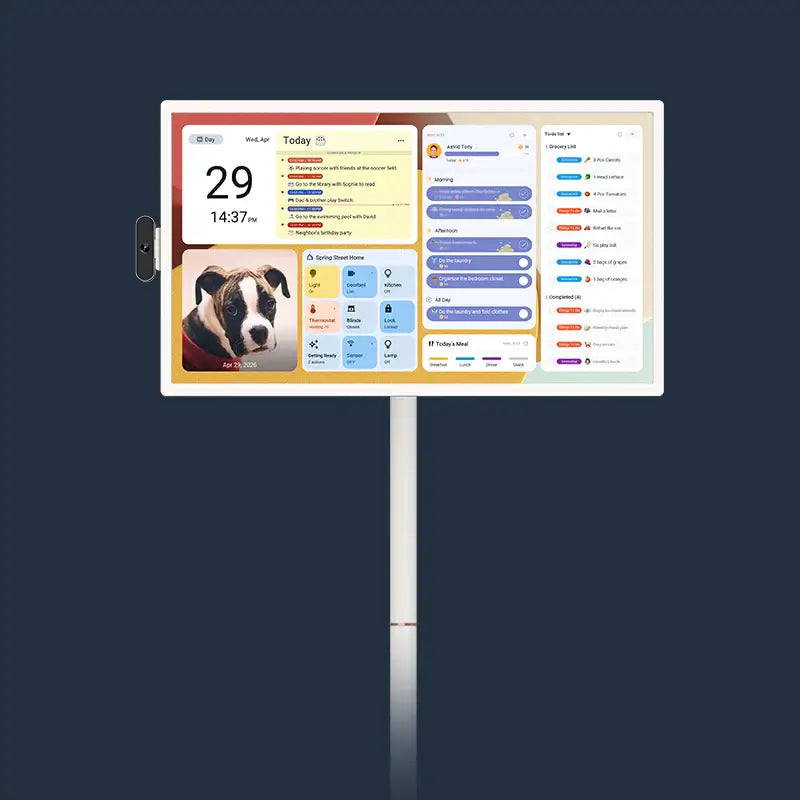
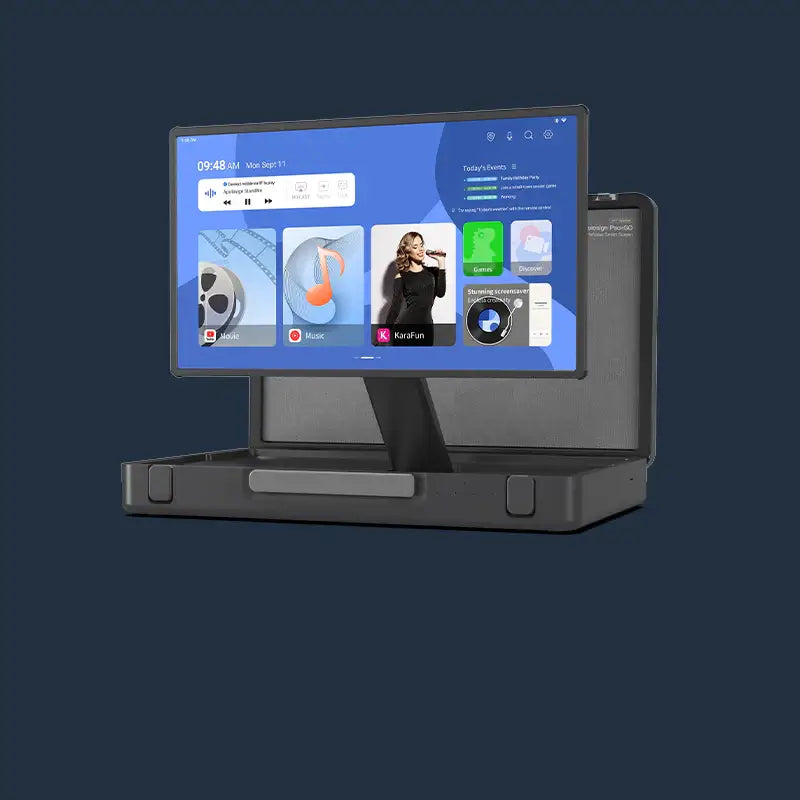


A portable TV video call setup works best as a simple laptop setup: put the call on the larger screen, connect the built-in camera to the laptop, then set the screen where people can see and be seen. That solves three common problems at once: a crowded laptop view, a poor camera angle, and calls that need to happen away from a desk.
Use Two Connections for One Simple Laptop Call
Use the large screen for the call and the laptop to run the meeting app. This gives you a bigger view without asking colleagues or relatives to change how they join.
Our 32-inch Portable TV supports High-Definition Multimedia Interface (HDMI) and Wi-Fi screen sharing from a laptop. Its 8-megapixel camera connects to a laptop through Universal Serial Bus Type-A (USB-A). The practical setup is:
- Connect the laptop to the screen with HDMI, or use a supported Wi-Fi display method.
- Connect the camera to the laptop with USB-A.
- In the meeting app, choose the connected camera and microphone, then check the preview.
This is the key point for anyone searching how to connect camera to laptop USB-A. The display connection shows the call on a larger screen. The USB-A connection lets the laptop use the built-in camera for the call.

Put Faces and Shared Work on Different Screens
A larger screen helps you follow people and shared material without constantly switching windows. For a portable TV for work meetings, keep the meeting on the Portable TV, then keep chat, notes, or a private document on the laptop.
| Call type | Better screen split | Main benefit |
|---|---|---|
| One-person work meeting | Call on the Portable TV, notes on the laptop | Slides and faces stay easier to read |
| Two people sharing a call | Call on the Portable TV, laptop nearby | Both people can see the speaker and shared file |
| Family call | Call on the Portable TV, phone put away | Everyone can sit together instead of passing a device around |
For a video call screen setup at home, this is more useful than simply making the picture bigger. It gives the main conversation its own space while the laptop stays available for the tasks only you need to see.
Set the Camera for One Person or a Group
Set the screen around the people in the call, not around the nearest outlet or empty wall. Turn on the camera preview before joining, then check the edges of the picture.
For one person, place the camera close to eye level and sit facing the screen. For two or three people, move the screen back until every person fits in the frame. Bring seats closer together if someone is cut off. A larger display does not make the camera view wider by itself.
Use these quick checks before the call:
- Keep bright windows in front of the people on camera, not behind them.
- Point the screen toward the group so nobody has to twist to see it.
- Lower nearby music, fans, and other television sound before the microphone test.
- Leave a clear path around the stand so people can move without bumping it.
This is where a portable TV camera and microphone setup earns its place. The screen gives the group a shared view, while the camera and microphone keep the call connected to the laptop.

Move the Screen and Adjust the View
Move the screen to the room that works for the call, then adjust it to the people using it. A dining table may suit a family catch-up, while a quiet bedroom may suit a work meeting.
The 32-inch model has five wheels, a built-in battery, and an adjustable stand. Its screen can raise up to 180 millimeters and can tilt, swivel, and rotate. Move it before the call starts, park it on a stable level surface, and keep the camera in its vertical top-mount position when you use it.
For a seated work call, raise the camera toward eye level and tilt the screen until you can look straight ahead. For a family call with children on the floor, lower the screen and tilt it toward the group. A quick preview is enough to tell you whether the height and angle work.
Keep One Call Setup Ready for Work and Home
Keep the HDMI and USB-A camera cables together, and save your preferred display settings on the laptop. That turns a Portable TV from an occasional extra screen into a setup you can use when a meeting starts unexpectedly or family members want to call together.
Our 32-inch Portable TV combines a larger touch display, a laptop-connected camera, dual microphones, adjustable positioning, and room-to-room movement in one screen. Check the available resolutions and choose the configuration that fits the calls your home actually makes.

Start Your Next Call With More Room to See and Connect
Put the laptop in charge of the call, let the Portable TV handle the shared view, and check the camera frame before you join. That simple division makes work meetings easier to follow and family calls easier to share. Choose the screen position that fits the people in the room, then let the conversation take over.
Portable TV Video Call FAQs
Q1: Can I use the Portable TV for a video call without a laptop?
Possibly, but check the calling app first. Our Portable TVs provide access to Android apps and Google Play Store content, while each app controls whether it supports the camera and microphone. The laptop connection is the documented camera route for the 32-inch model.
Q2: Do I need HDMI for every video call?
No. HDMI is a simple wired option when the laptop and screen stay close together. Supported Wi-Fi display sharing can work when a cable would cross the room. Test the picture and sound before a meeting that cannot be delayed.
Q3: What should I do if people sound too quiet on a group call?
First confirm that the meeting app selected the intended microphone. Then lower other sound in the room and bring the group closer to the screen if needed. Ask someone on the call for a quick sound check before the meeting begins.
Q4: Can a larger screen make a call feel less tiring?
It can make the call easier to follow because faces and shared files have more room. Set the screen at a comfortable height and avoid glare. You should still take normal breaks during long meetings and avoid sitting in one position for too long.
Q5: Where should I store the screen between calls?
Choose a stable spot with a clear path around the base and reliable Wi-Fi nearby. Keep the two connection cables together, so you do not need to search for them before a call. Avoid leaving the screen where it blocks a busy walkway.