




To show flexible plans on a family calendar, write down only what you actually know. If you know the possible range, label it as a window, like "Pickup, 2 to 4 p.m. window." If you don't know the time yet, put "time unknown" in the title, then agree on who will update the entry and tell everyone once the time is set.
These habits keep flexible family calendar plans from looking like fixed appointments. They depend on wording and routine rather than special settings, so they work on any shared calendar where you can type an event title.
Label the plan by what you actually know
The event title is where you first show that the timing is loose. Pick the wording that fits what your family knows right now.
| What you know | What to write in the event title |
|---|---|
| A possible range | "Pickup, 2 to 4 p.m. window" |
| No time yet | "Dentist visit, time unknown" |
| A firm time | "Pickup, 3:15 p.m." with no window wording |

When you know the window
Put the full range in the title and stretch the calendar block across the whole window. Don't enter just the earliest time. A single time like 2 p.m. reads as a promise. Someone might rush home from work, book a ride, or plan dinner around a time nobody agreed to.
The word "window" tells everyone they need to stay flexible inside that range. A block that covers the whole range also keeps that full span visible on the schedule.
When the time is still unknown
Add the plan to the right day and put "time unknown" in the title. Don't leave a guessed or default time in place. If your calendar makes you pick a slot, the title still carries the truth, so nobody mistakes the slot for the real time.
Not every calendar has a built-in status for an unset time, which is why plain words work better than relying on a setting. The result is an entry that holds the date and flags that details are still coming.
Set a clear update and confirmation convention
A good label only helps until the plan changes. Next, decide who changes the entry and how everyone learns that the time is final.
Name the person who updates the entry
Choose one person per plan to replace the flexible label with the real time. Usually that's whoever gets the news first, like the parent on the team group text or the caregiver who booked the appointment.
Being able to edit an entry is not the same as being responsible for it. On Google's family calendar, anyone in the family or with access can change events. That means several people might fix the same plan, or everyone might assume someone else did. One family calendar guide also suggests having one person own the calendar's upkeep. When updates have a clear owner, you avoid duplicate entries and two different times for the same pickup. Co-parents can name an owner for each handoff, which fits well with setting up calendars for two-home families.
Make the confirmed time easy to recognize
When the time is final, the updater does three things:
- Replaces the window or "time unknown" wording with the exact time and shrinks the block to match.
- Sends one short message in the family's usual channel, such as "Friday pickup is now 3:15. Calendar updated."
- Sends that message only to the people who have to act on it.
The message matters because a quiet edit can go unseen. Google says family members don't get notifications for others' changes when another member creates, edits, or deletes a family-calendar event. A weekly habit like a midweek schedule check-in gives you a second chance to catch any entries still marked as windows.
Decide whether everyone can see the plan in time
Clear labels and updates still fail if the right person never sees them. Whether you need more depends on who actually checks the phone calendar.
When a phone calendar is enough
Keep your shared phone calendar if everyone who acts on a plan opens it on their own. Look back at your last few changes. If the people involved found the new time without a second reminder, your current setup works.
A new screen won't fix an entry that still shows one guessed time. If plans keep going wrong, look at the labels and the update message first.
When an at-home view may help
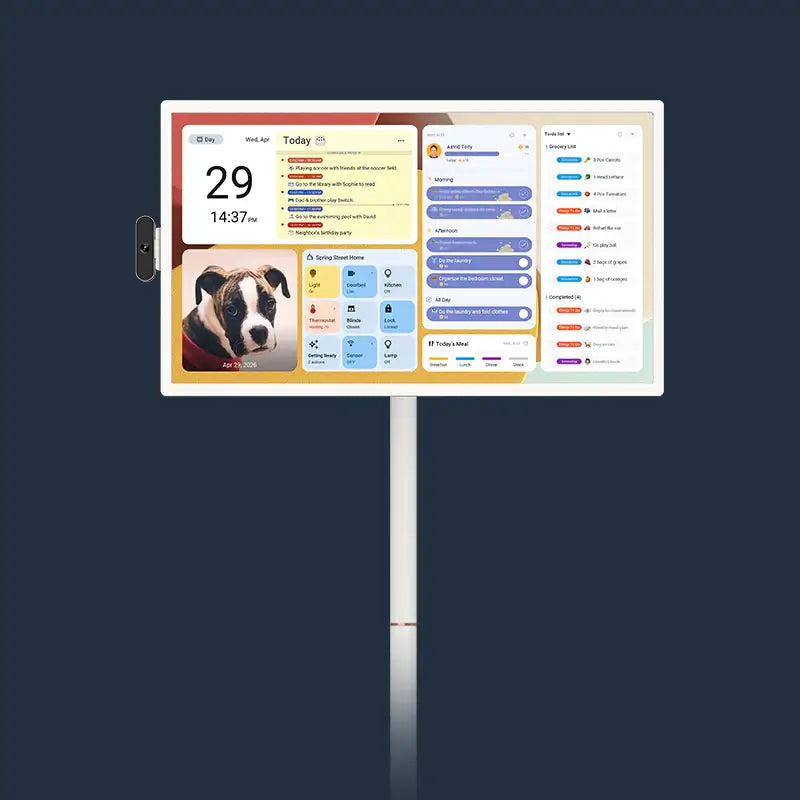
Think about a shared screen at home when some people need to see plans without opening a phone. That could be an older child, a grandparent who helps with rides, or a partner who rarely opens the calendar app. WIRED describes how digital wall calendars put connected online calendars on a shared screen, where your family can view and update plans without a phone. The WIRED reviewer said it worked for her household because both adults already kept their online calendars up to date.

That's the key point. A display is a view of the same shared calendar, not a separate calendar, and it still needs clear labels and a confirmation message. If an at-home view fits your family, decide between one screen or several based on where people gather.
In short, households where everyone checks the phone calendar can keep it and focus on labels and quick messages. Households where some people only see plans at home can add an at-home view of the same calendar. Either way, a window should read as a window, and only a confirmed time should look like a firm appointment. Your next step is to open the next flexible plan on your calendar, rewrite its title, and name who will update it. If you decide a shared screen fits your home, you can also explore our Apolosign digital calendar options.
FAQs
What if I know only the earliest possible time?
Write the known limit and the open part together, such as "Pickup, no earlier than 2 p.m.; exact time unknown." If you need a time slot, you can start it at 2 p.m. Keep the wording in the title so the start time doesn't look like the appointment itself.
Should I use an all-day event for a flexible time window?
Use an all-day entry only when the plan has no real window within the day, like "Grandma visits sometime Saturday." If you know a range, a timed entry that covers the range tells your family more. If the time is simply not set yet, add "time unknown" to the title so the entry doesn't look complete.
What if the time is still unknown close to the event?
Add what happens next to the entry, such as "Coach sends time by 6 p.m. Thursday; text Sam if no word." Your family then knows when to expect an answer and who to ask. Once the time is set, update the entry and send the usual short message to the people affected.