




Send each shared family calendar reminder to the person who has to do something next, like drive, pack, sign, or pay. Everyone else who needs to know the plan can still see the event on the calendar without getting the alert. Setting this rule as a household keeps alerts tied directly to who is responsible for each step.
Who gets the alert, who can see the plan, and who can change it are three separate choices. Making each one on purpose keeps alerts meaningful and the calendar trustworthy.
Send the reminder to whoever owns the next action
Start with the task, not the event. Every event that needs a reminder has a next step, and that step belongs to someone.
One clear owner, one direct alert
Name the next action, name the person, and set the reminder for that person only. Here is an illustrative example. Thursday soccer practice starts at 5:30 p.m., and Jordan is driving. The real task is "leave by 5:10 with the cleats," so Jordan gets a 4:45 alert.
The other parent and the older sibling can still open the calendar to see when practice ends. They just don't get a buzz for a job that isn't theirs. Putting the owner in the event title, like "Soccer: Jordan drives," makes the plan clear at a glance. The alert itself tells Jordan the job is Jordan's.
When more than one person must act
Split a shared event into separate actions, then give each action its own owner and reminder. Say a field trip needs a signed permission slip by Wednesday and a packed lunch on Friday morning. One parent gets a Tuesday night reminder to sign the slip. The other gets a 7 a.m. Friday reminder to pack the lunch.

Don't count on the app to know who is responsible just because someone created the event or is listed on it. Write each person's step into the plan yourself. That way, each person gets a reminder only for the step they own.
Keep calendar access broader than alert delivery
Seeing the plan is useful to almost everyone, but changing it and getting alerts are narrower jobs. Hand out view access freely and edit access with care.
Give context without edit responsibility
Give view access to anyone who needs to know when things happen but doesn't add events. A teen checking whether the house is free on Saturday fits here. So does a grandparent who helps out on Tuesdays.
Google Calendar makes this split easy to see. Google Calendar's view and edit permissions let the owner choose between "See event details" and "Make changes and see event details." A family member with see-only access can plan around events without being able to change them.
Keep calendar maintenance with the people who update it
Limit edit access to the one or two adults who actually enter and change events. Fewer editors make it easier to know who changed what and who to ask when something looks off.
Being an editor doesn't make you the alert manager for the whole family. In Google Calendar, notification settings are personal and apply only to your own account, so changing your alerts doesn't change anyone else's. Each action owner sets or keeps their own reminder. If old or wrong events start piling up, a weekly calendar reset routine helps the editors keep things current.
For two homes, start with the shared online calendar
When kids move between houses, one online calendar that both homes can open is the base. A screen at home only makes sense when it fixes something that calendar can't.
When online access is enough
Stick with the shared online calendar when both homes check it and changes show up for everyone. Here's an illustrative example. Co-parents split the week, Monday to Wednesday at one house and Thursday to Sunday at the other. Both adults use the same calendar on their phones and look at it every day.
When soccer moves from Thursday to Friday, both parents see the change. The parent who now has pickup sets the reminder. Nothing is missing, so a second screen adds little. If you're still building that schedule, start with a shared custody calendar both homes can use, then add co-parenting calendar notifications for each action owner.
When local visibility is still missing
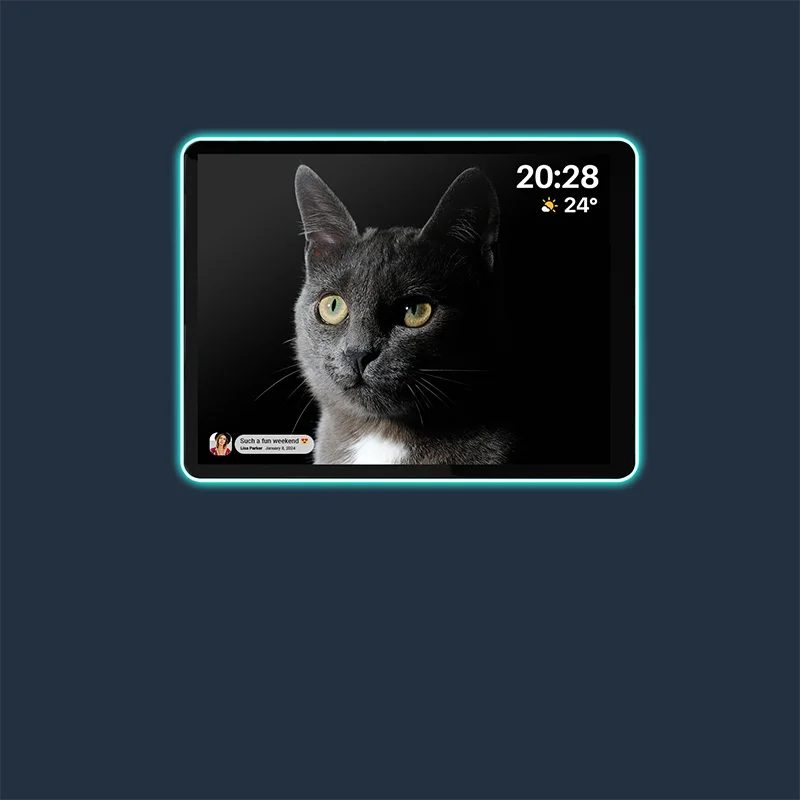
Consider a home display when someone at one house needs to see the plan without opening a phone. That might be a 9-year-old with no phone at Dad's house. It could also be a grandparent who handles pickups there but doesn't use a calendar app.
The LINC field study supports this idea. In a trial with four families over four weeks, researchers found that a digital family calendar needs to be easy to reach and give at-a-glance awareness. They also noted that families have differing location needs, so one home may want a screen while the other doesn't.
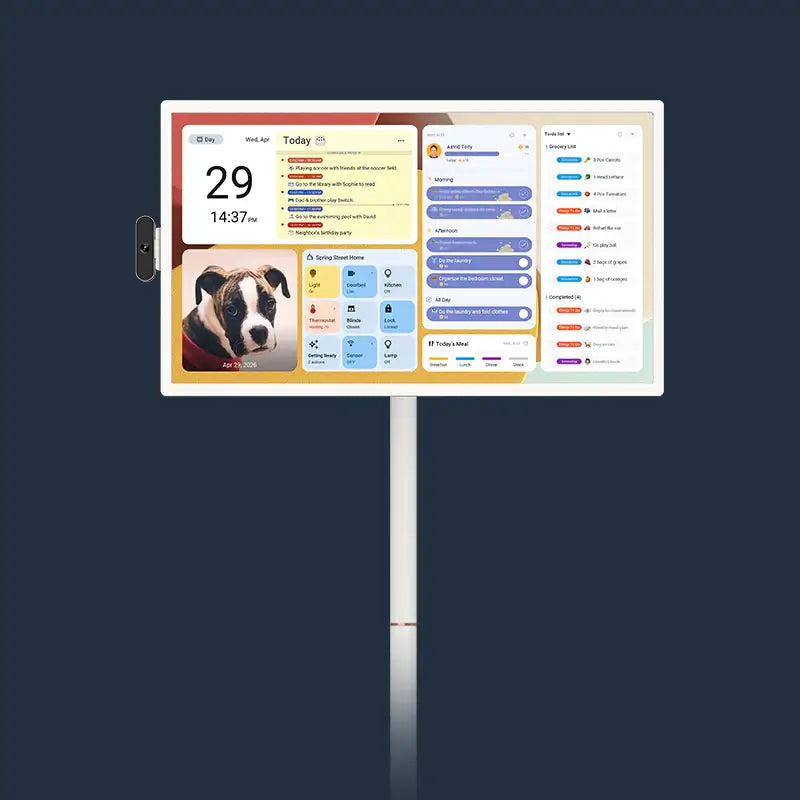
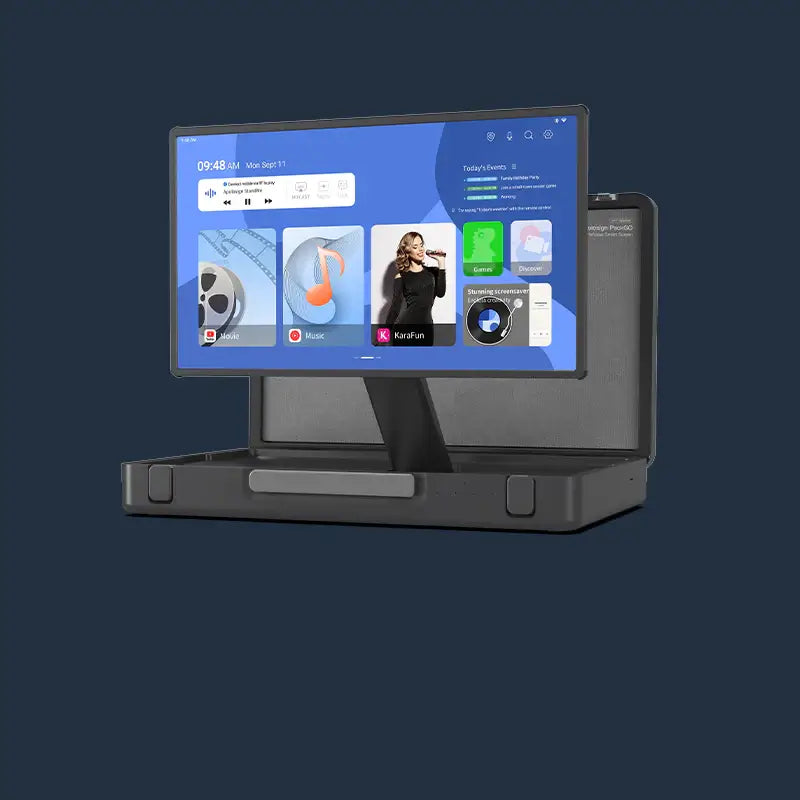
One BestForAndroid reviewer who tested the 21.5-inch model of the Apolosign Digital Calendar said it became "the spot the whole house checks on the way out the door." A display from our Apolosign Digital Calendar collection works as a local view of your shared schedule. It doesn't replace the online calendar or decide who gets alerts. If you add one, mount it where people pass before leaving, a placement idea we cover in our home calendar display tips.
Bottom line: if your family mostly misses tasks, fix who gets your shared family calendar reminders. Put one owner on each action and send that person the alert. If tasks are clear but someone at one home still can't see the plan, that's a visibility gap, and a home display may help. When you are ready to give your household an easy-to-see central schedule, browse our digital calendar collection to find the right screen size for your wall or counter. Try it this week: pick one upcoming event, write down its next action and owner, and set just that one reminder.
FAQs
What should happen when a plan changes after reminders are set?
Whoever edits the event should also update the action owner. If the time moves, the owner adjusts their reminder to match. If the task moves to someone else, the new owner sets a reminder and the old owner removes theirs. A quick text like "Friday pickup is yours now" keeps the handoff from getting lost.
What if someone wants more or fewer alerts than the plan gives them?
Let them adjust their own reminders. The household rule decides who must get an alert, not who is allowed to add more. In Google Calendar, each account's notification settings stay with that person, so one parent's extra alerts won't add noise for anyone else.
Should kids get their own calendar reminders?
Give a child a reminder when the child owns the task, like packing a gym bag or practicing an instrument. For younger kids without a phone or account, the helping adult gets the alert and passes the message along. That keeps kids involved without making them responsible for steps they can't handle yet.
Is it ever okay to send one reminder to everyone?
Yes, when everyone really does have a next action. For a 7 a.m. Saturday flight, each person has to be up, packed, and ready, so each person is an action owner. Save these all-family reminders for those events, so a buzz still means "this one is yours."